# Plugins
> Client-native extensions for Claude Code, Claude Desktop, Codex, Copilot CLI, and Cursor
Give every developer the same coding-agent setup. A plugin packages hooks, subagents, slash commands, skills, and MCP settings for one client. You publish it in Archestra once, and each developer installs it with one command.
Import popular plugins, such as Anthropic's [official marketplace](https://github.com/anthropics/claude-plugins-official), [Superpowers](https://github.com/obra/superpowers), and GitHub's [Awesome Copilot](https://github.com/github/awesome-copilot), or write your own. Plugins work with Claude Code, Claude Desktop, Codex, Copilot CLI, and Cursor.
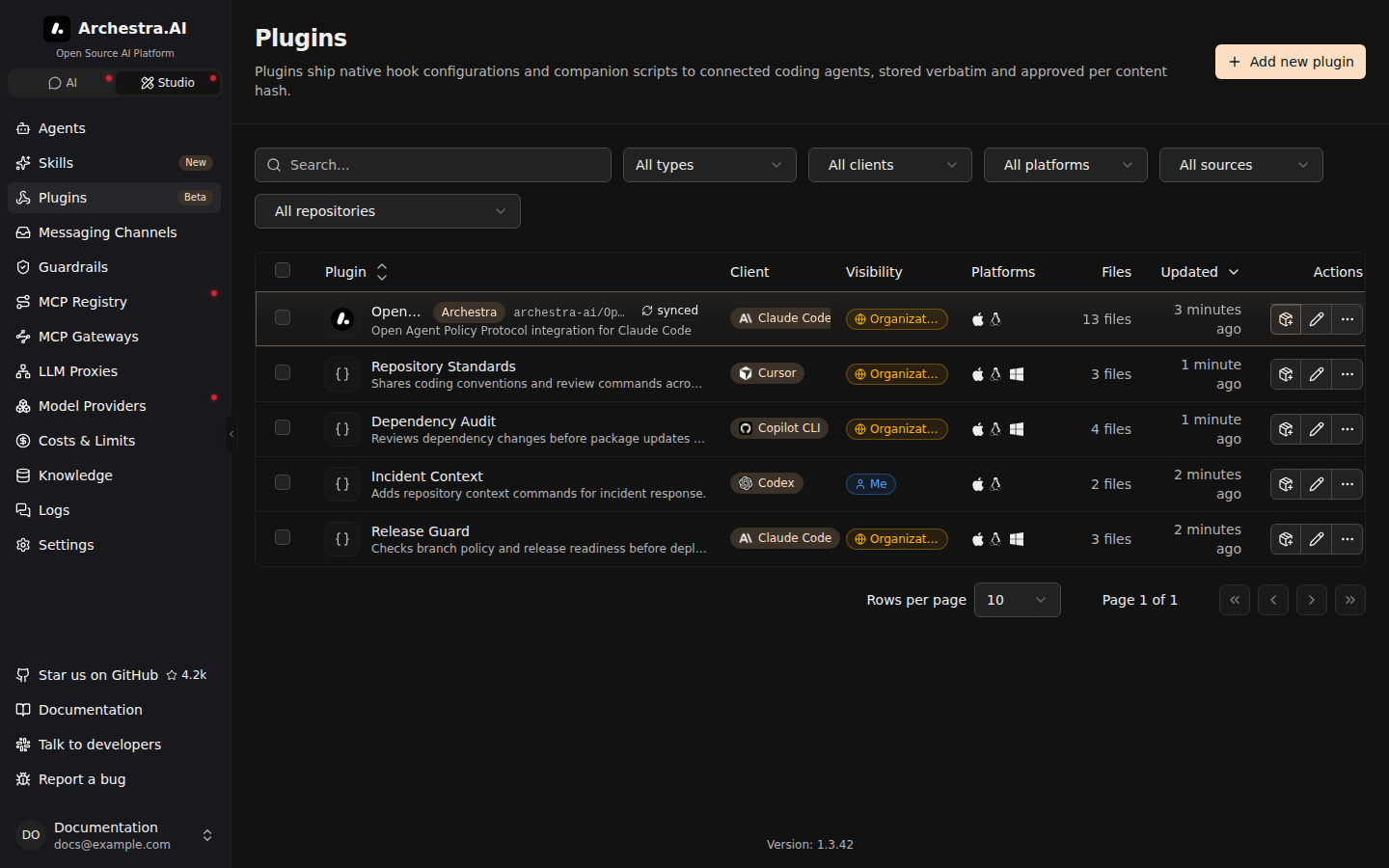
## Create a Plugin
1. Go to **Plugins** and click **Add new plugin**, then **Blank template**.
2. Enter a name, and pick the target client and platforms (macOS and Linux, Windows, or both).
3. Add files. A new plugin starts with `hooks/hooks.json`, which you can replace.
4. On **Permissions**, choose who can use it, and click **Create plugin**.
Archestra stores the files as you write them. It does not convert them between clients.
## Import From GitHub or GitLab
Bring a team's plugins in from any GitHub or GitLab repository, on the cloud or your own host, and review every update before it installs. A repository without a marketplace file works too: Archestra lists each folder with a `plugin.json`, such as `plugins//`.
1. Go to **Plugins** and click **Add new plugin**. Pick a popular marketplace, or click **Git repository**.
2. Pick **GitHub** or **GitLab**, then how to sign in, then the repository.
3. Click **Find plugins**, select the plugins, preview their files, and import them.
The plugins then show on **Plugins**.
What to know:
- Claude Desktop reads Claude Code's plugin format. To import a Claude Code plugin for Desktop, such as one from Anthropic's [knowledge-work plugins](https://github.com/anthropics/knowledge-work-plugins), add **Claude Desktop** under **Clients**.
- Private and self-hosted repositories need a GitHub App or a GitLab token, as for [skills](https://archestra.ai/docs/agents/skills/importing#private-repositories).
- Imported files are read-only here. Edit them in their repository. The **Source** section on the plugin's page sets the **Branch**, **Keep in sync**, and **Access**.
- Updates wait for you. A new commit shows **Review update**. Compare the files and click **Approve and apply**. Until then, the current files stay in use.
## Install Plugins
Developers install plugins from a plugin's page, or pick several for one command. [Connect Your Agents](https://archestra.ai/docs/get-started/connect) can install them too, along with the gateway, the proxy, and shared skills.
What to know:
- Each install skips plugins for another client or platform.
- Claude Desktop installs its plugins only through its setup on **Connect**, which also sets its gateway and proxy. Rerun it there to add new plugins.
- Codex asks before hooks run. Open `/hooks` in Codex to approve them.
- **Cursor lists installed plugins** under **Customize → Plugins**.