# Agent Runtime
> Run coding agents and long tasks in their own Kubernetes containers
> **Beta feature.** Agent Runtime is in Beta and requires the [Agent Sandbox controller](https://archestra.ai/docs/agents/runtime/setup#cluster-prerequisites).
Agent Runtime gives an agent a dedicated runtime: its own container, running a coding agent such as Claude Code or Codex. You get a live terminal, and the files persist. Send follow-ups and continue later with the same files.
Agent Runtime becomes available when your Kubernetes cluster serves the Agent Sandbox API. It needs persistent storage and the [Agent Sandbox controller](https://archestra.ai/docs/agents/runtime/setup#cluster-prerequisites). See [Setup](https://archestra.ai/docs/agents/runtime/setup).
A run uses the agent's instructions, tools, skills, and permissions. Its model calls go through the [LLM Proxy](https://archestra.ai/docs/llm-proxy) and its tools through the [MCP Gateway](https://archestra.ai/docs/mcp/gateway), so logs, guardrails, and cost limits apply.
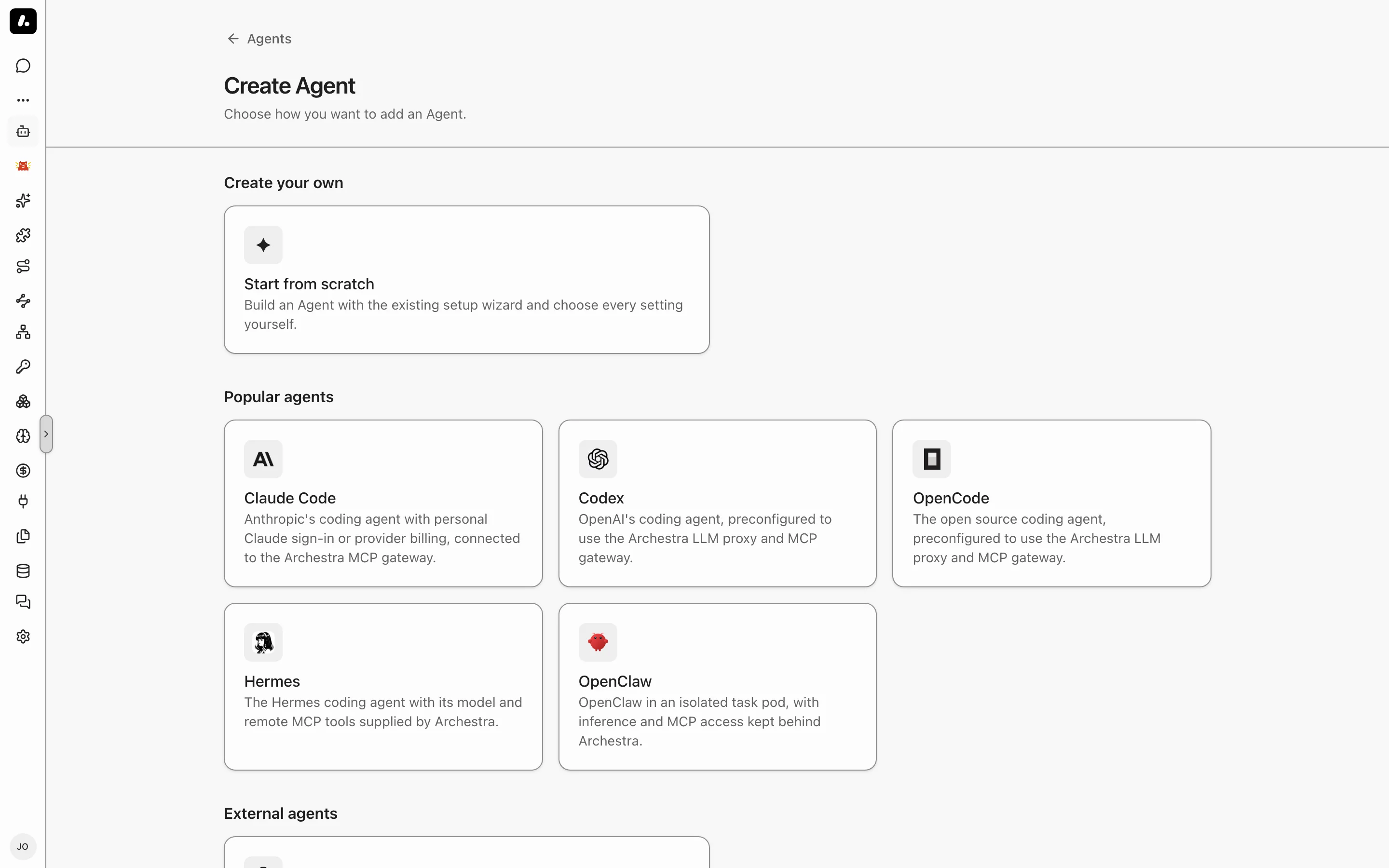
## Create an Agent With a Dedicated Runtime
You can pick the runtimes an administrator lets you use, in addition to needing access to create or edit the agent. See [who can use each runtime](#choose-who-can-use-each-runtime). Ordinary edits preserve an existing runtime, and read and run access is unchanged.
1. Go to **Agents** and click **Add Agent**.
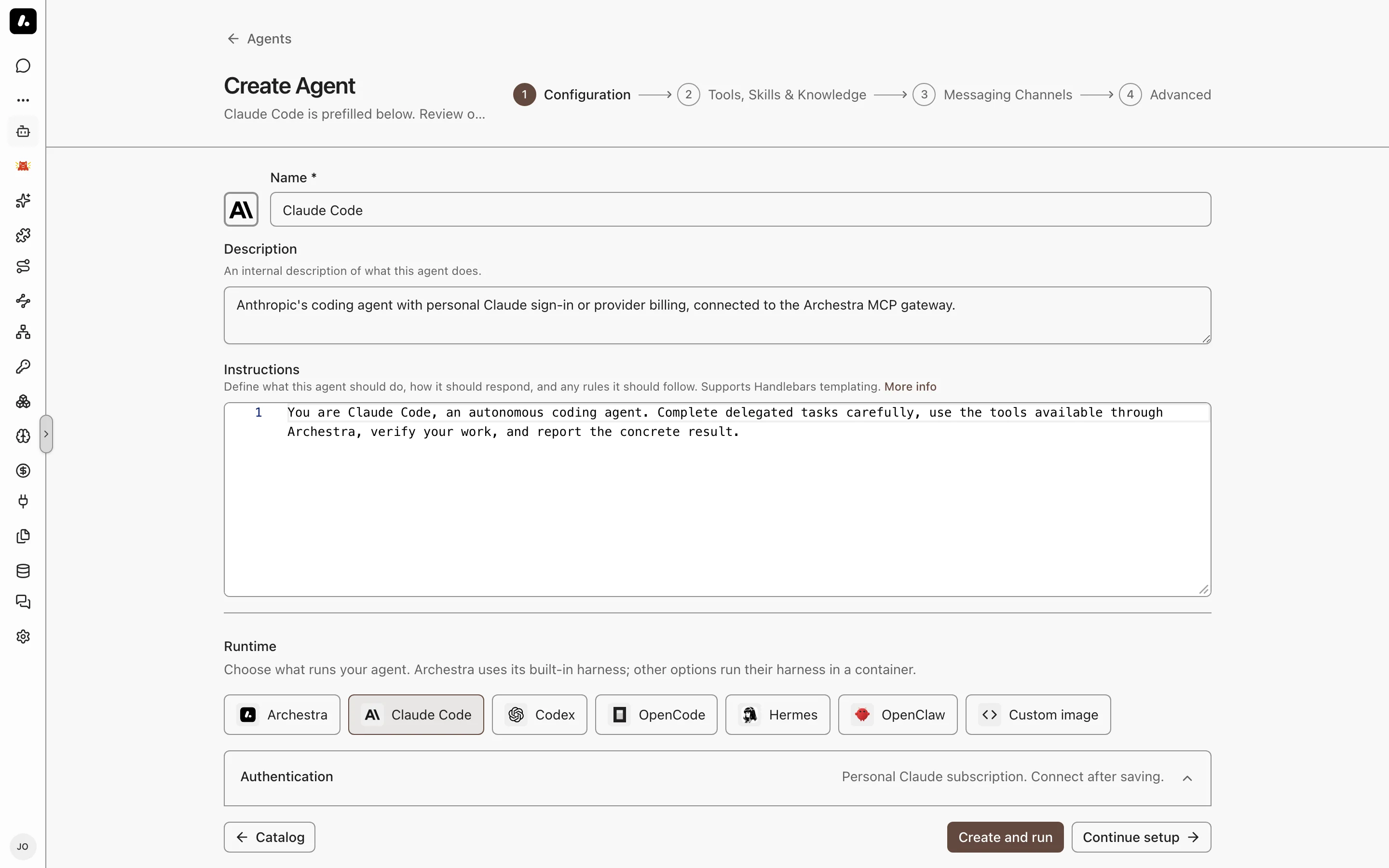
2. Under **Agent Runtimes**, pick **Claude Code**, **Codex**, **OpenCode**, **Hermes**, **OpenClaw**, **Grok Build**, or **Kimi Code**. The agent opens prefilled.
3. Review **Runtime** on the **Configuration** step. An attention icon marks a setting you must fix. Hover over it to see what to change.
4. Click **Create and run**, or **Continue setup** to add tools, skills, and knowledge first.
Already have an agent? Open it, turn on **Dedicated runtime** on its **Agent Runtime** tab, and click **Save changes**.
From a connected client, ask your agent to create one. [`create_agent`](https://archestra.ai/docs/reference/archestra-mcp-server#create_agent) takes the same choice as `runtime: { "template": "claude-code" }`, or a custom `image`. [`list_llm_models`](https://archestra.ai/docs/reference/archestra-mcp-server#list_llm_models) finds a model to pin.
### Choose and Order Agent Runtimes
With [`organizationSettings:update`](https://archestra.ai/docs/reference/permissions#organizationSettings:update), go to **Settings → Agents → Runtimes** to choose the agents offered during creation.
1. Choose **Add runtime** to add a choice, or remove one with its **… → Remove from list** action.
2. Drag the rows into your preferred order. You can also focus a row's reorder handle and use the arrow keys.
Each change saves as you make it. The Create Agent cards and Configuration runtime choices follow the order. Removing a choice preserves existing agents and their runtime configuration.
### Set a Runtime's Settings
Decide once how a runtime's agents start, such as whether Claude Code bills each person's Claude subscription or a company API key. This uses [`organizationSettings:update`](https://archestra.ai/docs/reference/permissions#organizationSettings:update).
1. Go to **Settings → Agents → Runtimes**, open a runtime's **⋯** menu, and click **Edit runtime**.
2. Under **Runtime settings**, set its defaults. A built-in runtime has **Claude account** (Claude Code only), run limits, and tiers. A custom runtime also has its image, protocol, and follow-up delivery.
3. Click **Save runtime**.
Saved settings apply to agents created afterwards. To bring existing agents up to date, reopen the runtime: **Existing agents** shows how many still use older settings, and **Update** gives them the saved ones.
- Each agent keeps its own environment, credentials, ports, and model.
- An update is refused, naming the agents, when the new settings would no longer work with an agent's model. Change that agent's model first.
### Choose Who Can Use Each Runtime
Try a runtime with a pilot team before offering it to everyone, and decide who may change its settings on their agents. Open the runtime's **Edit runtime** dialog and set **Who can use it** under **General**:
- **Can use:** create agents on the runtime. They take its settings and can't change them.
- **Can use and configure:** create agents on it and change its settings on those agents.
- **Full access:** also change who can use it.
Admin and Platform Admin have full access to every runtime, and a new custom runtime starts with only them. To set access for all runtimes at once, use **Permissions** on the Runtimes page.
- Running an image that isn't one of your runtimes needs **Can use and configure** on every runtime.
- Running or chatting with an existing agent is decided by the agent's own permissions, not the runtime's.
### Update the Image
Built-in coding agent images use the deployment's current catalog image unless pinned by digest. When the image reference changes, your next follow-up restarts the Agent on that image and keeps your files.
If you change a custom image or the **Privileged mode** setting, which grants access to the host system, start a new run. Existing files are kept until their retention deadline.
## Models and Credentials
Each run gets a temporary virtual key. Provider keys stay in Archestra.
- **Claude Code:** your Claude Pro or Max subscription, or an API key for Anthropic, Amazon Bedrock, or Anthropic on Vertex AI.
- **Codex:** your ChatGPT subscription, connected under **Model Providers**. An OpenAI API key does not replace it.
- **Grok Build:** your SuperGrok subscription, connected under **Model Providers**, or an xAI API key. Pick an xAI model, such as `grok-4.7`.
- **Kimi Code:** a Kimi Code membership key, added as a Kimi Code key under **Model Providers**, for yourself or shared with a team. Pick a Kimi Code model, such as `k3.1-pro`.
- **Other agents:** any [model provider](https://archestra.ai/docs/llm-proxy/providers) configured in Archestra.
What to know:
- Each person connects their own Claude, ChatGPT or SuperGrok subscription before their first run. Subscription usage, Kimi Code included, shows in the logs, but it does not count toward cost limits.
- Claude subscription runs use Opus unless you select another **Model**. **Claude account default** follows Claude Code's choice for your account.
- Tools run with the permissions of the person who started the run.
### Clone a Private GitHub Repository
Give a built-in coding agent a `GITHUB_TOKEN`, and it can clone, commit, push, and open pull requests as that token's GitHub account.
1. Save a GitHub token in [Credentials](https://archestra.ai/docs/admin/credentials), with access to the repository. Cloning needs read access to repository contents; pushing needs write access.
2. Open the agent's **Agent Runtime** tab. Under **Environment**, click **Add variable**.
3. Set **Key** to `GITHUB_TOKEN` and **Type** to **Secret**. Under **Secret source**, select your saved credential.
4. Save the agent, start a new run, and ask it to clone the repository, make a change, and open a pull request. The pull request's commits show the token's GitHub account as their author. If GitHub rejects the token, the run stops before the agent starts.
What to know:
- For a token used only by this agent, choose **Resource-specific secret** instead. Secret values are provided after saving; turn on **Required variable** to have Chat prompt for a missing value before a run.
- **Accept credentials from a connected client** controls [credential transfers during handoff](https://archestra.ai/docs/agents/runtime/handoff#pass-a-credential). It is not required for secrets configured under **Environment**.
- The built-in images include Node.js, Python, Rust, and PostgreSQL with pgvector. To compile code with another toolchain, such as Go, [extend the agent image](https://archestra.ai/docs/agents/runtime/custom-images#add-a-toolchain).
## Run a Task
Select the agent in Chat or in a [Project](https://archestra.ai/docs/chat/projects) and send a task. This starts a **run**: a container that works on your task. Follow-ups continue the same run. The live terminal opens and shows startup progress. Attach files before you send, and the agent reads them in its container.
- **Leave and come back:** the run keeps working. Reopen it from the sidebar and send a follow-up.
- **Past runs:** the agent's **Runs** tab lists live and finished runs. Select a run to open it, then select the **Open full view** expand icon for the larger terminal and run controls. For a retained run you started, select **Resume** to reopen it without sending a message.
- **Stop a run:** the person who started it selects **Stop** in Chat or in the open run, or **Stop run** on its row in the **Runs** tab. Its saved files and history stay, so you can resume it later.
- **Delete a run:** after a run ends, the person who started it selects **Delete run** on its row, or **More run actions → Delete run** in the open run. Deleting a run permanently removes its history, output, and saved files.
- **Several runs at once:** on the **Runs** tab, select the runs you started. Then choose **Stop**, **Delete saved files**, or **Delete**. **Stop** acts on live runs. The other two act on finished runs. **Delete saved files** frees the storage of those runs and keeps their history.
- **Copy text:** select **Select text** to copy text with the browser. Select **Type** to use the running app's controls again.
- **Ctrl+C:** in **Type** mode, Archestra asks you to confirm before it sends Ctrl+C. Ctrl+C stops the agent's turn, and a second one can close the agent. The audit log records who attached to the terminal and when they sent Ctrl+C.
- **Follow-ups** reach the agent between its turns. To type them into its terminal instead, set **Steering** to **Terminal input** on the **Agent Runtime** tab.
- **Open a web app:** for a run you started, select **Open full view**, then **More run actions → View connection details** for the agent's port forwarding command.
What to know:
- Only the person who started a run can type in it. [Share the run](https://archestra.ai/docs/admin/access-control#granular-access-control) to give others read-only access. Project members and agent administrators can read it without a share.
### How Long a Run Lasts
- An idle run pauses. Its files stay. Shell processes and development servers stop, so restart them when you resume.
- A run expires after its maximum duration. Its history stays, but its files go. Push your work to a repository or download it first.
- Stopping a run keeps its files. Deleting its container and storage removes them.
### Limits
Limits protect your cluster and budget by capping runtime duration, idle time, spend, and container compute. Configure them under **Limits** on the agent's **Agent Runtime** tab. Blank fields inherit [deployment defaults](https://archestra.ai/docs/admin/deployment/configuration#ARCHESTRA_AGENT_RUNTIME_DEFAULT_TTL_HOURS).
| Setting | What It Does |
| --- | --- |
| **Idle timeout** | Pauses the run when it finishes a task and receives no follow-up within this time. |
| **Maximum duration** | Stops the run after this time, even mid-task, and deletes its files. Follow-ups do not extend it. |
| **Metered LLM budget** | Blocks metered model calls once the run reaches this spend. Subscription usage does not count. |
| **Default tier** | Sets the container size for standard runs from your organization's [runtime tiers](https://archestra.ai/docs/agents/runtime/setup#runtime-tiers). |
| **Scaleup tier** | Sets the largest tier a run can request. Choose **Disable autoscaling** to disable scaling up. |
When starting a run through [`start_agent_run`](https://archestra.ai/docs/reference/archestra-mcp-server#start_agent_run) or [`POST /api/agents/{id}/runs`](https://archestra.ai/docs/reference/api/agents#tag/agents/POST/api/agents/{id}/runs), you can pass custom `limits`. You can request stricter limits or a different tier, either by name or by minimum compute (`min_cpu` and `min_memory_gib`). A tier chosen by minimum compute never has a smaller workspace than the agent's default tier. Requests exceeding the agent's configured limits fail with the allowed tiers named.
A run that needs more compute starts a new run of the same agent at a larger tier and hands over its workspace. Setting **Scaleup tier** to **Disable autoscaling** disables scaling up. The agent runtime instance receives instructions that scaling is disabled, and scaleup attempts fail with a non-retriable error. A caller outside the agent's runs, such as a CI job, that asks for more than the agent's tier is told which tiers the agent can use. It can then start the run at the agent's tier.
Inside a container, `ARCHESTRA_AGENT_RUNTIME_TIERS` lists the allowed tiers with their CPU, memory, and workspace size. When the requested tier has no ready warm container, Archestra serves the run from the next larger tier within the scaleup limit, unless that tier has a smaller workspace. Runs never start below their requested tier.
## Network Access
Unless an administrator sets a policy, a run can reach the public internet. To limit it, set a [network egress policy](https://archestra.ai/docs/admin/environments#network-egress-policies) on the agent's [environment](https://archestra.ai/docs/admin/environments), or [give the agent its own policy](https://archestra.ai/docs/admin/environments#give-one-agent-its-own-policy).
What to know:
- A strict policy can break a task. Allow the repositories, package registries, and services the task uses.
- A continued run picks up the current policy.
## Guardrails in a Run
[Guardrails](https://archestra.ai/docs/agents/guardrails) check each tool call and tool result inside the run.
- **Delegated runs** get their parent's restrictions before work starts. Follow-up instructions keep them. An answer crosses the guardrail check before another agent gets it.
- **Review:** a run has no person at hand. By default, a call that needs human approval waits. Set **Human approval** under **Break the glass** in **Settings → Guardrails** to **Waive in unattended sessions** to let it run anyway and approve a plan that needs one for the agent. Each waiver records a yell in the **Yells** tab, and with the default **Yell tool** setting that yell also turns Guardrails off for the run's session. With the default, the review shows in the run's live terminal as the agent's own question card or form, and only the run's owner approves or denies it there. Client permission settings cannot approve it.
- **File downloads:** a protected transfer checks the pinned file content before it returns a download command. It refuses a file that needs changes or that passes the protected export limit. The session owner can still download directly.
- **Old sessions:** turning on Guardrails does not protect work that started before. Start a new session. Guardrails do not replace filesystem or network sandboxing.
## Start Runs From Elsewhere
- **Remote Agents:** [hand work off](https://archestra.ai/docs/agents/runtime/handoff) from Claude Code or another connected agent, and bring it back.
- **A coordinator agent:** add the agent as a [subagent](https://archestra.ai/docs/agents/subagents). The coordinator keeps answering while the run works. This also covers messaging channels: the result returns to the original thread.
- **Messaging channels:** a message to the agent in [Slack](https://archestra.ai/docs/agents/triggers-and-channels/slack), [Microsoft Teams](https://archestra.ai/docs/agents/triggers-and-channels/ms-teams), or [Telegram](https://archestra.ai/docs/agents/triggers-and-channels/telegram) starts a run. The bot replies with a link to the run, then posts the result in the thread. A follow-up from the same person continues their run.
- **Email:** an [email](https://archestra.ai/docs/agents/triggers-and-channels/email) to the agent starts a run. The result returns in the thread when replies are on.
- **A2A:** A2A clients start runs and continue them with the same `contextId`. Client-credentials OAuth applications cannot use Agent Runtime, even when bound to a service account. Use a permitted service-account API key or a user credential instead. See [A2A](https://archestra.ai/docs/agents/triggers-and-channels/webhook-a2a#sdks).
- **Scripts and CI:** with a permitted service-account API key or user credential, a script starts a run with [`start_agent_run`](https://archestra.ai/docs/reference/archestra-mcp-server#start_agent_run) through an MCP Gateway and polls [`get_agent_run`](https://archestra.ai/docs/reference/archestra-mcp-server#get_agent_run). The run ends when the agent finishes. A failed run says whether to start again: see [Read Why a Run Failed](#read-why-a-run-failed). Continue the saved workspace with [`steer_agent_run`](https://archestra.ai/docs/reference/archestra-mcp-server#steer_agent_run).
### Read Why a Run Failed
A failed run carries a stable `failure.code`, so a script can retry or stop without parsing the message.
| Code | Retry | What happened |
| --- | --- | --- |
| `launch.kubernetes_unavailable` | Yes | The Kubernetes API was overloaded or unavailable. |
| `launch.kubernetes_rejected` | No | Kubernetes refused the run's objects. |
| `launch.controller_missing` | No | The cluster has no Agent Sandbox controller. |
| `launch.misconfigured` | No | The agent's settings or the caller's credentials do not allow a start. |
| `launch.capacity_timeout` | Yes | The pod did not start or resume in time. |
| `launch.credentials_timeout` | Yes | The run's credentials did not reach the pod in time. |
| `pod.evicted` | Yes | Kubernetes evicted or preempted the pod. |
| `pod.oom_killed` | No | The run reached its tier's memory limit, and the kernel killed it. |
| `pod.workspace_full` | No | The agent filled its workspace volume. Ask an administrator for a larger volume. |
| `pod.image_pull` | No | The image could not be pulled. |
| `pod.failed` | No | The pod failed for another reason. |
| `turn.interrupted` | Yes | The pod was replaced while the agent worked. The turn is not repeated. |
| `turn.recording_failed` | Yes | The terminal recording stopped, so the turn stopped. |
| `turn.process_exited` | No | The agent exited before it reported a result. |
| `turn.exit_status` | No | The agent exited with an error and gave no reason. |
| `budget.exceeded` | No | The run spent its **Metered LLM budget**. |
| `run.settings_changed` | No | The agent's image or host access changed. Start a new run. |
| `run.resume_refused` | No | The saved workspace cannot take this turn. |
| `run.workspace_busy` | Yes | Another turn took the saved workspace first. |
| `run.workspace_missing` | No | The workspace was deleted while the agent worked. |
| `run.deadline_exceeded` | No | The workspace reached its retention deadline. |
| `run.unknown` | No | No other code applies. |
| `image.` | Depends | The agent's image reported this code. Maintained images mark rate limits, provider outages, and proxy or tool startup failures as retriable. |
What to know:
- `failure.retriable` is `true` when a new run of the same agent is likely to succeed without a change.
- `failure` is `null` on a run that did not fail, and on a failed run with no code.
- Under [Guardrails](https://archestra.ai/docs/agents/guardrails), [`get_agent_run`](https://archestra.ai/docs/reference/archestra-mcp-server#get_agent_run) withholds the status reason but still returns the code. [`GET /api/agent-runs/:taskId`](https://archestra.ai/docs/reference/api/agents#tag/agents/GET/api/agent-runs/{taskId}) also returns `failure.message`, the same text as `statusReason`.
## Troubleshooting
- **A run does not start:** see [Setup troubleshooting](https://archestra.ai/docs/agents/runtime/setup#troubleshooting).
- **A run ends with a pod failure:** open **Failed details** for the Kubernetes pod name, failure reason, and container exit code when available. Share these details with your cluster operator; for example, `OOMKilled` identifies a memory termination and `Evicted` includes Kubernetes' eviction message.
- **A run ends with `pod.oom_killed`:** the run used all the memory of its [runtime tier](https://archestra.ai/docs/agents/runtime/setup#runtime-tiers). **Failed details** names the memory limit, the tier, and when the kernel killed the run. Start the run again at a larger tier, or have the agent run type checks, test suites, and builds one at a time and with fewer workers.
- **A run ends with `pod.workspace_full`:** the agent filled its workspace volume, which holds the home directory and, for privileged agents, the Docker data. **Failed details** shows how much of the volume was used. Start a new run after an administrator gives the agent's [runtime tier](https://archestra.ai/docs/agents/runtime/setup#runtime-tiers) a larger **Workspace** size. A tier with no size uses [`ARCHESTRA_AGENT_RUNTIME_WORKSPACE_STORAGE_SIZE`](https://archestra.ai/docs/admin/deployment/configuration#ARCHESTRA_AGENT_RUNTIME_WORKSPACE_STORAGE_SIZE). Exit code 77 means the volume refuses writes for another reason, such as a read-only or failing volume: ask your cluster operator to check it.
- **A model call fails with a Guardrails error:** the message says what to do, and the status says who.
- `400`: the conversation holds content [Guardrails](https://archestra.ai/docs/agents/guardrails) cannot store, such as binary tool output. Rewind past it or start a new conversation.
- `409`: the conversation cannot continue. Start a new one.
- `500` with `x-should-retry: false`: an administrator must fix the policy or the deployment setting the message names, or report the reference it carries.
- `503`: a short outage. The client retries on its own.
- **A model call fails with HTTP 400 and names `X-Archestra-Runtime-Binding`:** the agent's image does not send the [run headers](https://archestra.ai/docs/agents/runtime/custom-images#send-the-run-headers). Rebuild it on a current maintained image, then start a new run.
- **Find a run's traffic:** LLM Proxy Logs and MCP Gateway Logs show the run ID. For health metrics, see [Agent Runtime Health](https://archestra.ai/docs/admin/observability/metrics/agent-runtime).
## Explore
- [Agent Runtime Setup](https://archestra.ai/docs/agents/runtime/setup.md): Prepare Kubernetes nodes, storage, and the Agent Sandbox controller for Agent Runtime
- [Remote Agents](https://archestra.ai/docs/agents/runtime/handoff.md): Hand a task from your coding agent to a Remote Agent in Archestra, then bring the result back
- [Custom Images](https://archestra.ai/docs/agents/runtime/custom-images.md): Run your own coding agent image in Agent Runtime