# MS Teams
> Connect Archestra agents to Microsoft Teams channels
Mention the bot in Microsoft Teams, and an Archestra agent answers in the thread. Each channel, group chat, and direct message has its own agent. People can ask a different agent for one message.
## Connect Microsoft Teams
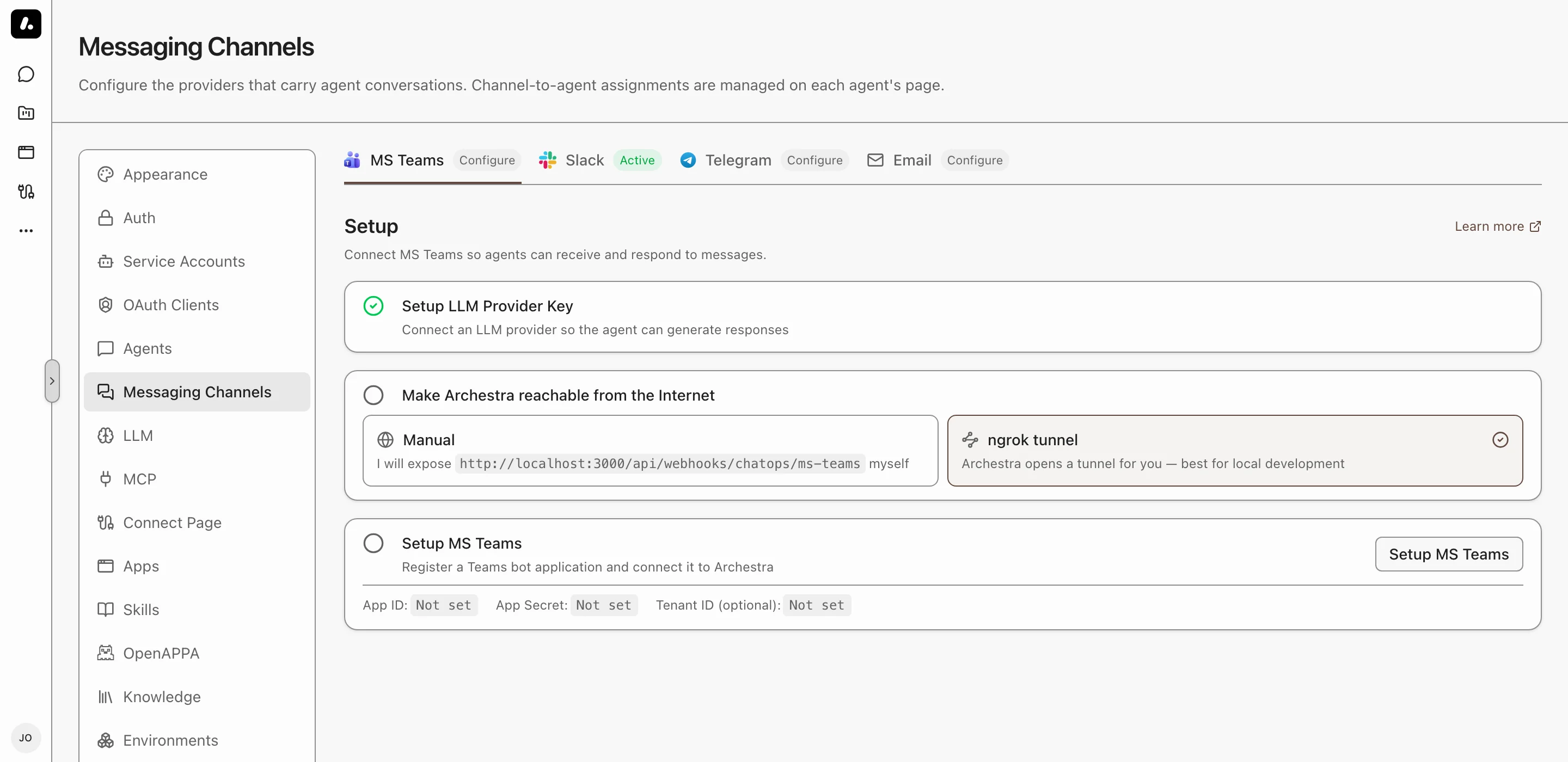
You need an Azure subscription where you can create an Azure Bot, and a Teams tenant that allows custom apps.
1. Go to **Settings → Messaging Channels → MS Teams** and click **Setup MS Teams**.
2. Follow the wizard. It creates the Azure Bot and the Teams app, and saves the credentials.
3. Install the app in your team.
What to know:
- Teams must reach Archestra from the internet. [Public Webhook Endpoints](https://archestra.ai/docs/admin/deployment/networking#public-webhook-endpoints) shows how to expose only its webhook. A local instance can use the wizard's **Configure ngrok** step instead.
- To configure Teams with environment variables, see the [Configuration reference](https://archestra.ai/docs/admin/deployment/configuration#chatops).
## Pick the Agent for a Channel
1. Mention the bot in the channel: `@Archestra what is the status of service X?`
2. Pick an agent from the card. It answers this message and later ones in the channel.
To change the agent, send `@Archestra /select-agent`, or [add the channel](https://archestra.ai/docs/agents/triggers-and-channels#assigning-channels) to another agent.
**Direct messages** work the same way, but each person must add the app for themselves first. Teams asks them to click **Add** the first time they open a chat with the bot.
## When the Bot Answers
Mention the bot to ask an agent in a shared conversation.
- In a channel, the bot answers only when you mention it.
- In a thread, one mention is enough. It then answers every message in that thread.
- In a group chat, mention the bot on each request. Once a conversation has started, ordinary group messages remain in its history without triggering replies.
- In a direct message, it answers every message.
- To answer every message in a channel or group chat, turn on **Answer all messages** in its **Settings**. The installer must approve the app's permissions.
To quiet a thread, send `mute`, or react to a bot reply with 🔇 or 🤫. The bot stops, and cancels any reply in progress. Mention it again to wake it.
## Ask Another Agent Once
Put the agent's name and `>` before your message:
```
@Archestra Sales > what is our Q4 pipeline?
```
The channel keeps its agent. Names match without regard to case or spaces. An unknown name goes to the channel's agent, with a notice.
## Channel Instructions
Tell the agent how to behave in one channel. Open the channel's **Settings** and write them as you would talk to the agent. For example: "Every message here is a task. Create it at once, and do not ask first."
They come first, before the agent's own instructions. They add to what the agent does, and never remove an ability.
## Commands
| Command | What It Does |
| --- | --- |
| `@Archestra /select-agent` | Changes the agent for this channel |
| `@Archestra /status` | Shows the agent for this channel |
| `@Archestra /help` | Lists the commands |
| `@Archestra /sign-out` | Removes your Microsoft sign-in for [reading files](#let-people-sign-in-to-read-files) |
| `reset` | Starts a new conversation. Direct messages and group chats only. |
## Read Files in Channels
Share a PDF in a channel, and the agent reads it. Teams keeps channel files in each team's SharePoint site, which the bot cannot open by default. Give it access in one of two ways:
- **Grant team sites:** your Microsoft 365 admin grants the bot read access to the teams you list. Nobody signs in. Best for a few teams.
- **Let people sign in:** the bot opens a file with the access of the person who shared it, in any team. Best when there are too many teams to list. See [Let People Sign In to Read Files](#let-people-sign-in-to-read-files).
Granted teams keep working with sign-in on. Only a file the bot cannot open asks its sender to sign in.
To grant team sites:
1. In **Settings → Messaging Channels → MS Teams**, open the setup and go to **Read Files**, on the **Channels** tab.
2. Paste each team's SharePoint site, one per line. Find it on the channel's **Files** tab, under **Open in SharePoint**.
3. Click **Copy request for IT** and send it to your admin.
When it works, the agent answers questions about a PDF shared in that channel.
### What Your Microsoft 365 Admin Does
1. In the [Microsoft Entra admin center](https://entra.microsoft.com/), open the bot's app under **App registrations**. On **API permissions**, add **Microsoft Graph → Application permissions → Sites.Selected**, then click **Grant admin consent**.
2. Grant read access to each site, for example with the [CLI for Microsoft 365](https://pnp.github.io/cli-microsoft365/):
```bash
m365 spo site apppermission add \
--siteUrl https://contoso.sharepoint.com/sites/Engineering \
--appId --permission read
```
What to know:
- [`Sites.Selected`](https://learn.microsoft.com/en-us/graph/permissions-selected-overview) alone grants nothing. The bot reads only the sites granted read.
- The grant needs `Sites.FullControl.All` on the admin's own sign-in. The bot never gets it.
- Private and shared channels each have their own site.
## Let People Sign In to Read Files
Share a file in a group chat or a channel, and the agent reads it after you sign in with Microsoft once. The bot opens the file with your access, so it never sees a file you could not open yourself. Group chats need this: Teams keeps their files in the sender's OneDrive, which no site grant covers.
1. In **Settings → Messaging Channels → MS Teams**, open the setup and go to **Read Files**, on the **Sign-in** tab.
2. In the [Microsoft Entra admin center](https://entra.microsoft.com/), open the bot's app under **App registrations**. On **Authentication**, add a **Web** platform with the redirect URI that the tab shows.
3. On **API permissions**, add **Microsoft Graph → Delegated permissions → Files.Read** and **offline_access**. For channel files, add [`Files.Read.All`](https://learn.microsoft.com/en-us/graph/permissions-reference#filesreadall) too. Then click **Grant admin consent**.
4. Turn on **Ask people to sign in for the files they share**. It saves as soon as you flip it. To change it later, use the **File sign-in** switch on the **Setup MS Teams** card.
When it works, the first file a person shares that the bot cannot open brings a **Sign in with Microsoft** card. After they sign in, the agent answers that message. Their later files are answered right away.
What to know:
- The app manifest does not change, and nobody reinstalls the app.
- In a channel, the bot reads only files in that channel's own folder with someone's sign-in.
- A sign-in lasts until the person types `/sign-out` to the bot, or Microsoft revokes it. Someone who signed in from a group chat signs in once more for channel files.
## Troubleshooting
| Problem | Fix |
| --- | --- |
| **"You don't have access to this app"** | Your organization blocks custom apps. Ask your Teams admin to allow them in the [Teams Admin Center](https://admin.teams.microsoft.com/). |
| **The bot does not answer** | Check that [`ARCHESTRA_CHATOPS_MS_TEAMS_ENABLED=true`](https://archestra.ai/docs/admin/deployment/configuration#ARCHESTRA_CHATOPS_MS_TEAMS_ENABLED), that Teams can reach your URL, and that the app ID and password are correct. |
| **"Could not verify your identity"** | Add the `TeamMember.Read.Group` and `ChatMember.Read.Chat` permissions to the app manifest. Then install the app again. |
| **No history in a channel thread, or Answer all messages does nothing** | Add the `ChannelMessage.Read.Group` and `ChatMessage.Read.Chat` permissions to the manifest. Install the app again, and have the team owner approve them. |
| **Direct messages do not work** | Upload the latest app manifest. Older manifests do not include the `personal` scope. |
| **The agent says it could not read a file from a channel** | Grant that team's site, or turn on sign-in, as in [Read Files in Channels](#read-files-in-channels). A private or shared channel needs its own site. |
| **The agent says it could not read a file from a group chat** | Turn on sign-in, as in [Let People Sign In to Read Files](#let-people-sign-in-to-read-files). |
| **Microsoft says "Need admin approval" when someone signs in** | The bot's app is missing a delegated permission or its consent. Add `Files.Read`, and `Files.Read.All` for channel files, then click **Grant admin consent**. |
| **Microsoft says the redirect URI does not match** | Add the redirect URI from **Read Files → Sign-in** to the bot's app, on **Authentication**, as a **Web** platform. |
| **"This sign-in link has expired"** | A card's link works once, for an hour. Send the file to the bot again for a new card. |
## What to Know
- **Memory:** in a channel, the agent reads the thread. In a direct message or group chat, Archestra keeps the history. See [Conversation History](https://archestra.ai/docs/agents/triggers-and-channels#conversation-history).
- **New people:** someone who messages the bot without an Archestra account gets one. It has the organization's default role for new users, set in **Settings → Auth**. Find these accounts in **Settings → Users**.
- **Welcome message:** the bot DMs a new person a sign-up link, or a sign-in link when you use [SSO](https://archestra.ai/docs/admin/identity/sso). To turn it off, set [`ARCHESTRA_CHATOPS_SIGNUP_WELCOME_ENABLED=false`](https://archestra.ai/docs/admin/deployment/configuration#ARCHESTRA_CHATOPS_SIGNUP_WELCOME_ENABLED).
- **Files:** the agent reads images, PDFs, and text files such as CSV, JSON, and Markdown. With a [code sandbox](https://archestra.ai/docs/agents#code-sandbox), it can open other files too, such as ZIP archives. Files in channels need [read access to the team's site, or a sign-in](#read-files-in-channels).
- **File limits:** 20 files per message, 10 MB per file, 25 MB in total. When a file is too large or cannot be read, the agent says so.