# Connect Your Agents
> Connect your AI client to Archestra's tools, models, and shared skills
Connect your AI client once, and Archestra governs everything it does. It gets Archestra's tools, models, and shared skills. Your access rules, [Guardrails](https://archestra.ai/docs/agents/guardrails), cost limits, and logs then apply to it.
- **Tools** come through the [MCP Gateway](https://archestra.ai/docs/mcp/gateway).
- **Model requests** go through the [LLM Proxy](https://archestra.ai/docs/llm-proxy).
- **Shared [skills](https://archestra.ai/docs/agents/skills)** install in the client.
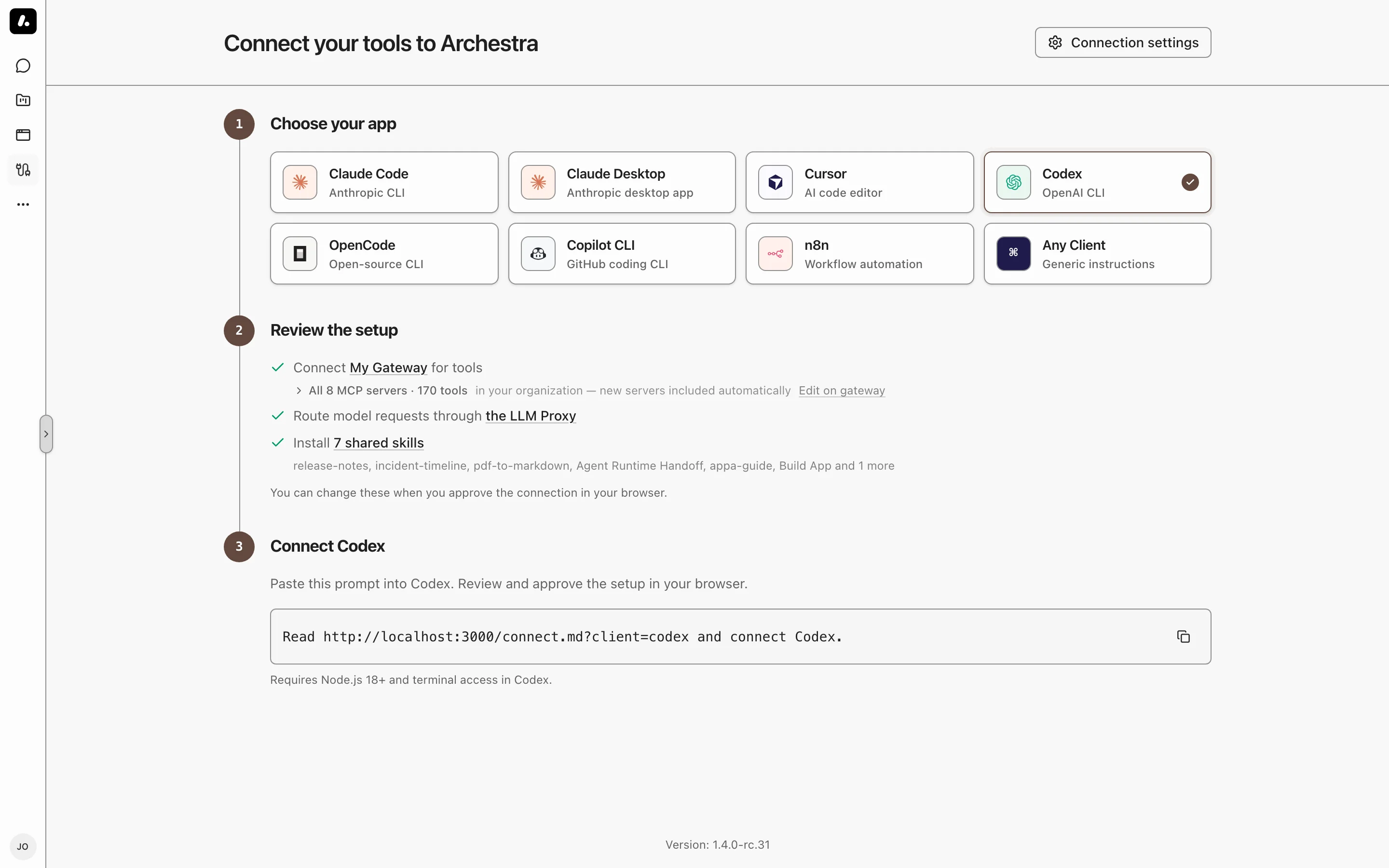
Open **Connect** in the Archestra sidebar and choose how to connect:
- **Coding agents:** for [Claude Code](https://archestra.ai/docs/integrations/ai-clients/claude-code), Codex, Cursor, Copilot CLI, OpenCode, Kilo Code, Kimi Code, and Grok Build, you run one command in a terminal and approve the connection in your browser.
- **[Claude Desktop](https://archestra.ai/docs/integrations/ai-clients/claude-desktop#setup):** a downloadable installer sets up Desktop.
- **[ChatGPT](https://archestra.ai/docs/integrations/ai-clients/chatgpt):** one terminal command installs the connection plugin and routes the desktop app's local Work and Codex conversations through the proxy. For web chats and dots, download the plugin instead.
- **[n8n](https://archestra.ai/docs/integrations/web-ui-and-automation#n8n):** you enter the gateway URL and model settings in your workflow.
- **Any Client:** any tool that supports MCP or an OpenAI-compatible API. Copy the gateway URL, the proxy base URL, a key, and a Git URL for the shared skills.
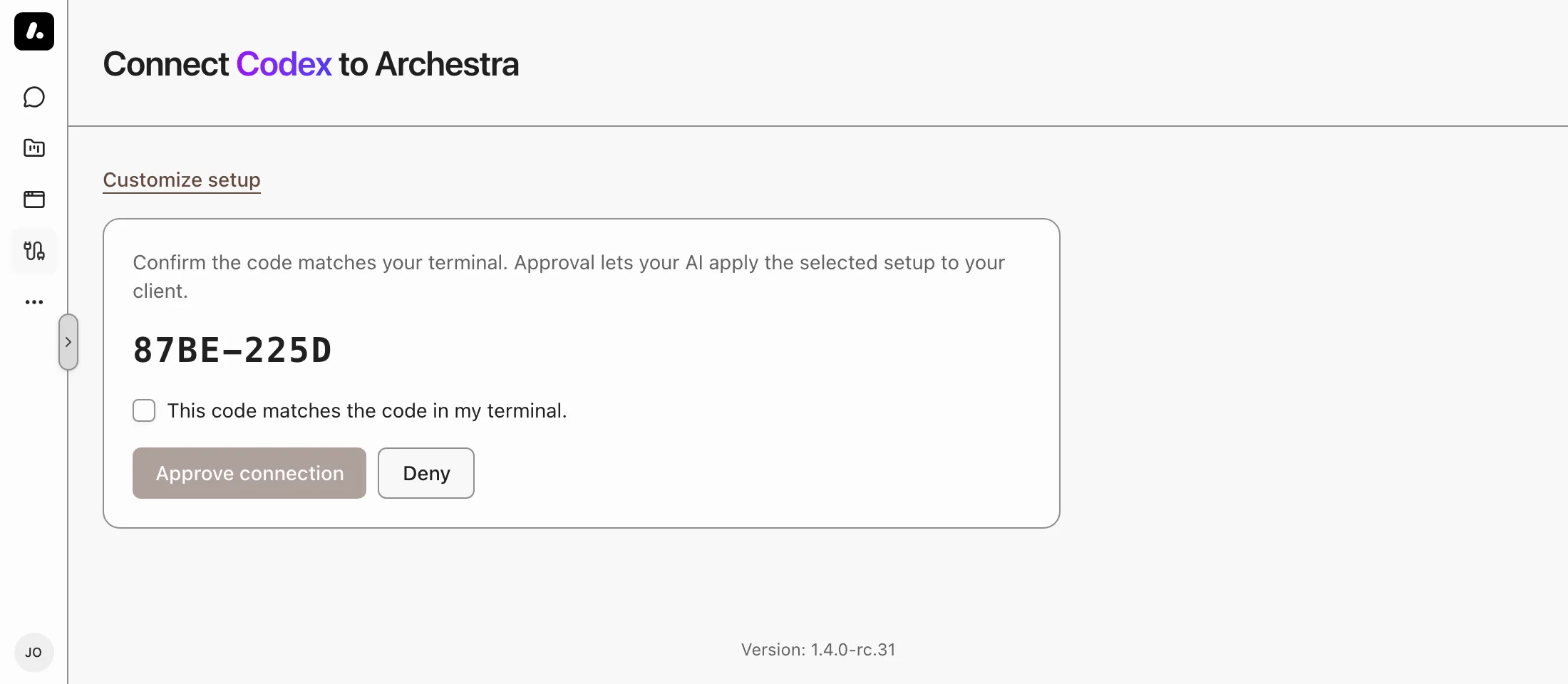
To leave out the proxy, skills, or plugins, open **Setup options** on the approval page before you approve. Your admin decides which provider keys the proxy uses for each client.
Guardrails recognize Archestra Chat, Claude Code, Codex CLI, the ChatGPT desktop app, Copilot CLI, OpenCode, Kilo Code, Kimi Code, and Grok Build automatically. Custom clients and workflows need a [session header](https://archestra.ai/docs/agents/guardrails/clients#session-headers) so Guardrails can track their conversations.
## Before You Start
For Claude Code, Codex, Cursor, Copilot CLI, OpenCode, Kilo Code, Kimi Code, and Grok Build:
- Node.js 18 or newer, and a terminal on the computer where you use the client.
- The client's CLI on your `PATH`: `claude`, `codex`, `copilot`, `opencode`, `kilo`, `kimi`, or `grok`. OpenCode must be 1.17 or newer. Copilot CLI proxy setup requires 1.0.95 or newer. Kimi Code must be 2.3.3 or newer.
- Python 3 for Claude Code and for Cursor's models. Git for Cursor, OpenCode, and Kilo Code skills.
- An Archestra URL on HTTPS. Plain HTTP works only on `localhost`.
## Connect a Coding Agent
The command changes nothing on your computer until you approve it in your browser.
1. On **Connect**, select your client. For another system, click **Use the Windows command** or **Use the macOS / Linux command**.
2. Click **Copy** and run the command in a terminal. It prints a code and opens an approval page in your browser.
3. Check that the code in the browser matches the code in the terminal. Tick **This code matches the code in my terminal** and click **Approve connection**.
4. Back in the terminal, the installer sets up your client and lists what it set up. When it asks **Sign in now?**, press Enter to sign in to the gateway in your browser.
5. When it asks to start your client now, press Enter. Your client starts with a first question about the gateway's tools, leaving your other MCP servers alone. On Windows, or if you answer no, open a new terminal and run the command the installer prints last. Cursor has no command: open Cursor.
## Finish Setup in Your Client
Some clients need one more step. The installer prints any other steps under **Good to know**. `` is the name your client lists for the Archestra gateway.
- **Claude Code:** if you skipped the sign-in, start Claude Code, run `/mcp`, select the gateway, and choose **Authenticate**.
- **Codex:** if you skipped the sign-in, run `codex mcp login `.
- **Cursor:** quit and reopen Cursor, then sign in to the gateway under **Customize → MCPs**. Setup points Cursor's OpenAI API key settings at the [Unified Model API](https://archestra.ai/docs/llm-proxy/unified-model) with a virtual key for your model providers. Cursor's model picker then lists only the models the Unified Model API offers you, such as `anthropic:claude-sonnet-4-6`. Setup switches off Cursor's built-in models. Switch one back on under **Settings → Models**.
- **Copilot CLI:** setup saves your provider settings and available key in `providers.json` and selects the model in `settings.json`. GitHub Copilot is the provider selected by default. The page offers your own sign-in and your organization's enterprise plan as two cards, keeps the one not connected yet on offer, and lists the models the chosen account serves with a default selected; the model list stays off until an account is connected, or a key exists for another provider you choose. If setup reports a missing key, add it to `providers.json`. Leave `COPILOT_MODEL` and the `COPILOT_PROVIDER_*` variables unset: Copilot CLI uses them instead of `providers.json`, and with only `COPILOT_MODEL` set it refuses to start the saved model. Setup removes the values an earlier setup saved, the launch check ignores the rest while the LLM proxy is connected, and the closing note lists any that remain. With OpenAI, Azure, GitHub Copilot, or xAI, setup selects the Responses API so [Guardrails](https://archestra.ai/docs/agents/guardrails/clients#copilot-cli) can follow the session, and Connect lists only models that serve that API. For example, Claude models on GitHub Copilot serve only Chat Completions, so they are not listed. With GitHub Copilot, you connect your account under Model routing in Setup options on the approval page. If your organization also connected Copilot plans, **Setup options** let you choose your personal subscription or a plan. With plans of several GitHub organizations and no sign-in of your own, choose the plan before you approve.
- **OpenCode:** if you skipped the sign-in, run `opencode mcp auth `. While connected, OpenCode lists only the providers and models Archestra serves you, under their usual names. A `model`, `small_model` or agent `model` setting that Archestra does not serve is ignored, and setup names it. Providers you sign in to from OpenCode itself, such as a ChatGPT or Claude subscription or your own key, also go through Archestra. Restart OpenCode after signing in to one.
- **Kimi Code:** if you skipped the sign-in, start `kimi` and run `/mcp-config login `. With your own key, the `archestra` model uses your Kimi Code sign-in, so run `kimi login` before setup, or set `KIMI_API_KEY` (`MOONSHOT_API_KEY` for a Moonshot key). New sessions use the `archestra` model; models from your other Kimi Code providers do not go through Archestra. Setup starts Kimi Code in Ask When Needed mode, so gateway calls run without asking; disconnecting restores your previous mode.
- **Kilo Code:** if you skipped the sign-in, run `kilo mcp auth `. Setup writes its settings to `~/.config/kilo/kilo.json`. If your `kilo.jsonc` already registers the same gateway under another name, setup disables that duplicate and preserves its comments and connection settings. Providers and models work as for OpenCode, and providers that do not go through Archestra, such as the Kilo Gateway, are turned off while connected.
## After Setup
For **Grok Build**, answering **Y** to **Authorize now?** opens fresh browser consent, even with an existing login. The installer verifies authenticated gateway discovery before replacing that gateway's native credential; it does not start Grok during authorization. Answering **N**, denying consent or cancelling leaves any existing login unchanged, not rechecked.
To authorize again, run `node ~/.archestra/grok/sign-in.cjs` (PowerShell: `node "$HOME/.archestra/grok/sign-in.cjs"`). The grant belongs to the dedicated managed profile, not your ordinary Grok login.
Start with `node ~/.archestra/grok/launch.cjs` (PowerShell: `node "$HOME/.archestra/grok/launch.cjs"`). The launcher refreshes native `SKILL.md` packages and resources under `~/.archestra/grok/native/skills/`. It does not install plugins or register marketplaces. On upgrade, only unchanged, recorded Archestra plugin-packaged skills from the same connection are removed; unrelated or edited plugins remain untouched.
Start a new session to load updates, or run the launcher with `--sync` to refresh without starting a session. Modified managed files stop refresh or removal rather than being overwritten. The child uses the supported `GROK_HOME` override for this private profile, keeping your original home and working directory unchanged. Compatibility discovery is disabled; native inspection refuses active plugins or hooks before inference, without changing global registrations.
Under **Model routing**, **Your SuperGrok subscription (native login)** reuses your ordinary Grok login. Grok reads and refreshes the original credentials directly; setup never copies them. Use `/login` inside Grok, or `node ~/.archestra/grok/login.cjs`, to renew your login; append `--device-auth` to sign in on another computer.
Native subscription mode keeps model names and reasoning options from the authenticated native catalog. **Automatic** keeps your native model preference or the account default; use `/model` or `-m` to change it inside Grok. Each selection routes through the protected proxy, and the server-issued session receipt indicates protection separately from the model name.
For an API-backed connection, choose **Your own API key (passthrough)** or **A personal virtual key** instead. API-key mode reads the selected provider's `XAI_API_KEY`, `OPENAI_API_KEY` or `ANTHROPIC_API_KEY`; a virtual key uses a provider configured in Archestra. These modes pin model roles to the managed `archestra` model.
MCP authorization remains separate from native login and LLM API credentials. Managed launch disables subagents and refuses agent overrides; conflicting native endpoint policies stop launch instead of silently bypassing protection. Directly launching the underlying executable bypasses the managed connection.
An older connection may have its only subscription login in the dedicated profile. Reconnect and sign in once through `login.cjs` to establish the shared native login; setup does not migrate credentials between files.
In xAI API-key mode, **Automatic** checks the current coding recommendation against models available to your account at setup and each new launch. No organization model catalog is required. Missing credentials or unavailable discovery stop protected inference, not MCP or skills setup. Native subscription credentials are never sent to the API-key endpoint, and unsupported native inference paths fail closed.
To disconnect, run `node ~/.archestra/grok/disconnect.cjs`. It removes the recorded managed connection values and native skills, preserving other settings, logins, sessions, unmanaged skills and other clients. Native TOML saves can change comments, table order or quoting without blocking reconnect or disconnect.
If a managed URL, credential or model role has a different value, setup saves a private backup and asks for explicit local confirmation before restoring the approved values. Noninteractive runs do not overwrite conflicts; unknown fields inside a managed table need local reconciliation. Interrupted updates retain a private recovery journal for the next run; do not delete the snapshot or config to resolve an error.
This installer does not configure Grok Bot desktop. See [Grok native-tool limits](https://archestra.ai/docs/agents/guardrails/clients#grok-native-tools).
- **Launch check:** setup adds a block to your shell profile. Each time Claude Code, Codex, Copilot CLI, OpenCode, Kilo Code, or Kimi Code starts, it checks the connection. Press `C` there to disconnect. To turn it off, set `ARCHESTRA_CLAUDE_GUARD=0`, `ARCHESTRA_CODEX_GUARD=0`, `ARCHESTRA_COPILOT_GUARD=0`, `ARCHESTRA_OPENCODE_GUARD=0`, `ARCHESTRA_KILO_GUARD=0`, or `ARCHESTRA_KIMI_CODE_GUARD=0`.
- **Startup check updates:** each launch checks for a newer startup check, installs it automatically, and runs it during the same launch. Requires Node.js 18 or newer. A launch hands off at most once; any skip, reconfigure, or disconnect choice made during the initial health probe takes precedence. Failed downloads keep the installed copy and retry next launch; a failed handoff restores the cached check. Customized scripts stay untouched. Updates preserve your client settings, credentials, permissions, and disconnected resources.
- **Backups:** setup saves each config file it changes as a `.archestra-backup` file next to the original.
- **Automatic client helpers:** approved OpenCode and Kilo Code setup installs an update loader for the managed launcher helper and routing plugin, using Node.js 18 or newer. Before launch or plugin activation, it refreshes verified code from your connected Archestra deployment over HTTPS and loads that code in the same process. Concurrent starts share a download check for 30 seconds. Failed or offline downloads keep the verified cached code. These updates do not upgrade the client CLI, rerun installation, issue new provider keys, or replace your original backups.
- **Duplicate gateways:** the launcher and plugin repair equivalent, enabled registrations before tools bind. They match the exact gateway URL, preserve JSONC comments and authentication settings, and leave deliberately disabled or disconnected bindings disabled. Conflicting connection settings stop repair rather than choose credentials for you.
- **Existing installations:** a startup check or launcher installed without an update loader needs one approved setup to enroll. Subsequent updates need no setup rerun. Client-helper updates require HTTPS; startup-check updates also support loopback HTTP for local development.
- **Guardrail helpers in Codex:** setup lets Codex run the guardrail helper tools, such as [`ask_user`](https://archestra.ai/docs/reference/archestra-mcp-server#ask_user) and [`yell`](https://archestra.ai/docs/reference/archestra-mcp-server#yell), without a prompt each time. A call that needs your approval still shows the approval form. To get the prompts back, delete the `tools` tables under the gateway's entry in `~/.codex/config.toml`.
- **Codex waits for the gateway:** Codex 0.99 or newer does not send the first `codex exec` request until the gateway is connected. If you skipped sign-in, or the gateway is down, that command stops. Sign in with `codex mcp login `, then run it again. Older Codex ignores this and can still send the first request early. To let `codex exec` start without the gateway, delete `required = true` under the gateway's entry in `~/.codex/config.toml`.
- **Setup reference:** the first conversation that presents the installer's reference with a valid session ID is exempt from Guardrails for the rest of the ten-minute setup window. Later requests must carry both the reference and that session ID. Different session IDs and requests without the reference remain governed.
- **Exemption limits:** the first conversation wins, even if it did not run the installer. Session IDs come from the client, so this does not protect against a client that copies both the reference and the session ID. If the server loses the short-lived ownership record, another conversation can claim the rest of the window.
- **Setup failed or expired:** run it again. Approval requests expire after ten minutes. Only approve a request you started.
**Next:** [See it work](https://archestra.ai/docs/get-started/see-it-work).