# Knowledge Files
> Upload reference files, control access, and index them into a Knowledge Base
Upload a document once, and every agent you allow can answer from it, with a citation. A signed contract that came by email, a vendor's SOC 2 report, a policy PDF: if no connector reaches it, upload it here.
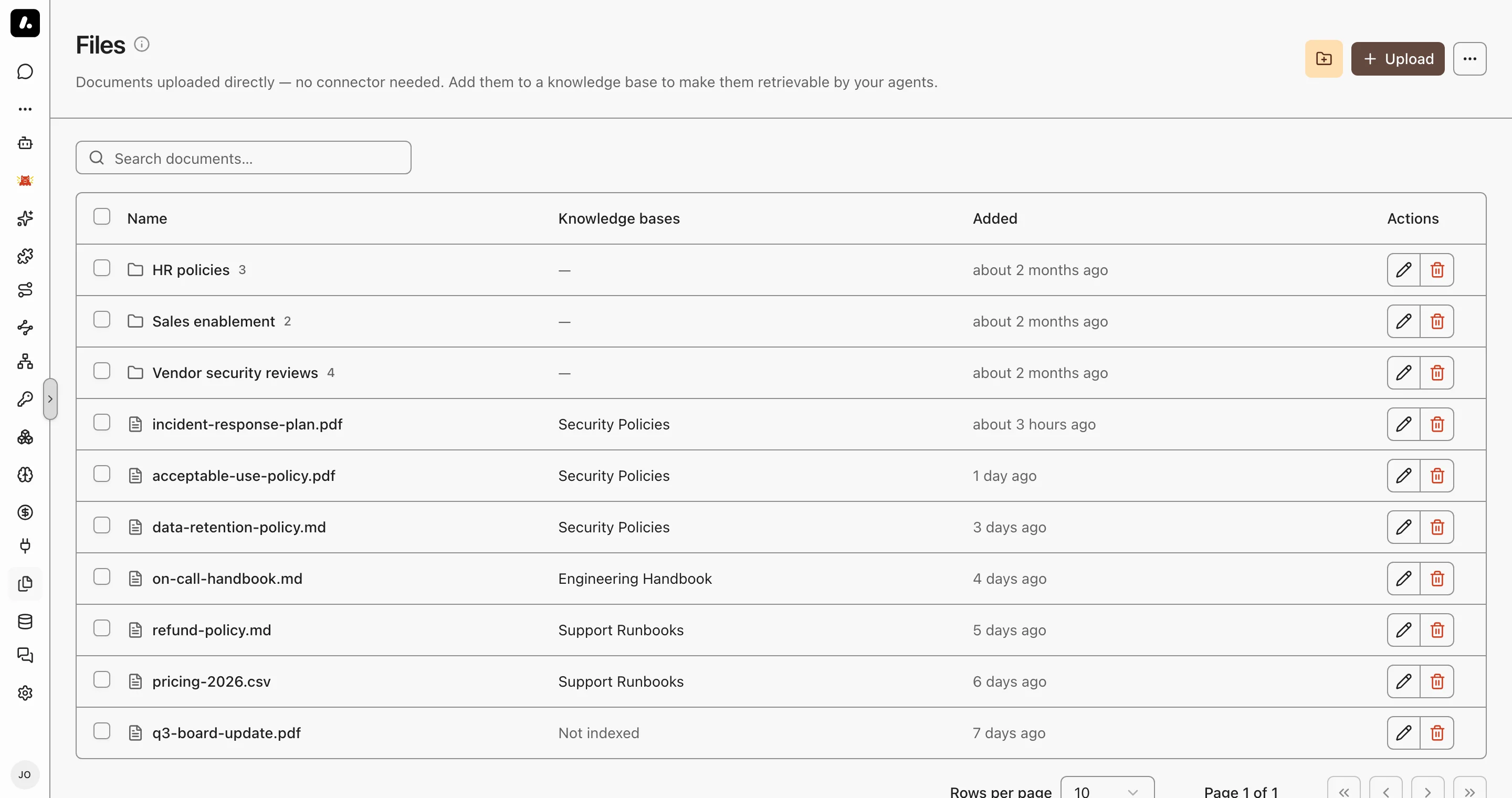
## Upload and Index
Uploading stores a file. Indexing makes it searchable.
1. Go to **Knowledge → Files** and upload PDF, Word, Markdown, CSV, JSON, HTML, or plain text files.
2. Select files or whole directories, and click **Add to knowledge base**.
3. Pick a base, or create one from the selection.
Archestra reads the text at upload. A file it cannot read is refused right away, so nothing is stored that search could never find. A scanned PDF is accepted when [Document OCR](https://archestra.ai/docs/knowledge/settings#document-ocr) is set. Its pages are read when the file is indexed.
- **Directories** group files. They are flat, with no subdirectories.
- Each file has its own permissions. Sharing a Knowledge Base does not open its files to more people.
## Import from a Pipeline
To keep a file current from a script, call [`PUT /api/knowledge-files/:fileId/content`](https://archestra.ai/docs/reference/api/knowledge#tag/knowledge-files/PUT/api/knowledge-files/{fileId}/content). One call creates or replaces the file and indexes it into a Knowledge Base.
- Make one UUID for each source document, and send it as `fileId` on every import. A replace keeps the file's permissions and labels.
- The API key needs [`knowledgeSource:create`](https://archestra.ai/docs/reference/permissions#knowledgeSource:create), [`knowledgeSource:update`](https://archestra.ai/docs/reference/permissions#knowledgeSource:update), and access to the Knowledge Base.
- An HTTP success does not mean the file is indexed. Check the `failures` array of each result, then send the request again.
## Keep a Chat Attachment
A file you attach in chat belongs to that conversation. Save it here to keep it. Save it from the attachment in the message, or select several in the **Files** panel. You choose the name, directory, and permissions, and you can index it in the same step.
## Chat, Project, or Knowledge Files?
Pick by who needs the file, and for how long.
| | Chat attachments | Project files | Knowledge Files |
| ----------------- | ---------------- | ------------- | --------------- |
| Scope | One conversation | Every chat in the project | The whole organization |
| Who can read them | People with access to the conversation | Everyone in the project | The audience you set: organization, teams, or only you |
| How agents use them | Sent to the model with your message | Read when needed by any chat in the project | Searched in a Knowledge Base, with citations |
| Use them for | A one-off question about a file | Working files for one piece of work | Reference documents agents should answer from |
A file can move up: save a chat attachment here, then index it into a Knowledge Base.
## Example: Vendor Security Reviews
A security analyst reviews vendor documents that arrive by email.
1. Upload the questionnaires and SOC 2 reports into a **Vendor contracts** directory, shared with the security team only.
2. Select the directory and add it to a **Vendor security review** Knowledge Base.
3. Give that base to the review agent.
4. Ask the agent which vendors store customer data outside the EU. Open the citations to check the answer.