You are viewing the docs for Archestra v1.4. View the latest docs
Costs & Limits
Archestra records the cost of every model request from chat, agents, and the LLM Proxy. Use it to:
- See spend by person, team, agent, app, and model.
- Set budgets that block requests when spend reaches the limit.
- See how much use your Claude and ChatGPT subscriptions cover.
Review Prompt Caching
In the explorer’s Show menu, choose Cache reads, Cache writes, or Net cache savings. The Cache reads by model and Cache savings over time presets open these views directly.
On Costs, cache tokens include all billing modes. Net savings cover metered usage only and are available by Time across the organization.
On My Usage, cache reads can be grouped by model, client, or time. Cache writes, net savings, and cache cost are available by All usage for the selected period. Savings and cost use API rates including subscription-covered usage, not subscription bill credits.
Savings compare cached input with full input pricing after cache-write surcharges, so they can be negative. Figures depend on provider-reported usage and available pricing.
Track Spending
Costs shows the whole company's spend. My Usage shows each person their own.
Company Spend
Go to Costs & Limits → Costs and pick a timeframe. You need llmCost:read. The five summary boxes show metered API spend, subscription usage estimates, requests, tokens, and active people.
- Pick a saved view, such as Spend by model or Tokens by agent and person, or choose a metric and grouping yourself. Team, agent, person, credential, provider, and model can each be split by another, so you can see who uses each agent.
- Click rows to compare their trends in the chart. Summary sorts totals; Pivot compares time buckets or a secondary breakdown.
- Use Export to download the result as CSV, JSON, or Parquet. The API call below the table identifies the source endpoint.
- Subscription estimates value usage at equivalent API rates. They exclude subscription fees and are not a bill.
- App opens and tool calls measure activity. The app spend view includes build and runtime costs, marks shared build sessions, and compares runtime usage with the chat-equivalent estimate. Opening an app does not itself imply inference.
- Skills show activations, context tokens, distinct people, and attributed turn spend. Skill spend can overlap when several skills share a turn; partial context measurements are marked. Access to app and skill breakdowns follows their resource permissions. Other people's usage also requires access to the member list.
To tie proxy traffic to a person, use a credential that names one. See Authentication.
Your Own Usage
Click your name in the sidebar, then My Usage, to compare your model and client activity without access to company-wide costs.
- Choose a saved view or use Show and by to select a metric and grouping. Click rows to compare their totals in the chart.
- Choose Time → Pivot to compare time buckets. For model or client tokens, choose split by → Input / output, then Pivot.
- Use Token mix, Context size, or Costliest sessions to inspect those breakdowns. Copy as CSV exports the selected table.
- The Tokens summary counts input and output; Token mix also includes cache reads and writes.
- Subscription estimates and context list-price values are not additional bills. Sessions show only the costliest returned sessions; elapsed minutes are not active working time.
- Model and client totals are independent breakdowns. A model-by-client pivot is unavailable.
Set a Budget
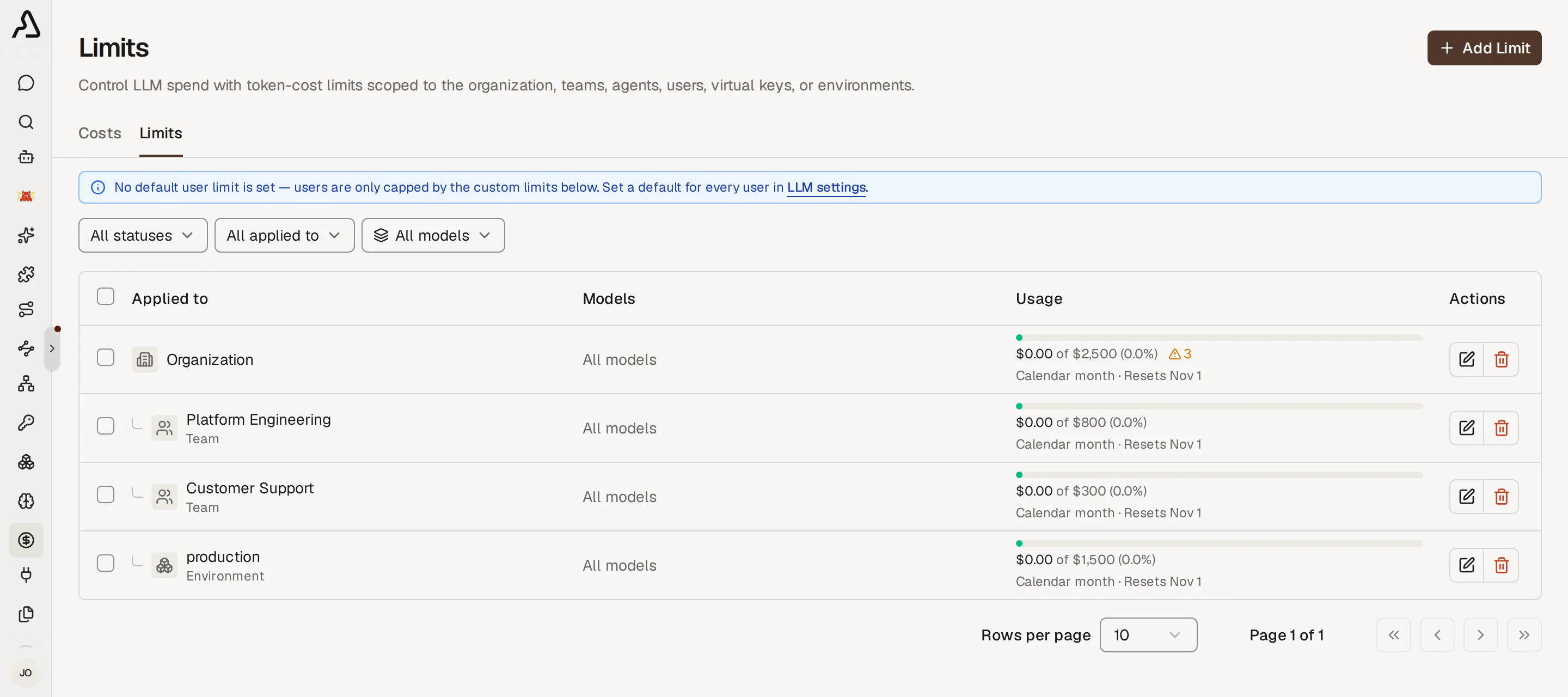
A limit blocks matching requests once spend reaches it. Requests run again when the limit resets, or when you raise it.
- Go to Costs & Limits → Limits and click Add Limit.
- Choose who it applies to: organization, team, user, agent, virtual key, LLM OAuth client, or environment.
- Pick models, or All models.
- Enter Limit value ($), choose the Cleanup interval, and click Create limit.
Use an organization limit to cap total LLM spend.
The table shows each limit's use so far, and when it resets.
- A budget for everyone: set a default per-user limit under Settings → LLM. A per-environment default replaces it in that environment. A user's own limit replaces both.
- Resets: a rolling interval resets after the time passes. A calendar interval resets at the next day, week, or month. A week can start on Sunday or Monday. Changing the interval resets the current use.
- Environment limits add up the agents in that environment. Agents with no environment do not count.
- Subscription use never counts toward a limit.
- A blocked request gets HTTP
402, withcode: token_cost_limit_exceeded. The message says Archestra blocked it, not the provider. SDKs do not retry a402. - Archestra checks before each request. The request that crosses the limit still runs, so spend can end a little above it.
Subscription vs Metered Cost
See what your Claude and ChatGPT subscriptions save. A developer on Claude Max runs Claude Code all day. That use bills $0, but Costs shows what the same tokens would cost at API prices. That figure is the saving.
Archestra tells the two apart from the credential on each request. You configure nothing:
| Credential | Counted as |
|---|---|
| A Claude Pro or Max sign-in, such as Claude Code's | Subscription |
| A ChatGPT sign-in, from Codex or Connect on Model Providers | Subscription |
| A SuperGrok sign-in | Subscription |
| Any API key, including GitHub Copilot and Microsoft 365 Copilot sign-ins | Metered |
- Subscription use bills $0 and never counts toward a budget. Costs shows it as Subscription-covered.
- A Claude subscription that runs into paid usage credits turns metered. Archestra reads this from Anthropic's response headers.
- To count every new request as metered, set
ARCHESTRA_LLM_COST_SUBSCRIPTION_AUTODETECT=false. Past requests keep their classification.
Where Token Prices Come From
A cost uses the model's price. Archestra syncs input, output, and cache prices for known models. OpenRouter is the exception: Archestra records the cost OpenRouter reports for each request, so the price of the provider it routed to is what counts. A model it does not know gets an estimated price. For a custom or self-hosted model, set the price yourself. See Model Pricing, Limits, and Modalities.
Prompt caching lowers the cost of a prompt that starts the same way each time. Costs and logs show the cache reads and writes the provider reports. Archestra adds cache points to its own chat and agent requests. Proxy requests keep the caller's own cache markers.
What to Know
- Need the raw numbers? Get them per person from
GET /api/statistics/users, or your own fromGET /api/statistics/me. For daily counts of tool calls, app runs, and skill activations, groupGET /api/statistics/mcp-tool-calls,app-usage, orskill-usagebyday. - Already use Prometheus or Grafana? Archestra exports cost and token metrics, so you can chart spend next to your other dashboards. See Metrics.