You are viewing the docs for Archestra v1.4. View the latest docs
Importing Skills
You can bring skills in from three places:
- Git: import skills from a GitHub or GitLab repository and keep them in sync.
- MCP servers: skills that a server publishes with its tools.
- Plugins: skills inside a plugin.
Import from GitHub or GitLab
Point Archestra at a repository, and it finds every folder with a SKILL.md, however deep. skills/security/appsec/threat-model/ works as well as skills/pdf/.
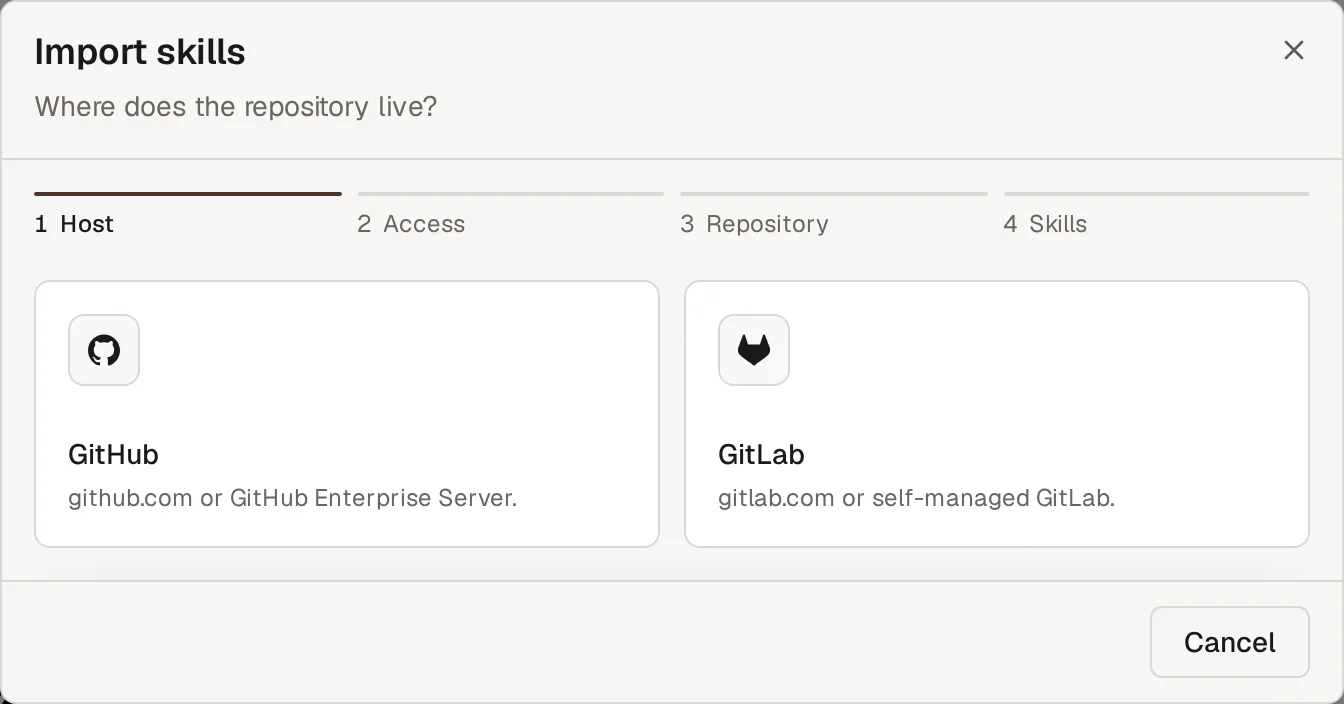
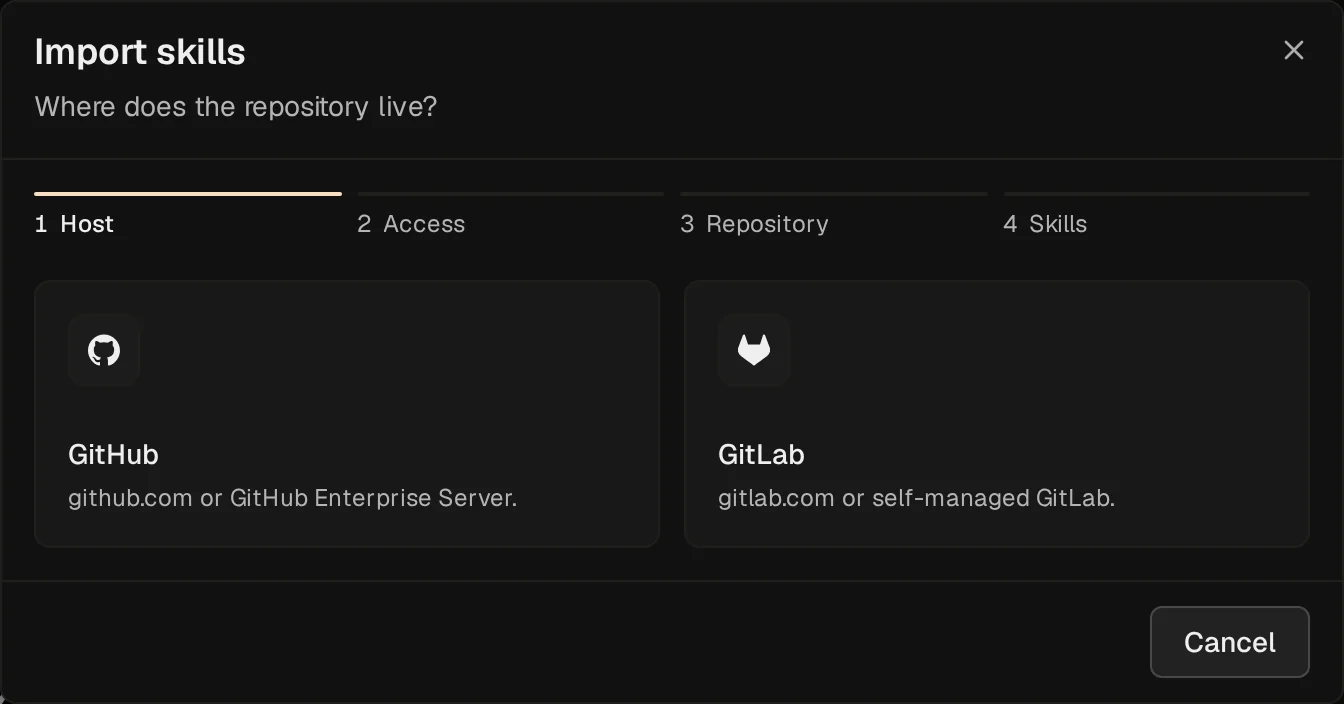
- Go to Skills and click Add new skill. Pick a popular repository, search the skill index, or click Git repository.
- Pick GitHub or GitLab.
- Pick how to sign in: a GitHub App, a GitLab token, or Public repository (Public project on GitLab).
- Pick the repository, or paste its URL. A link to a folder imports only that folder. To set a branch or folder, open Advanced.
- Click Find skills. Search the list and select the skills. Selected shows your selection across searches.
- Open Import settings to change the Keep in sync schedule or who can use the skills, then click Import.
The skills created by that import show on Skills, marked synced. Click Show all skills to clear the import filter.
A skill can have up to 500 files of up to 10 MB each. Larger files are skipped.
Private Repositories
A private repository needs a credential that the whole organization shares:
- GitHub: a GitHub App installed on the repository. Add one under Settings → Credentials.
- GitLab: an access token. Click Add a GitLab token, and enter the GitLab URL, a name, and a project, group, or personal access token with the
read_scope.api
Picking a saved credential needs credential:read. Saving one needs credential:create.
Self-Hosted GitHub and GitLab
Public imports work only with github.com and gitlab.com. For your own host, save a credential for it:
- GitHub Enterprise Server: add a GitHub App with your host's API URL, such as
https://git.example.com/api/v3. - Self-managed GitLab: add a GitLab token with your GitLab URL, such as
https://gitlab.example.com.
Then pick that credential when you import.
Sync
Imported skills stay in sync with their repository: every 15 minutes, every hour, or once a day (the default).
- Synced skills are read-only in Archestra. Permissions and environments stay editable.
- Sync now pulls right away. Stop syncing makes the skill editable.
- If a pull fails, the skill keeps its last good content and shows the error.
Turn Git Imports Off
Set Settings → Skills → Online skill catalog to Disabled. This hides the popular repositories, the skill index, and Git imports. Existing imports keep syncing.
Skills from MCP Servers
An MCP server can publish skills with its tools. Skills from servers you can access show under the MCP skills filter on Skills. They are read-only, because the server owns them.
Archestra follows the draft MCP skills extension (SEP-2640). The same extension works the other way, too: a gateway can publish your Archestra skills to MCP clients.
Skills from Plugins
Skills inside a plugin you can read show under the Skills from plugins filter. They are read-only. Each one shows the client and platforms it came from, because its scripts may depend on them.
If an MCP or plugin skill has the same name as another skill, agents see it with a -from-mcp or -from-plugin suffix.