Single Sign-On (SSO)

Archestra supports Single Sign-On (SSO) authentication using OpenID Connect (OIDC) and SAML 2.0 providers. Once configured, users can authenticate with their existing identity provider credentials instead of managing separate passwords.
Enterprise feature: Please reach out to sales@archestra.ai for instructions about how to enable the feature.
How SSO Works
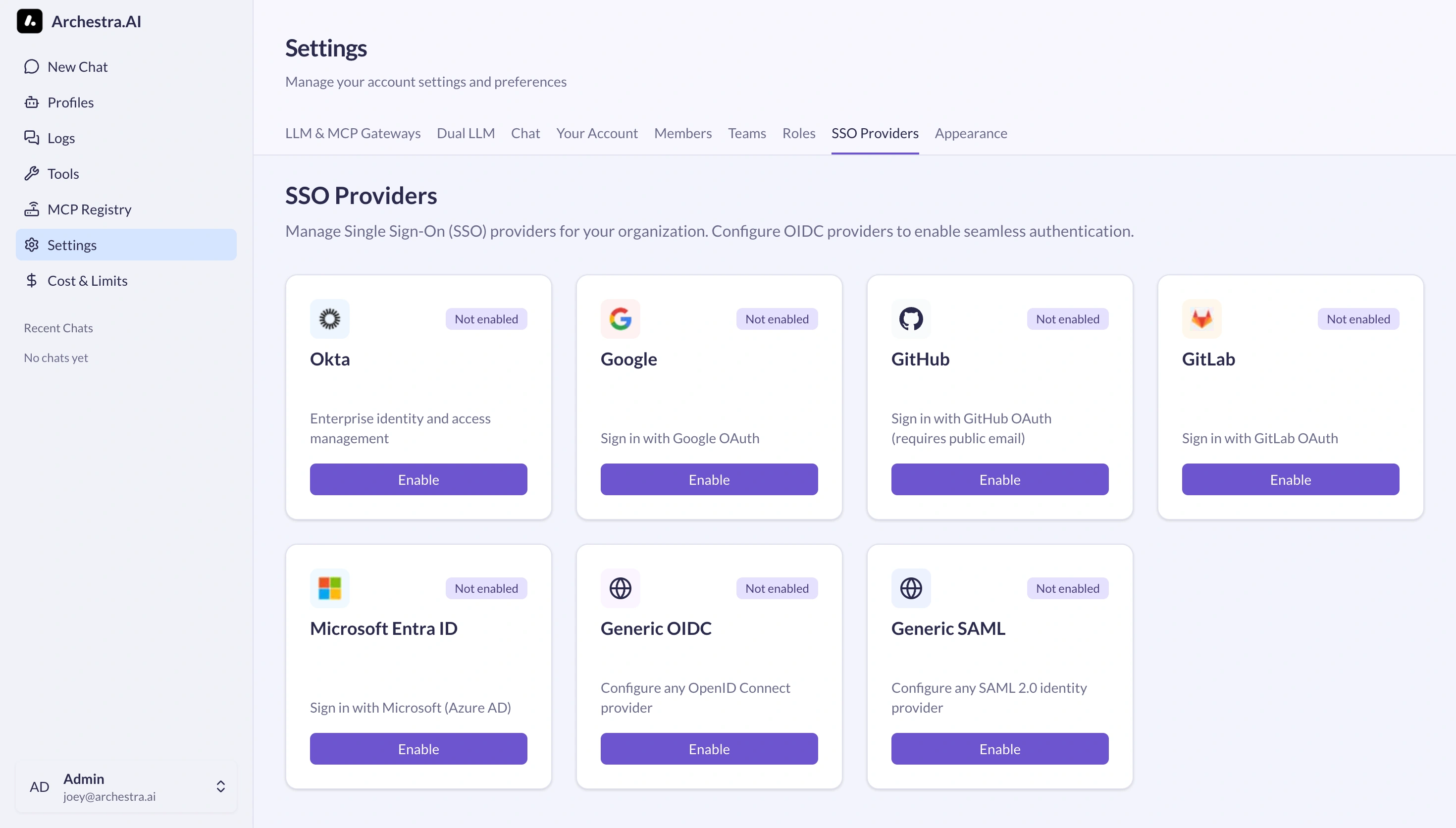
- Admin configures an SSO provider in Settings > SSO Providers
- SSO buttons appear on the sign-in page for enabled providers
- Users click the SSO button and authenticate with their identity provider
- After successful authentication, users are automatically provisioned and logged in

Disabling Basic Authentication
Once you have configured SSO providers, you can optionally disable the username/password login form to enforce SSO-only authentication. This is useful for organizations that want to centralize authentication through their identity provider.
To disable basic authentication, set the ARCHESTRA_AUTH_DISABLE_BASIC_AUTH environment variable to true. See Deployment - Environment Variables for configuration details.
Important: Ensure at least one SSO provider is configured and working before disabling basic authentication. Otherwise, users (including administrators) will not be able to sign in.
Disabling User Invitations
For organizations using SSO with automatic user provisioning, you may want to disable the manual invitation system entirely. This hides the invitation UI and blocks invitation API endpoints.
To disable invitations, set the ARCHESTRA_AUTH_DISABLE_INVITATIONS environment variable to true. See Deployment - Environment Variables for configuration details.
Callback URLs
OIDC Callback URL
All OIDC providers require a callback URL to be configured. The format is:
https://your-archestra-domain.com/api/auth/sso/callback/{ProviderId}
For local development:
http://localhost:3000/api/auth/sso/callback/{ProviderId}
The {ProviderId} is case-sensitive and must match exactly what you configure in Archestra (e.g., Okta, Google, GitHub, GitLab, EntraID).
SAML Callback URL (ACS URL)
For SAML providers, the Assertion Consumer Service (ACS) URL format is:
https://your-archestra-domain.com/api/auth/sso/saml2/sp/acs/{ProviderId}
For local development:
http://localhost:3000/api/auth/sso/saml2/sp/acs/{ProviderId}
Supported Providers
Okta
Okta is an enterprise identity management platform. To configure Okta SSO:
- In Okta Admin Console, create a new Web Application
- Set the Sign-in redirect URI to your callback URL:
https://your-domain.com/api/auth/sso/callback/Okta - Copy the Client ID and Client Secret
- In Archestra, click Enable on the Okta card
- Enter your Okta domain (e.g.,
your-org.okta.com) - Enter the Client ID and Client Secret
- Click Create Provider
Okta-specific requirements:
- Disable DPoP (Demonstrating Proof of Possession) in your Okta application settings. Archestra does not support DPoP.
- The issuer URL is automatically set to
https://your-domain.okta.com
Google OAuth allows users to sign in with their Google accounts.
- Go to Google Cloud Console
- Create or select a project
- Navigate to APIs & Services > Credentials
- Create an OAuth 2.0 Client ID (Web application)
- Add your callback URL:
https://your-domain.com/api/auth/sso/callback/Google - Copy the Client ID and Client Secret
- In Archestra, click Enable on the Google card
- Enter your domain and the credentials
Google-specific notes:
- Users must have a Google Workspace or personal Google account
- The discovery endpoint is automatically configured
GitHub
GitHub OAuth allows users to sign in with their GitHub accounts.
- Go to GitHub Developer Settings
- Click New OAuth App
- Set the Authorization callback URL to:
https://your-domain.com/api/auth/sso/callback/GitHub - Copy the Client ID and generate a Client Secret
- In Archestra, click Enable on the GitHub card
- Enter your domain and the credentials
GitHub limitations:
- Users must have a public email set in their GitHub profile for SSO to work. GitHub's OAuth does not expose private emails through the standard user endpoint.
- To set a public email: Go to GitHub Profile Settings and select a public email
- PKCE is automatically disabled for GitHub (not supported)
GitLab
GitLab OAuth allows users to sign in with their GitLab accounts (both GitLab.com and self-hosted instances).
- Go to GitLab Applications (or your self-hosted instance)
- Click Add new application
- Set the Redirect URI to:
https://your-domain.com/api/auth/sso/callback/GitLab - Select scopes:
openid,email,profile - Click Save application
- Copy the Application ID (Client ID) and Secret (Client Secret)
- In Archestra, click Enable on the GitLab card
- Enter your domain and the credentials
GitLab-specific notes:
- For self-hosted GitLab, update the issuer URL to your GitLab instance (e.g.,
https://gitlab.yourcompany.com) - GitLab supports OIDC discovery, so endpoints are automatically configured
- See GitLab OAuth documentation for more details
Microsoft Entra ID (Azure AD)
Microsoft Entra ID (formerly Azure AD) allows users to sign in with their Microsoft work or school accounts.
- Go to Azure Portal > Microsoft Entra ID
- Navigate to App registrations > New registration
- Enter a name and select supported account types
- Set the Redirect URI to:
https://your-domain.com/api/auth/sso/callback/EntraID - After creation, go to Certificates & secrets > New client secret
- Copy the Application (client) ID and Client Secret
- Note your Directory (tenant) ID from the Overview page
- In Archestra, click Enable on the Microsoft Entra ID card
- Replace
{tenant-id}in all URLs with your actual tenant ID - Enter your domain and the credentials
Entra ID-specific notes:
- The tenant ID is required in all endpoint URLs
- For single-tenant apps, use your specific tenant ID
- For multi-tenant apps, use
commonororganizationsinstead of the tenant ID - See Microsoft Entra ID documentation for more details
Generic OAuth (OIDC)
For other OIDC-compliant providers not listed above, use the Generic OAuth option.
Required information:
- Provider ID: A unique identifier (e.g.,
azure,auth0) - Issuer: The OIDC issuer URL
- Domain: Your organization's domain
- Client ID and Client Secret: From your identity provider
- Discovery Endpoint: The
.well-known/openid-configurationURL (optional if issuer supports discovery)
Optional configuration:
- Authorization Endpoint: Override the discovery endpoint
- Token Endpoint: Override the discovery endpoint
- User Info Endpoint: Override the discovery endpoint
- JWKS Endpoint: For token validation
- Scopes: Additional OAuth scopes (default:
openid,email,profile) - PKCE: Enable if your provider requires it
Using Keycloak as an OIDC Provider
Keycloak is an open-source identity and access management solution that can be used as an OIDC provider.
- In Keycloak Admin Console, create a new Client with protocol
openid-connect - Set Client authentication to
On - Add your callback URL to Valid redirect URIs:
https://your-domain.com/api/auth/sso/callback/{ProviderId} - Copy the Client ID and Client Secret from the Credentials tab
- In Archestra, click Enable on the Generic OAuth card
- Set the Provider ID (e.g.,
Keycloak) - Set the Issuer to:
https://your-keycloak-domain/realms/{realm-name} - Enter the Client ID and Client Secret
- Click Create Provider
Generic SAML
Archestra supports SAML 2.0 for enterprise identity providers that don't support OIDC.
Required information:
- Provider ID: A unique identifier (e.g.,
okta-saml,adfs) - Issuer: Your organization's identifier
- Domain: Your organization's domain
- SAML Issuer / Entity ID: The identity provider's entity ID (from IdP metadata)
- SSO Entry Point URL: The IdP's Single Sign-On URL
- IdP Certificate: The X.509 certificate from your IdP for signature verification
Optional configuration:
- IdP Metadata XML: Full XML metadata document from your IdP (recommended for robust configuration)
- Callback URL (ACS URL): Automatically generated, but can be overridden
- SP Entity ID: Service Provider entity ID (defaults to your Archestra domain)
- SP Metadata XML: Custom Service Provider metadata
SAML-specific notes:
- SAML responses must be signed by the IdP
- The NameID format should be set to
emailAddressin your IdP - User attributes (email, firstName, lastName) should be included in the SAML assertion
- See your IdP's documentation for specific configuration steps
Using Keycloak as a SAML Provider
- In Keycloak Admin Console, create a new Client with protocol
saml - Set the Client ID to your SP Entity ID (e.g.,
https://your-archestra-domain.com) - Set Root URL to your Archestra domain
- Add your ACS URL to Valid redirect URIs:
https://your-domain.com/api/auth/sso/saml2/sp/acs/{ProviderId} - Configure Client Signature Required to
Off(unless you're providing SP signing certificates) - Add protocol mappers for
email,firstName, andlastNameattributes - Download the IdP metadata from:
https://your-keycloak-domain/realms/{realm-name}/protocol/saml/descriptor - In Archestra, click Enable on the Generic SAML card
- Set the Provider ID (e.g.,
KeycloakSAML) - Paste the IdP metadata XML into the IdP Metadata XML field
- Click Create Provider
Role Mapping
Archestra supports automatic role assignment based on user attributes from your identity provider using Handlebars templates. This allows you to map SSO groups, roles, or other claims to Archestra roles (e.g., Admin, Member, or any custom role you've defined).
How Role Mapping Works
- When a user authenticates via SSO, Archestra receives user attributes from the identity provider's ID token (for OIDC) or SAML assertions
- These attributes are evaluated against your configured mapping rules in order
- The first rule that matches determines the user's Archestra role
- If no rules match, the user is assigned the configured default role (or "Member" if not specified)
Configuring Role Mapping
When creating or editing an SSO provider, expand the Role Mapping (Optional) section:
-
Mapping Rules: Add one or more rules. Each rule has:
- Handlebars Template: A template that renders to a non-empty string when the rule should match
- Archestra Role: The role to assign when the template matches
-
Default Role: The role assigned when no rules match (defaults to "member")
-
Strict Mode: When enabled, denies user login if no mapping rules match. This is useful when you want to ensure that only users with specific IdP attributes can access Archestra. Without strict mode, users who don't match any rule are simply assigned the default role.
-
Skip Role Sync: When enabled, the user's role is only determined on their first login. Subsequent logins will not update their role, even if their IdP attributes change. This allows administrators to manually adjust roles after initial provisioning without those changes being overwritten on next login.
Handlebars Template Examples
Handlebars templates should render to any non-empty string (like "true") when the rule matches. The following custom helpers are available:
| Helper | Description |
|---|---|
includes | Check if an array includes a value (case-insensitive) |
equals | Check if two values are equal (case-insensitive for strings) |
contains | Check if a string contains a substring (case-insensitive) |
and | Logical AND - true if all values are truthy |
or | Logical OR - true if any value is truthy |
exists | True if the value is not null/undefined |
notEquals | Check if two values are not equal |
Example Templates:
| Template | Description |
|---|---|
{{#includes groups "admins"}}true{{/includes}} | Match if "admins" is in the groups array |
{{#equals role "administrator"}}true{{/equals}} | Match if role claim equals "administrator" |
{{#each roles}}{{#equals this "platform-admin"}}true{{/equals}}{{/each}} | Match if "platform-admin" is in roles array |
{{#and department title}}{{#equals department "IT"}}true{{/equals}}{{/and}} | Match IT department users with a title set |
{{#with (json roles)}}{{#each this}}{{#equals this.name "admin"}}true{{/equals}}{{/each}}{{/with}} | Match role name in JSON string claim (see below) |
Tip: Templates should output any non-empty string when matching. The text "true" is commonly used but any output works.
Handling JSON String Claims
Some identity providers (like Okta) may send complex claims as JSON strings rather than native arrays. For example:
{
"roles": "[{\"name\":\"Application Administrator\"},{\"name\":\"archestra-admin\"}]"
}
To parse and match against JSON string claims, use the json helper with #with:
{{#with (json roles)}}{{#each this}}{{#equals this.name "archestra-admin"}}true{{/equals}}{{/each}}{{/with}}
This template:
- Parses the JSON string into an array using
(json roles) - Sets the parsed array as context using
#with - Iterates through each role object using
#each - Checks if any role's
nameproperty matches
Provider-Specific Configuration
Okta
Okta can send groups in the ID token. Configure a Groups claim:
- In Okta Admin Console, go to Security > API > Authorization Servers
- Select your authorization server and go to Claims
- Add a new claim:
- Name:
groups - Include in token type: ID Token (Always)
- Value type: Groups
- Filter: Configure to match your groups
- Name:
Example mapping rule:
{{#includes groups "Archestra-Admins"}}true{{/includes}}
Microsoft Entra ID (Azure AD)
Entra ID can include group memberships. Configure group claims:
- In Azure Portal, go to your App Registration
- Navigate to Token configuration
- Click Add groups claim
- Select the group types to include
Example mapping rule (using group object IDs):
{{#includes groups "xxxxxxxx-xxxx-xxxx-xxxx-xxxxxxxxxxxx"}}true{{/includes}}
Or configure group names in Entra ID's optional claims.
Keycloak
Keycloak can send groups via a protocol mapper:
- In Keycloak Admin Console, go to your Client
- Navigate to Client scopes > your client's dedicated scope
- Add a mapper:
- Mapper type: Group Membership
- Token Claim Name:
groups - Full group path: Off (recommended for simpler matching)
- Add to ID token: Yes
- Add to userinfo: Yes
Example mapping rule:
{{#includes groups "archestra-admins"}}true{{/includes}}
Generic SAML
For SAML providers, ensure your IdP sends group/role attributes in the SAML assertion. Configure attribute mappers to include these in the assertion, then reference them in your Handlebars templates.
The attribute names depend on your IdP's configuration. Common examples:
{{#includes groups "admins"}}true{{/includes}}
{{#includes memberOf "CN=Admins,OU=Groups,DC=example,DC=com"}}true{{/includes}}
Troubleshooting Role Mapping
Role not being assigned correctly:
- Check your IdP's configuration to ensure the expected claims/attributes are being sent
- Use your IdP's token introspection or SAML assertion viewer to verify the actual data
- Ensure your Handlebars template syntax is correct
- Rules are evaluated in order - ensure your most specific rules come first
Missing groups claim:
- For OIDC: Verify your IdP is configured to include groups in the token/userinfo
- For SAML: Check that group attributes are included in the assertion and properly mapped
Template always returns empty:
- Check for typos in claim/attribute names (they are case-sensitive in the template)
- Ensure your IdP is sending the expected claims in the ID token
- The
includeshelper handles null/undefined arrays gracefully
Team Synchronization
Archestra supports automatic team membership synchronization based on user group memberships from your identity provider. When users log in via SSO, they can be automatically added to or removed from Archestra teams based on their IdP groups.
How Team Sync Works
- Admin configures an Archestra team and links it to one or more external IdP groups
- When a user logs in via SSO, their group memberships are extracted from the SSO token
- Archestra compares the user's IdP groups against the external groups linked to each team
- Added: Users in a linked group are automatically added to the team
- Removed: Users no longer in any linked group are automatically removed (if they were added via sync)
- Manual members preserved: Members added manually to a team are never removed by sync
Configuring Team Sync
When creating or editing an SSO provider, expand the Team Sync Configuration (Optional) section to configure how groups are extracted from SSO tokens.
Team Sync Settings
-
Enable Team Sync: When enabled (default), users are automatically added/removed from Archestra teams based on their SSO group memberships.
-
Groups Handlebars Template: A Handlebars template to extract group identifiers from the ID token claims. Should render to a comma-separated list or JSON array. Leave empty to use default extraction.
Default Group Extraction
If no custom Handlebars template is configured, Archestra automatically checks these common claim names in order:
groups,group,memberOf,member_of,roles,role,teams,team
The first claim that contains non-empty group data is used.
Custom Handlebars Templates
For identity providers with non-standard ID token formats, you can use Handlebars templates to extract group identifiers from complex claim structures. The template should render to either a comma-separated list or a JSON array.
Available Helpers:
| Helper | Description |
|---|---|
json | Convert value to JSON string, or parse JSON string to object |
pluck | Extract a property from each item in an array |
Common Examples:
| Template | Description |
|---|---|
{{#each groups}}{{this}},{{/each}} | Simple flat array: ["admin", "users"] |
{{#each roles}}{{this.name}},{{/each}} | Extract names from objects: [{name: "admin"}] |
{{{json (pluck roles "name")}}} | Extract names as JSON array using pluck helper |
{{#each user.memberships.groups}}{{this}},{{/each}} | Nested path to groups |
{{#with (json roles)}}{{#each this}}{{this.name}},{{/each}}{{/with}} | Parse JSON string claim, then extract names |
Enterprise IdP Example (Array of Objects):
If your IdP sends roles as an array of objects:
{
"roles": [
{"name": "Application Administrator", "attributes": []},
{"name": "n8n_access", "attributes": []}
]
}
Use the template: {{#each roles}}{{this.name}},{{/each}} to extract ["Application Administrator", "n8n_access"]
Or use the pluck helper: {{{json (pluck roles "name")}}} for a cleaner JSON array output.
Enterprise IdP Example (JSON String Claim):
Some IdPs (like Okta) may send complex claims as JSON strings rather than native arrays:
{
"roles": "[{\"name\":\"Application Administrator\"},{\"name\":\"n8n_access\"}]"
}
For JSON string claims, first parse the string using the json helper:
{{#with (json roles)}}{{#each this}}{{this.name}},{{/each}}{{/with}}
Or combine json and pluck helpers:
{{{json (pluck (json roles) "name")}}}
Linking Teams to External Groups
After configuring how groups are extracted:
- Navigate to Settings > Teams
- Create a team or select an existing team
- Click the link icon (Configure SSO Team Sync) button next to the team
- In the dialog, enter the external group identifier(s) to link:
- The group name as extracted by your Handlebars template or default extraction
- For LDAP-style groups: The full DN (e.g.,
cn=admins,ou=groups,dc=example,dc=com) - For Azure AD: The group object ID or display name
- Click Add to create the mapping
- Repeat for additional groups if needed
Group Identifier Matching
- Group matching is case-insensitive (e.g.,
Engineeringmatchesengineering) - The identifier must exactly match what your Handlebars template extracts
- A single team can be linked to multiple external groups
- Multiple teams can share the same external group mapping
Provider-Specific Configuration
Keycloak
Ensure your Keycloak client has a groups mapper:
- In Keycloak Admin Console, go to your Client
- Navigate to Client scopes > your client's dedicated scope
- Add or configure a Group Membership mapper:
- Token Claim Name:
groups - Full group path: Off (recommended for simpler matching)
- Add to ID token: Yes
- Add to userinfo: Yes
- Token Claim Name:
Users must be assigned to groups in Keycloak for team sync to work.
Handlebars Template: Not required (uses default groups claim)
Okta
Configure a Groups claim in your authorization server:
- Go to Security > API > Authorization Servers
- Select your authorization server and go to Claims
- Add/edit the
groupsclaim to include in the ID token
If your Okta sends roles as objects with a name property:
Handlebars Template: {{#each roles}}{{this.name}},{{/each}}
Microsoft Entra ID (Azure AD)
Configure group claims in your App Registration:
- Go to Token configuration
- Add a groups claim
- Choose whether to include all groups or specific security groups
- Note: Group Object IDs are returned by default; configure optional claims for group names
Handlebars Template: Not required (uses default groups claim)
Generic SAML
For SAML providers, ensure group attributes are included in the SAML assertion. The attribute name must match the claim name used by your Handlebars template or one of the default claim names.
Example: Development Team Setup
Let's say you have a Keycloak group called dev-team and want all members to automatically join the "Development" team in Archestra:
- Ensure Keycloak sends the
groupsclaim with group names - In Archestra, create a team called "Development"
- Click the link icon for the team
- Enter
dev-teamas the external group identifier - Click Add
Now, when users with the dev-team group log in via SSO, they'll automatically be added to the Development team.
Example: Complex Roles Setup
If your IdP sends roles as objects (e.g., roles: [{name: "admin"}, {name: "viewer"}]):
- Edit your SSO provider configuration
- Expand Team Sync Configuration
- Set Groups Handlebars Template to:
{{#each roles}}{{this.name}},{{/each}} - Save the provider
- Link your teams to group identifiers like
adminorviewer
Troubleshooting Team Sync
Users not being added to teams:
- Check that Enable Team Sync is enabled in your SSO provider settings
- Verify your Handlebars template extracts the expected groups from the ID token
- Use a JWT decoder (like jwt.io) to inspect your ID token claims
- Check that the group identifier in Archestra exactly matches the extracted group name
- Ensure your IdP is configured to include group claims in the ID token (not just userinfo)
- Check backend logs for sync errors
Testing your Handlebars template:
You can test Handlebars templates at tryhandlebarsjs.com using your actual ID token claims as input.
Users not being removed from teams:
- Only members with
syncedFromSso = trueare removed by sync - Members added manually are never removed
- Verify the user's IdP groups have actually changed
Checking ID token groups:
Use a JWT decoder (like jwt.io) to inspect the ID token and verify the groups claim contains the expected values. Role mapping and team sync both use ID token claims exclusively.
User Provisioning
When a user authenticates via SSO for the first time:
- A new user account is created with their email and name from the identity provider
- The user's role is determined by role mapping rules (if configured) or defaults to Member
- The user is added to the organization with the determined role
- A session is created and the user is logged in
Subsequent logins automatically link to the existing account based on email address. Role mapping rules are evaluated on each login, so role changes in the IdP are reflected on next sign-in.
Account Linking
If a user already has an account (created via email/password), SSO authentication will automatically link to that account when:
- The email addresses match
- The SSO provider is in the trusted providers list (Okta, Google, GitHub, GitLab, Entra ID, and all SAML providers are trusted by default)
Removing an SSO Provider
To remove a configured SSO provider:
- Click Configure on the provider card
- Click the Delete button
- Confirm the deletion
Existing users who authenticated via that provider will need to use another authentication method (email/password or another SSO provider).
Troubleshooting
"state_mismatch" Error
This typically occurs when cookies are blocked or the callback URL doesn't match. Ensure:
- Third-party cookies are enabled in the browser
- The callback URL in your identity provider exactly matches the Archestra callback URL
"missing_user_info" Error
The identity provider didn't return required user information. For GitHub, ensure the user has a public email set.
"account not linked" Error
The SSO provider is not in the trusted providers list. Contact your administrator to add the provider to the trusted list.
"invalid_dpop_proof" Error (Okta)
DPoP is enabled in your Okta application. Disable it in Okta Admin Console under the application's security settings.
"account_not_found" Error (SAML)
The SAML assertion didn't contain the required user attributes. Ensure your IdP is configured to send:
NameIDin email format (recommended)emailattributefirstNameandlastNameattributes (optional but recommended)
Check your IdP's protocol mapper configuration.
"signature_validation_failed" Error (SAML)
The SAML response signature couldn't be verified. Ensure:
- The IdP certificate in Archestra matches the current signing certificate from your IdP
- If using IdP metadata, ensure it's up to date (certificates can expire or rotate)
- Re-download the IdP metadata and update the configuration