
SSO
Sign users in with their existing identity provider via OIDC or SAML
Single Sign-On (SSO) lets users sign in to Archestra with the identity they already have at work — Microsoft, Okta, Google, GitHub, GitLab, or any OIDC/SAML provider — instead of managing yet another username and password.
Enterprise feature — see the Pricing Model.
How sign-in works
- Admin configures an Identity Provider in Settings > Identity Providers
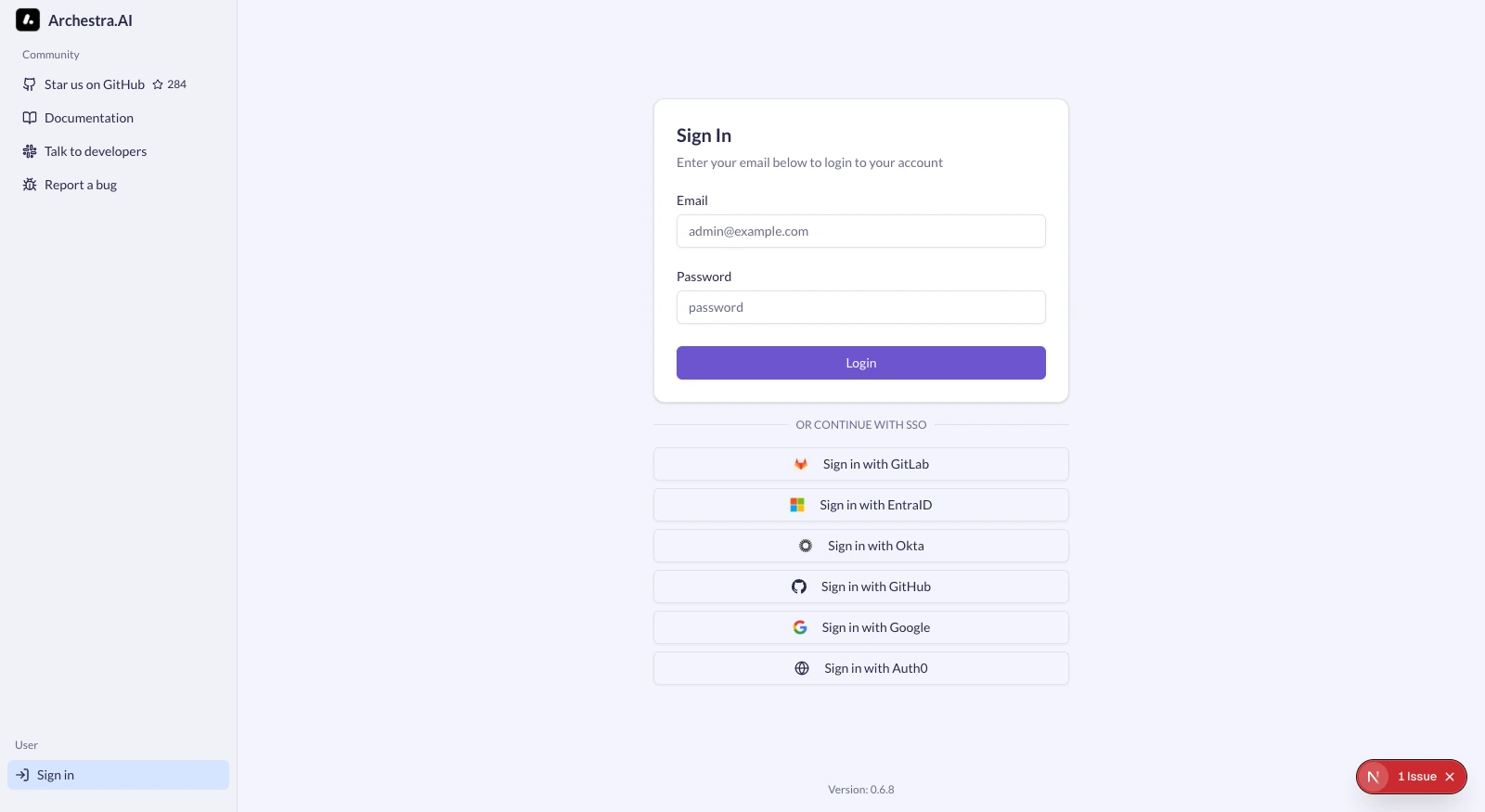
- SSO buttons appear on the Archestra sign-in page for every enabled provider
- The user clicks the button and authenticates with their identity provider
- Archestra applies role mapping and team sync rules
- The user is provisioned (if new) and logged in
Supported protocols
Archestra speaks two SSO protocols:
| Protocol | Use it for |
|---|---|
| OIDC (OpenID Connect) | Microsoft Entra ID, Okta, Google, GitHub, GitLab, Auth0, Keycloak, any modern OAuth 2.0 + OIDC provider |
| SAML 2.0 | Older enterprise IdPs that don't speak OIDC, or organizations standardized on SAML |
OIDC is the default choice for new setups. SAML is supported for compliance-driven environments.
Callback URLs
Each protocol uses a different callback URL format. Both contain a {ProviderId} segment that is case-sensitive and must match the provider ID configured in Archestra exactly (for example Okta, EntraID, Google).
OIDC
https://your-archestra-domain.com/api/auth/sso/callback/{ProviderId}
For local development:
http://localhost:3000/api/auth/sso/callback/{ProviderId}
SAML (Assertion Consumer Service URL)
https://your-archestra-domain.com/api/auth/sso/saml2/sp/acs/{ProviderId}
For local development:
http://localhost:3000/api/auth/sso/saml2/sp/acs/{ProviderId}
Allowed Email Domains
The Allowed Email Domains field is an optional Archestra-side sign-in boundary. When configured, users can sign in with that provider only when the email returned by the IdP matches one of the configured domains.
Use comma-separated domains for multi-domain SSO:
company.com, subsidiary.com
Subdomains are included automatically — engineering.company.com matches company.com.
User provisioning
When a user authenticates via SSO for the first time:
- A new user account is created with the email and name from the identity provider
- New users receive the first matching rule's roles, otherwise the provider's default roles or organization defaults
- The user is added to the organization
- A session is created and the user is logged in
Subsequent logins link to the existing account by email. Role mapping rules are evaluated on each login, so role changes in the IdP take effect on next sign-in.
Downstream providers
An identity provider can be configured without being used for login. Disable Use for Single Sign-On when the provider is only used to link delegated tokens for downstream MCP tool calls. With this disabled, the provider is hidden from the sign-in page and its role mapping and team sync never run — connecting the provider to fetch a downstream token cannot change a user's Archestra role or team memberships.
This is useful when one provider is the primary Archestra login provider, but a specific MCP tool needs a token from another provider. See Enterprise-Managed Auth — Linked downstream IdPs.
Disabling Basic Authentication
Once SSO is working, you can disable the username/password login form to enforce SSO-only authentication. Set ARCHESTRA_AUTH_DISABLE_BASIC_AUTH=true and restart the backend. See Deployment — Environment Variables.
Important: verify at least one SSO provider is working before disabling basic auth, or you (and your admins) will be locked out.
Because there is no email provider, password recovery is a shell operation. If you disable basic auth and SSO later breaks, recover a locked-out admin by resetting their password from the backend container, then re-enable basic auth. See Password Reset.
Disabling User Invitations
For organizations using SSO with auto-provisioning, you can disable the manual invitation system entirely. This hides the invitation UI and blocks invitation API endpoints. Set ARCHESTRA_AUTH_DISABLE_INVITATIONS=true. See Deployment — Environment Variables.
Per-provider walkthroughs
Each provider has its own end-to-end setup page:
For Google, GitHub, GitLab, Generic OIDC, and Generic SAML, see the per-provider sections on the Identity Providers index.
Troubleshooting
state_mismatch error
Cookies are being blocked, or the callback URL doesn't match.
- Third-party cookies must be enabled in the browser
- The callback URL configured at the IdP must exactly match the Archestra callback URL, including the case-sensitive
{ProviderId}segment
missing_user_info error
The IdP didn't return the required user attributes. For GitHub, the user must have a public email set in their GitHub profile.
account not linked error
The IdP returned an email that doesn't match the existing account, or reported the email as unverified. Verify the user signs in with the same email as their existing Archestra account and that the IdP marks the email verified.
invalid_dpop_proof error (Okta)
DPoP is enabled on the Okta application. Disable Require Demonstrating Proof of Possession (DPoP) header in token requests in the Okta app's security settings.
account_not_found error (SAML)
The SAML assertion didn't contain the required user attributes. Configure your IdP to send:
NameIDinemailAddressformatemailattributefirstNameandlastNameattributes (recommended)
signature_validation_failed error (SAML)
The SAML response signature couldn't be verified.
- The IdP certificate in Archestra must match the current signing certificate from your IdP
- If using IdP metadata, re-download it (certificates rotate)
See also
- Enterprise-Managed Auth — SSO's counterpart for downstream MCP tool calls (OBO, ID-JAG, RFC 8693)
- Role Mapping — map IdP claims to Archestra roles
- Team Sync — sync IdP groups to Archestra teams