
MS Teams
Mention the bot in Microsoft Teams, and an Archestra agent answers in the thread. Each channel, group chat, and direct message has its own agent. People can ask a different agent for one message.
Connect Microsoft Teams
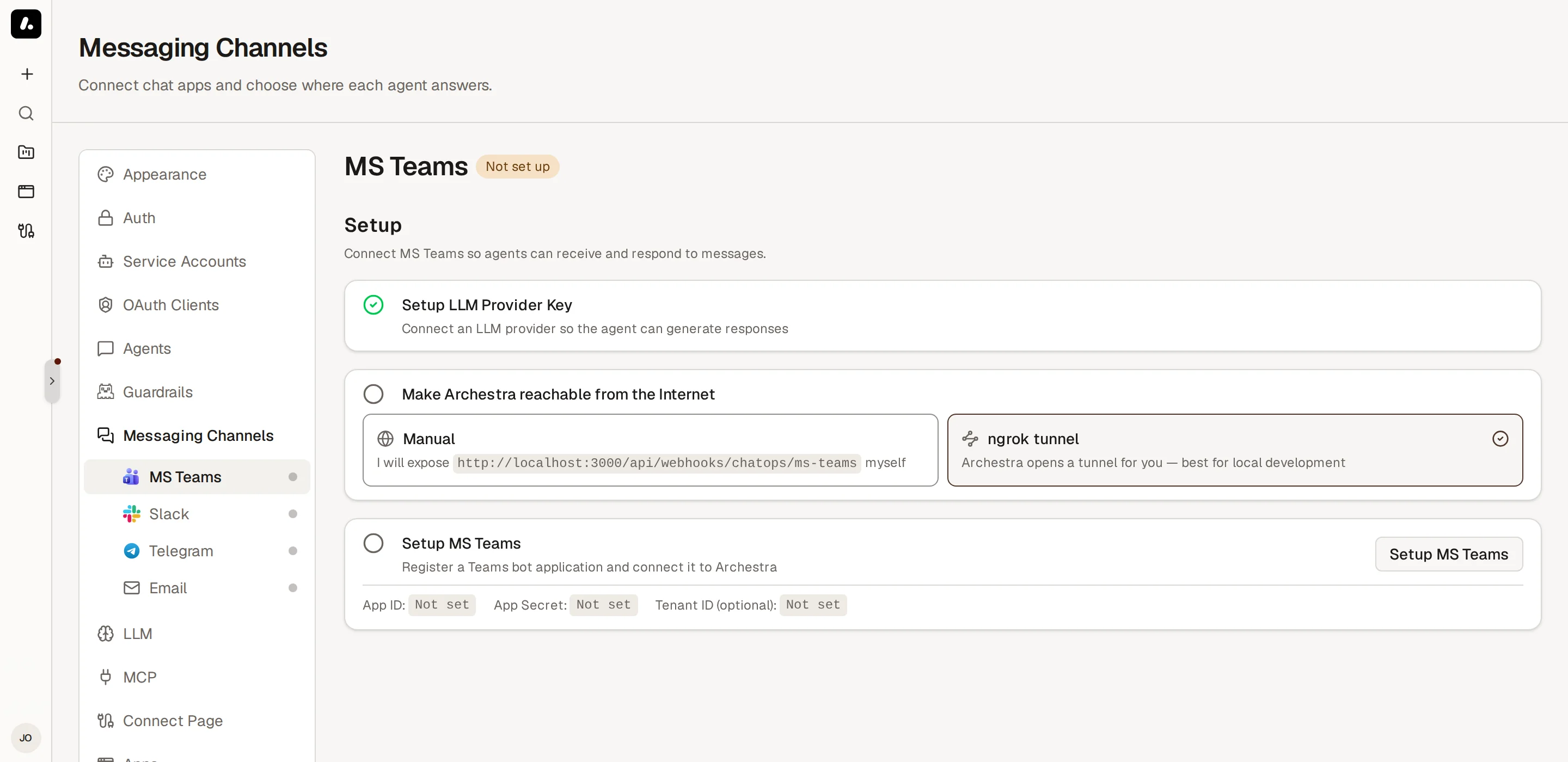
You need an Azure subscription where you can create an Azure Bot, and a Teams tenant that allows custom apps.
- Go to Settings → Messaging Channels → MS Teams and click Setup MS Teams.
- Follow the wizard. It creates the Azure Bot and the Teams app, and saves the credentials.
- Install the app in your team.
What to know:
- Teams must reach Archestra. A local instance can use the wizard's Configure ngrok step instead.
- To expose only the webhook, set
ARCHESTRA_PUBLIC_ENDPOINTS_PORT. The rest of the API can then stay internal. - To configure Teams with environment variables, see the Configuration reference.
Pick the Agent for a Channel
- Mention the bot in the channel:
@Archestra what is the status of service X? - Pick an agent from the card. It answers this message and later ones in the channel.
To change the agent, send @Archestra /select-agent, or add the channel to another agent.
Direct messages work the same way, but each person must add the app for themselves first. Teams asks them to click Add the first time they open a chat with the bot.
When the Bot Answers
- In a channel, the bot answers only when you mention it.
- In a thread, one mention is enough. It then answers every message in that thread.
- In a group chat or direct message, it answers every message.
- To answer every message in a channel, turn on Answer all messages in the channel's Settings. The team owner must approve the app's permissions when they install it.
To quiet a thread, send mute, or react to a bot reply with 🔇 or 🤫. The bot stops, and cancels any reply in progress. Mention it again to wake it.
Ask Another Agent Once
Put the agent's name and > before your message:
@Archestra Sales > what is our Q4 pipeline?
The channel keeps its agent. Names match without regard to case or spaces. An unknown name goes to the channel's agent, with a notice.
Channel Instructions
Tell the agent how to behave in one channel. Open the channel's Settings and write them as you would talk to the agent. For example: "Every message here is a task. Create it at once, and do not ask first."
They come first, before the agent's own instructions. They add to what the agent does, and never remove an ability.
Commands
| Command | What It Does |
|---|---|
@Archestra /select-agent | Changes the agent for this channel |
@Archestra /status | Shows the agent for this channel |
@Archestra /help | Lists the commands |
reset | Starts a new conversation. Direct messages and group chats only. |
What to Know
- Memory: in a channel, the agent reads the thread. In a direct message or group chat, Archestra keeps the history. See Conversation History.
- New people: someone who messages the bot without an Archestra account gets one. It has the organization's default role for new users, set in Settings → Auth. Find these accounts in Settings → Users.
- Welcome message: the bot DMs a new person a sign-up link, or a sign-in link when you use SSO. To turn it off, set
ARCHESTRA_CHATOPS_SIGNUP_WELCOME_ENABLED=false. - Files: the agent reads images, PDFs, and text files such as CSV, JSON, and Markdown. With a code sandbox, it can open other files too, such as ZIP archives.
- File limits: 20 files per message, 10 MB per file, 25 MB in total. Archestra skips larger files without a warning.
Troubleshooting
| Problem | Fix |
|---|---|
| "You don't have access to this app" | Your organization blocks custom apps. Ask your Teams admin to allow them in the Teams Admin Center. |
| The bot does not answer | Check that ARCHESTRA_CHATOPS_MS_TEAMS_ENABLED=true, that Teams can reach your URL, and that the app ID and password are correct. |
| "Could not verify your identity" | Add the TeamMember.Read.Group and ChatMember.Read.Chat permissions to the app manifest. Then install the app again. |
| No history in a channel thread, or Answer all messages does nothing | Add the ChannelMessage.Read.Group and ChatMessage.Read.Chat permissions to the manifest. Install the app again, and have the team owner approve them. |
| Direct messages do not work | Upload the latest app manifest. Older manifests do not include the personal scope. |