
Incoming Email
Give each agent an email address. Send it an email, and the agent answers in the same thread. The email is its prompt.
All agent addresses deliver to one shared Microsoft 365 mailbox. They use plus-addressing, such as agents+agent-8faa47b5…@example.com. Microsoft 365 is the only supported provider.
Connect the Mailbox
You need:
- A Microsoft 365 mailbox for agent mail, such as
agents@example.com. - A Microsoft Entra app registration with the Microsoft Graph application permissions
Mail.ReadandMail.Send, admin consent, and a client secret. - A public HTTPS URL for Archestra, so Microsoft can tell it about new mail. A local instance can use a tunnel, such as ngrok.
-
Set these on the backend, and restart it:
bashARCHESTRA_AGENTS_INCOMING_EMAIL_PROVIDER=outlook ARCHESTRA_AGENTS_INCOMING_EMAIL_OUTLOOK_TENANT_ID=<tenant-id> ARCHESTRA_AGENTS_INCOMING_EMAIL_OUTLOOK_CLIENT_ID=<client-id> ARCHESTRA_AGENTS_INCOMING_EMAIL_OUTLOOK_CLIENT_SECRET=<client-secret> ARCHESTRA_AGENTS_INCOMING_EMAIL_OUTLOOK_MAILBOX_ADDRESS=agents@example.com -
Go to Settings → Messaging Channels → Email and run the wizard. It subscribes Archestra to new mail.
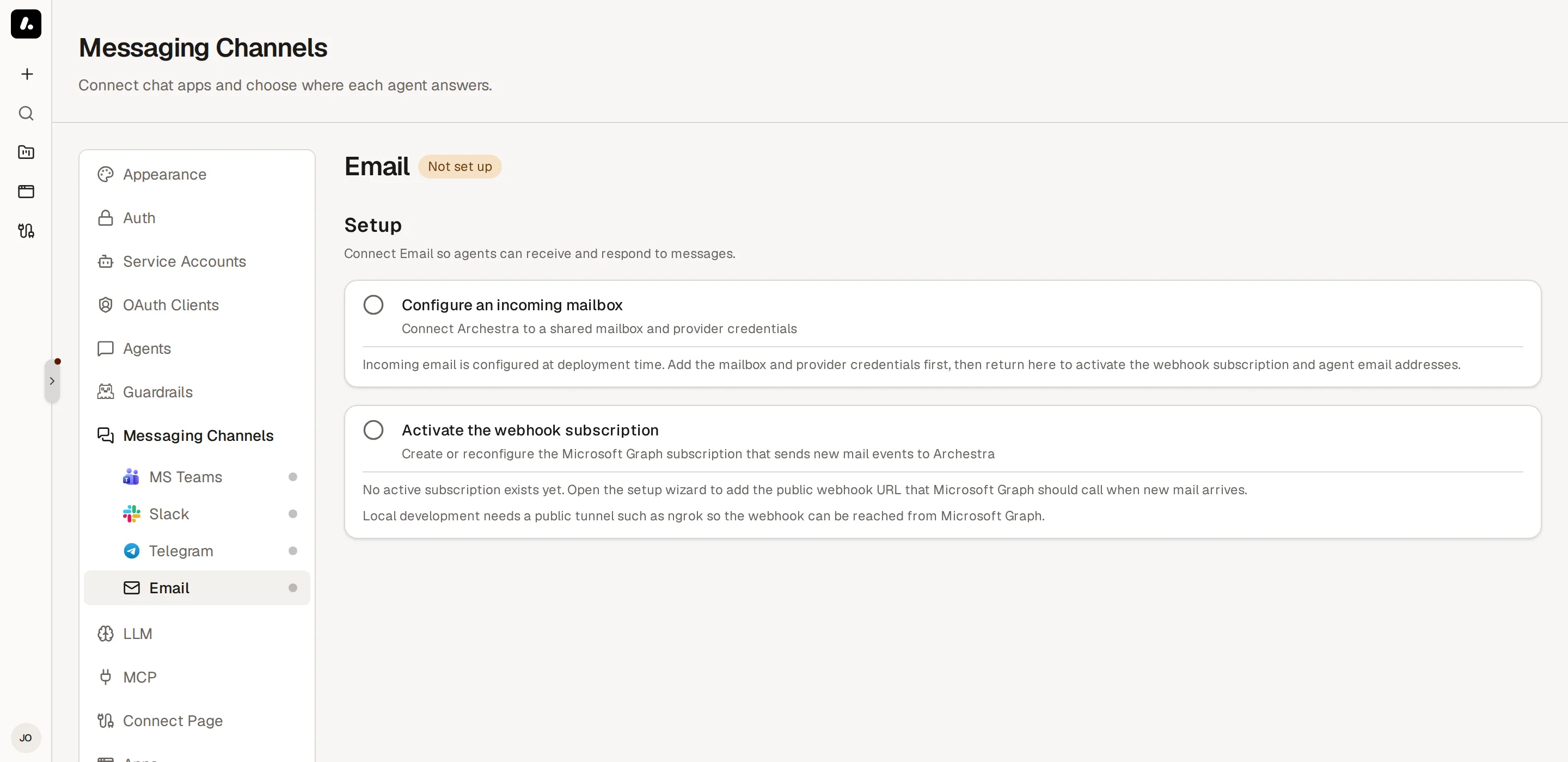
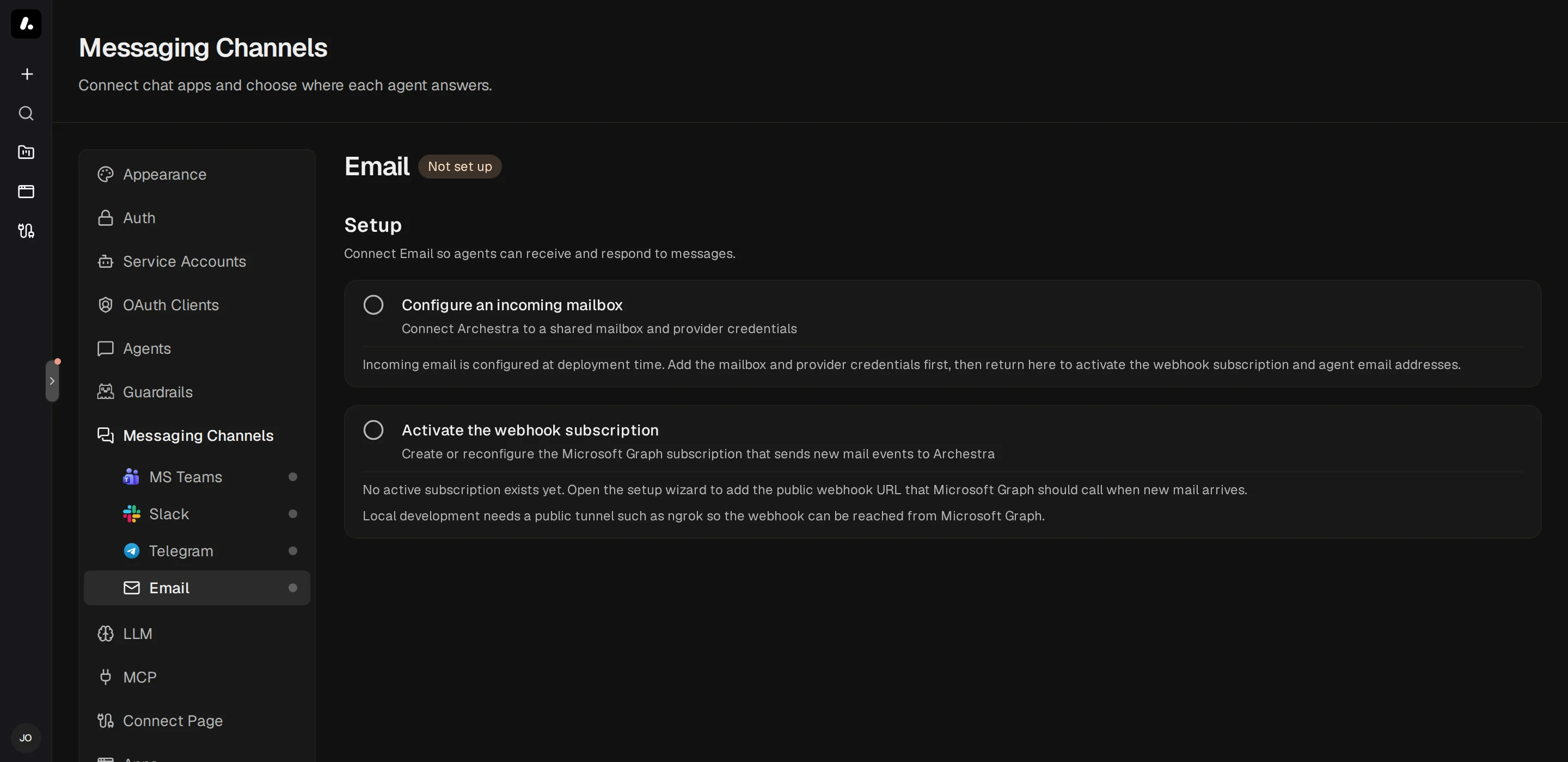
Archestra renews the subscription before it expires. To skip the wizard, set ARCHESTRA_AGENTS_INCOMING_EMAIL_OUTLOOK_WEBHOOK_URL to https://<your-archestra-host>/api/webhooks/incoming-email. For another domain in agent addresses, set ARCHESTRA_AGENTS_INCOMING_EMAIL_OUTLOOK_EMAIL_DOMAIN.
Give an Agent an Address
- Open the agent and go to Messaging Channels.
- Under Email, click Turn on.
- Pick a Security mode and save.
- Copy the agent's address, and send it a test email.
Security Modes
The mode decides who can run the agent by email.
| Mode | Who can email the agent | Runs as |
|---|---|---|
| Private | Archestra users who can use the agent. The sender address must match the user's Archestra email. | The sender, with their own credentials |
| Internal | Any sender from the Allowed domain. The match is exact: example.com does not admit sales.example.com. | The system, with shared credentials only |
| Public | Any sender | The system, with shared credentials only |
What to know:
- Private mode trusts the sender address. Turn on SPF, DKIM, and DMARC for your domain to block spoofed mail.
- A sender who is not allowed cannot run the agent, and gets no reply.
What the Agent Receives
- The prompt: the email body, up to 100 KB. A reply also brings the earlier messages in its thread.
- Files: images, PDFs, and text files such as CSV and JSON. With a code sandbox, it can open other files too, such as ZIP archives.
- Skipped files, without a notice to the sender: past 20 per email, over 10 MB each, past 25 MB in total, and images under 2 KB. Small images are usually broken images in forwarded mail.
- Long runs: with a dedicated runtime, the reply goes out when the run finishes, even after Archestra restarts.