
Chat
Chat is where you work with agents. Each chat uses one agent, with that agent's instructions, tools, and knowledge. Every request goes through the LLM Proxy and MCP Gateway, so guardrails and logging apply.
Starting a Chat
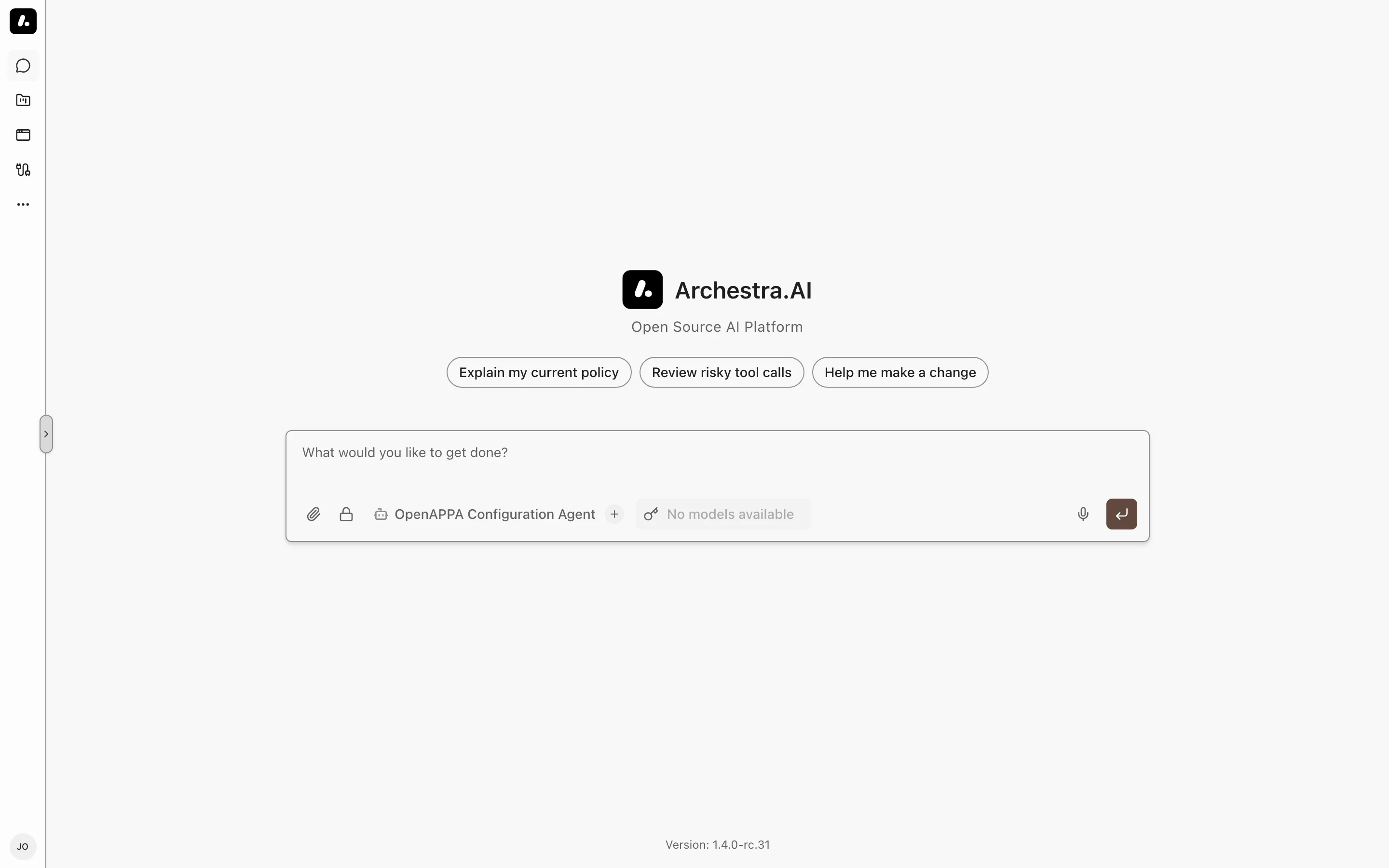
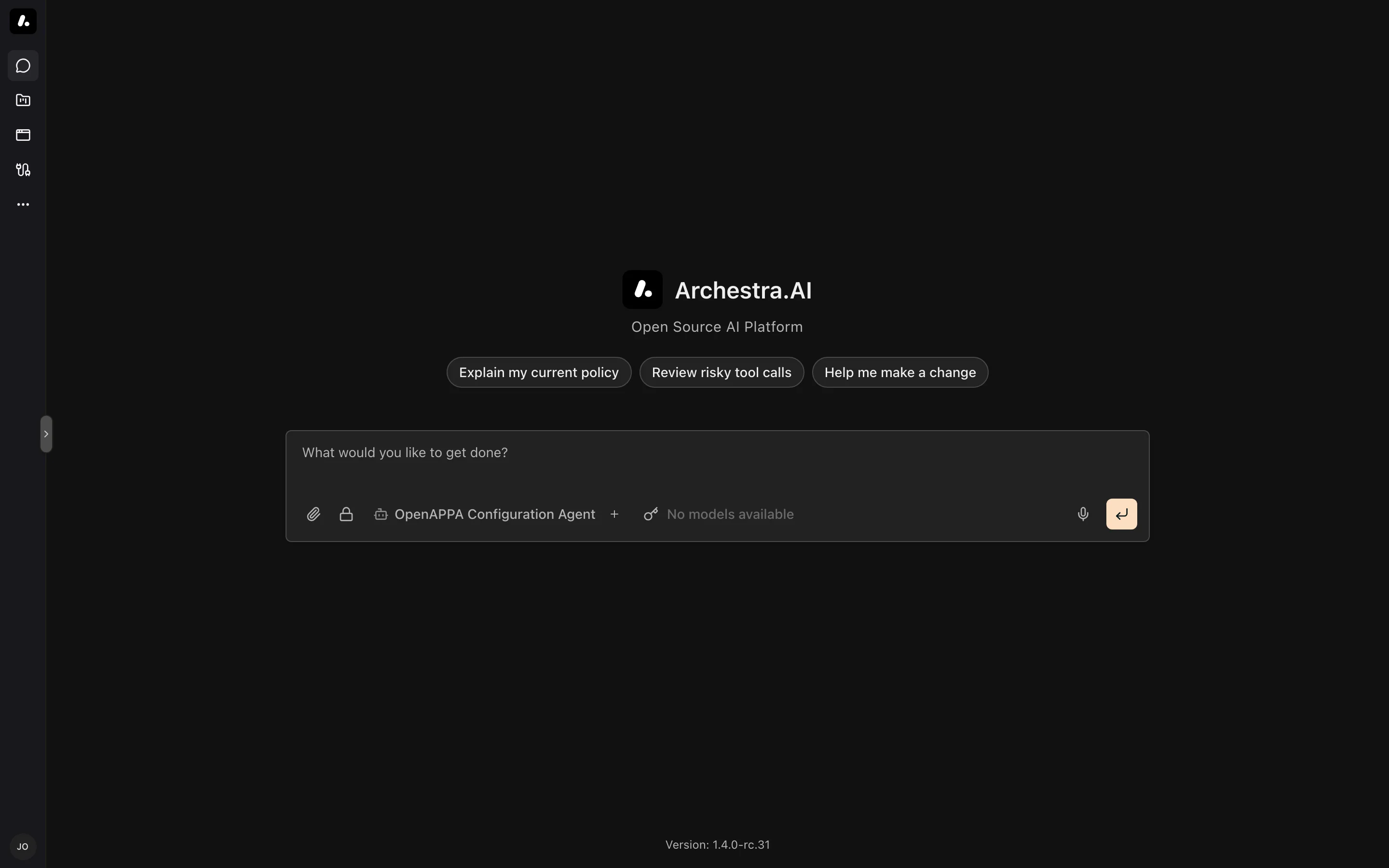
Select New chat, or press Alt+N. Pick an agent from the Agent menu, then type your message. Press Enter to send and Esc to stop a response.
You can keep typing while the agent answers. Your next message waits in a queue until the response finishes.
Choosing a Model
The model picker shows the chat's current model. A badge shows whether it comes from the agent or the organization default. Pick another model to override it for this chat, or select Reset to default. Tags such as Vision, PDF, and Tools show what each model supports.
When the model supports it, Reasoning depth sets how hard it thinks: Default, Low, Medium, or High.
Attaching Files
Select Attach files to add files to your message. Files the model cannot read are saved to the chat's Files panel. Admins can turn uploads off or set a size limit.
To keep an attachment beyond this chat, use Save to knowledge. See Knowledge Files.
Skills and Commands
Type / to see commands. Each skill you can use becomes a command — a "Deep Research" skill becomes /deep-research, for example. See Agent Skills.
/compact summarizes the conversation so it stays within the model's context limit. The Context usage ring next to the composer shows what fills the context window and offers Compact now.
Tool Calls
The agent's tool calls appear inline in the conversation. Some tools need your approval first: select Approve or Decline on the card. A call blocked by a guardrail shows Rejected. If you can edit policies, Edit policy opens the rule.
A tool can also ask you a question mid-run. Answer it in the card, or select Dismiss question.
Editing and Feedback
Each message has actions to copy, edit, or regenerate it. Rate a reply with Good response or Bad response. Editing your message resends it; editing a reply saves your corrected text.
Side Panel
The panel next to the conversation has tabs:
- Files — attachments, files the agent created, and artifacts you can copy or download as PDF. In a project chat it shows the project's files.
- Browser — the live browser view, for agents with browser tools.
- Apps — apps used in this chat.
Organizing Chats
Chats are listed in the sidebar. Each chat's menu can pin, rename, move to a project, or delete it. Press Cmd+K (or Ctrl+K) to search chats and jump between them.
Sharing a Chat
Open Chat actions in the chat header and select Share. Choose who can view it: people, teams, service accounts, roles, or the whole organization. Shared chats are read-only — only the owner can continue them. A viewer can select Start New Chat from here to continue in a chat of their own.
Export Markdown in the same menu saves the conversation as a file.
Encrypted Chats
An encrypted chat protects stored content with a key held by your browser. Recovering it without that browser requires the escrow private key. Use it for sensitive topics such as HR or legal matters.
Select the lock in the composer, or press Alt+I, before you send the first message. Your browser creates a key for the chat and keeps it. Archestra encrypts the messages, attachments, logs, and errors with that key before storing them. It stores an escrow-encrypted copy of the key for recovery.
An encrypted chat opens only in the browser that created it. On other devices it appears in the list, but its content cannot be opened.
Encryption protects stored data, not the conversation in progress. Archestra and your LLM provider still process the content to answer you. These features are off in encrypted chats: sharing, starting a new chat from it, projects, sandbox commands, compaction, and saving files to knowledge.
Key Escrow
An administrator must configure key escrow before encrypted chats can be created. The escrow public key protects a recoverable copy of each chat key. Its private key stays with your designated key holders. See Recovering an Encrypted Chat for recovery.