
Knowledge Connectors
A knowledge connector copies one source, such as Confluence or Google Drive, and keeps the copy current. Agents and MCP clients then search it, and cite the document each answer came from.
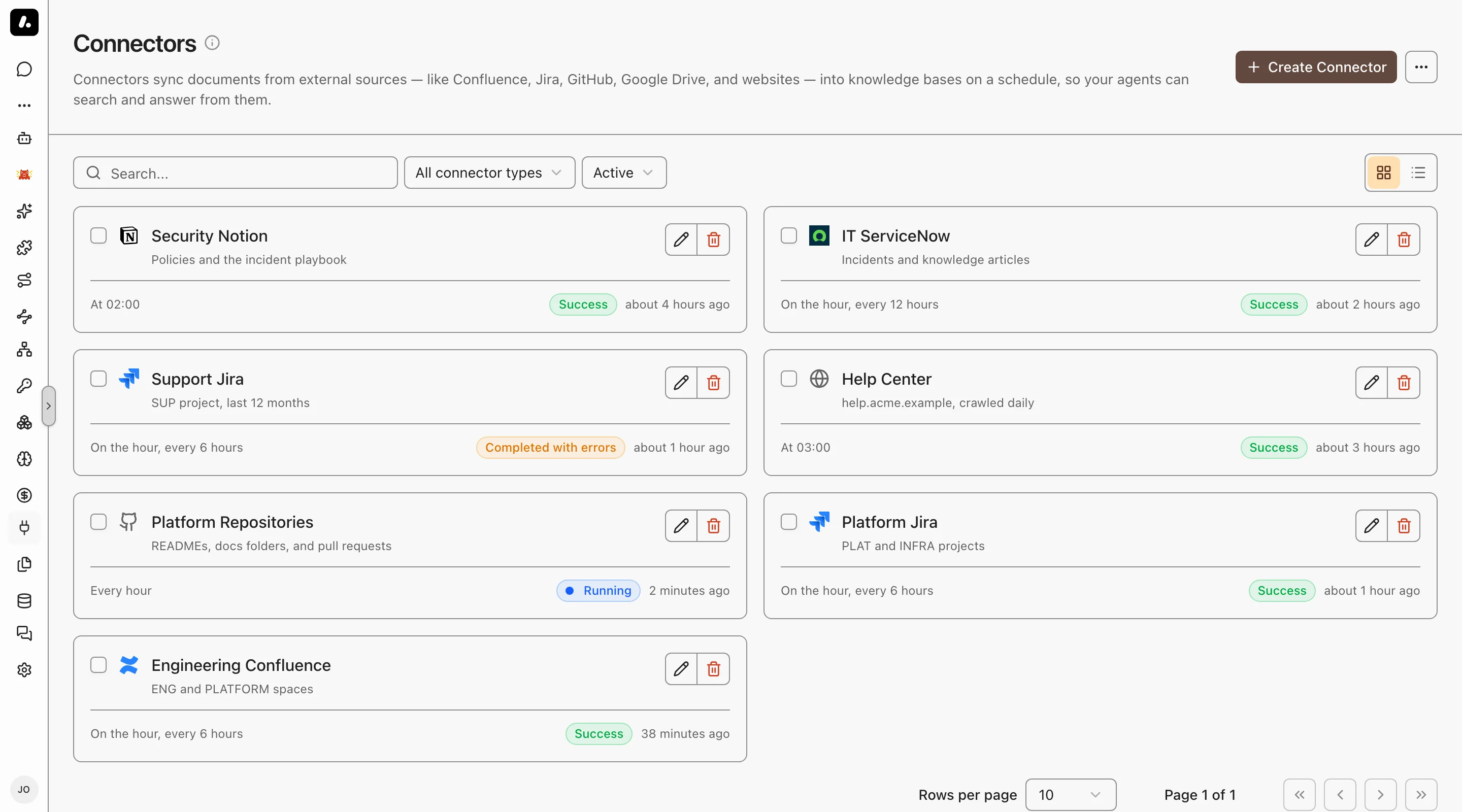
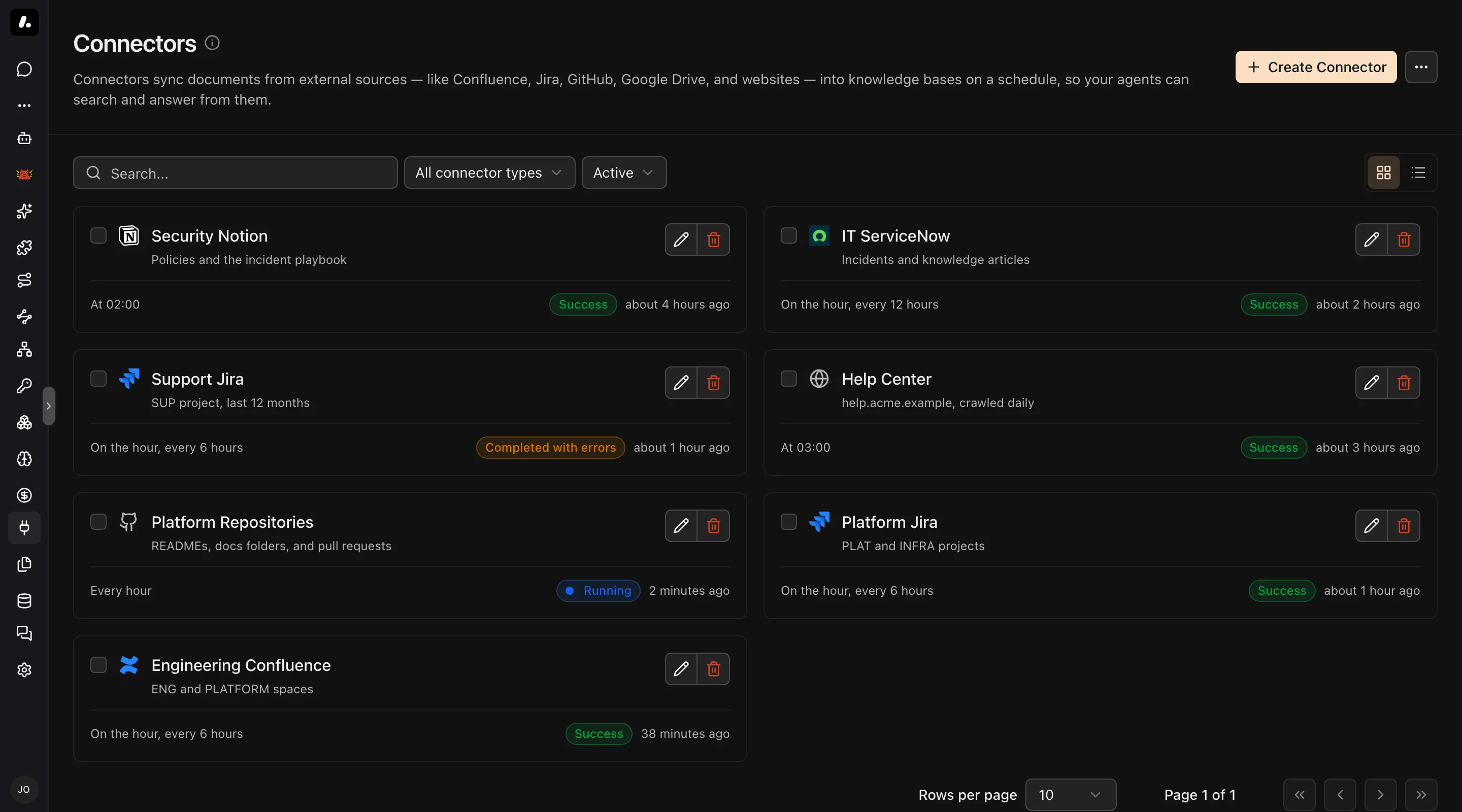
- Pick from 17 sources. Each has its own setup page.
- Set how often it syncs. Answers are only as current as the last sync.
- Search keeps access rules. With permission sync on, a private Confluence space stays private.
Sources
Each source page lists its credential, its fields, and its permission setup. The second column says how much of the source's access rules the connector copies:
- Supported: every document keeps its access rules from the source.
- Limited: the rules are copied with a gap. The row names the gap.
- Not supported: the connector's own grants decide who finds each document.
| Source | Auto-sync permissions |
|---|---|
| Asana | Supported |
| Confluence | Supported |
| Dropbox | Limited: stored access tokens cannot refresh |
| GitHub | Supported |
| GitLab | Supported |
| Google Drive | Limited: depends on the authentication mode |
| Jira | Limited: Jira Cloud only, and issue security is not supported |
| Linear | Supported |
| M-Files | Supported with the VAF Add On |
| Notion | Limited: every synced page is visible to all workspace members |
| OneDrive | Supported |
| Outline | Supported |
| Perforce | Supported with the Kubernetes orchestrator |
| Salesforce | Limited: restriction rules and field-level access are not copied |
| ServiceNow | Limited: ITSM participant audiences only, and advanced criteria are not supported |
| SharePoint | Limited: site pages use library audiences, and site groups are not resolved |
| Web Crawler | Not supported |
Create a Connector
First, an admin must set an embedding model.
- Go to Knowledge → Connectors, click Create Connector, and pick a source.
- Enter the credential and what to index. The source's page says what each one needs.
- Set who can use it under Permissions, and how often it syncs under Advanced.
- Save, open the connector, and click Test Connection.
- Check the first sync run for indexed documents or errors.
- Add the connector to a Knowledge Base, or pick it in an agent's Tools & Knowledge.
Auto-Sync Permissions
Permission sync copies each source's own access rules. A person then finds only the documents they can open in that source. Each search uses the latest copy of the rules.
Turn on Sync permissions from the source on the connector's General tab. You need:
- The Knowledge Enterprise feature. See Licensing.
- A source that supports it. See the Sources table.
knowledgeSource:createto create the connector, orknowledgeSource:updateto change it.- The source's own setup. Each source page has an Auto-Sync Permissions section.
Connector Identity
Give the connector one dedicated identity that can read every document you sync and its permissions.
- A document whose permissions the identity cannot read is hidden from everyone.
- Test Connection checks only the sign-in. It does not check access to each project or permission table.
Match Source Accounts to People
Archestra matches each source account to a person by email. An account with no match gets no documents.
| Problem | Fix |
|---|---|
| The account has a hidden or empty email | Assign it to a person by hand under Users. On Jira or Confluence Cloud, add an organization admin API key instead. See Jira or Confluence. |
| A group has no members | Fix the group in the source. Assigning by hand cannot add members to a group. |
Troubleshoot Sync
Open the connector to see each sync run, with its progress, warnings, and errors.
| You see | Do this |
|---|---|
| No documents on the first run | Check that the source has documents, the credential can read them, and no filter excludes them all. A later run with no documents is normal when nothing changed. |
| A sync runs too long | Click Cancel sync in its Actions column. Documents already indexed stay. The next sync starts from the saved checkpoint. |
| Unchanged documents miss a new setting | Click Force Re-sync to index them again. |
| A permission sync ended as Superseded | Nothing. You changed the settings or credentials, and a new run started at once. |