
MCP Gateway
Give each client the right tools from one URL, and never hand out a server credential. Point Claude Code, Cursor, or your own app at a gateway. It gets tools from every server behind it:
- Authenticated to every MCP server for you. Archestra uses the person's own account, a shared bot account, or their company identity. See MCP Server Credentials.
- Authenticated the way each client can. Browser OAuth for coding agents, a token for scripts, an OAuth client for your apps, or your identity provider's JWT. See MCP Gateway Authentication.
- Only the tools you choose. One gateway for engineers, one for support, one for an app.
- Without filling the model's context. The client sees two tools, one to search and one to run, not hundreds.
- With your knowledge, subagents, and skills, through the same URL.
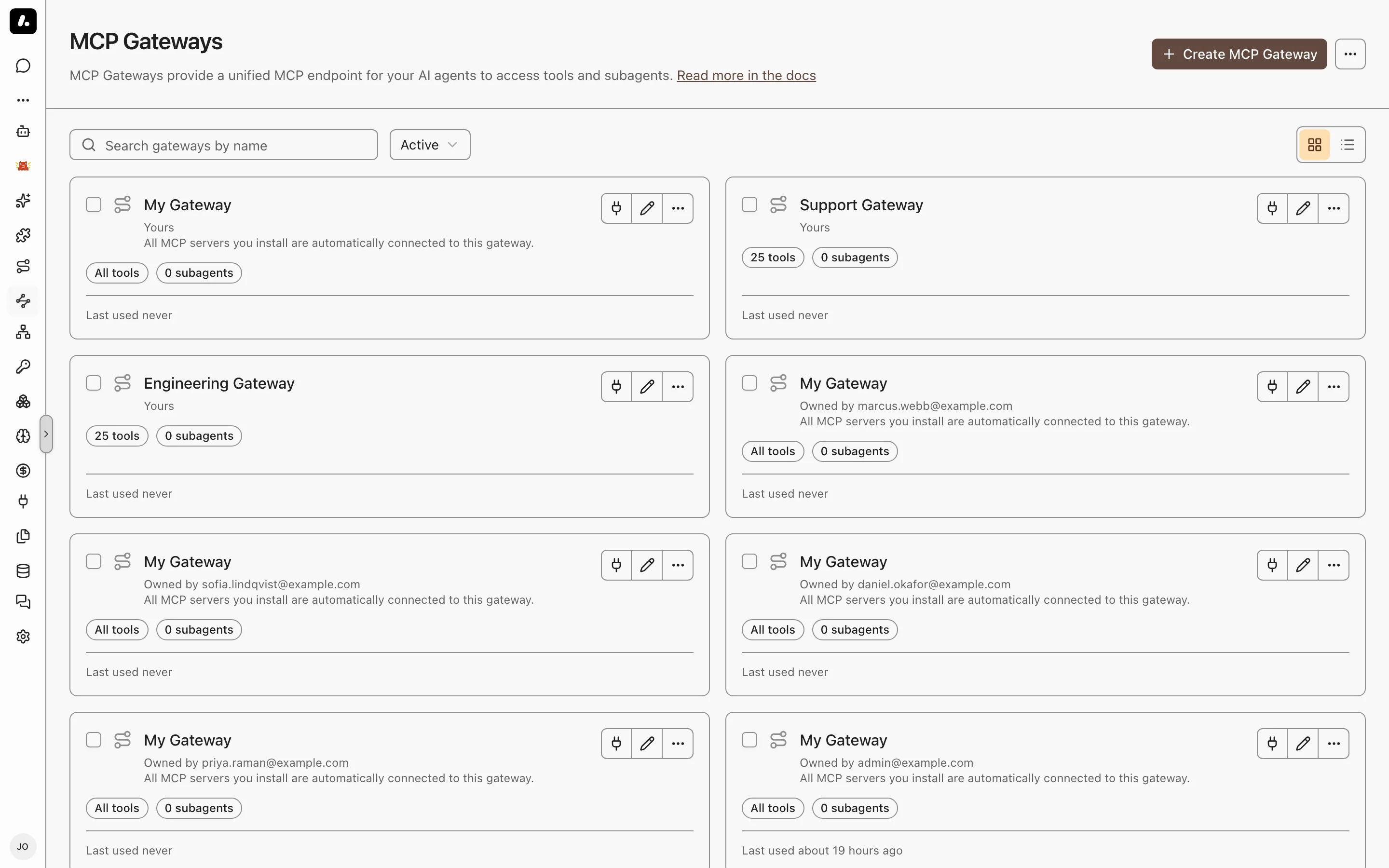
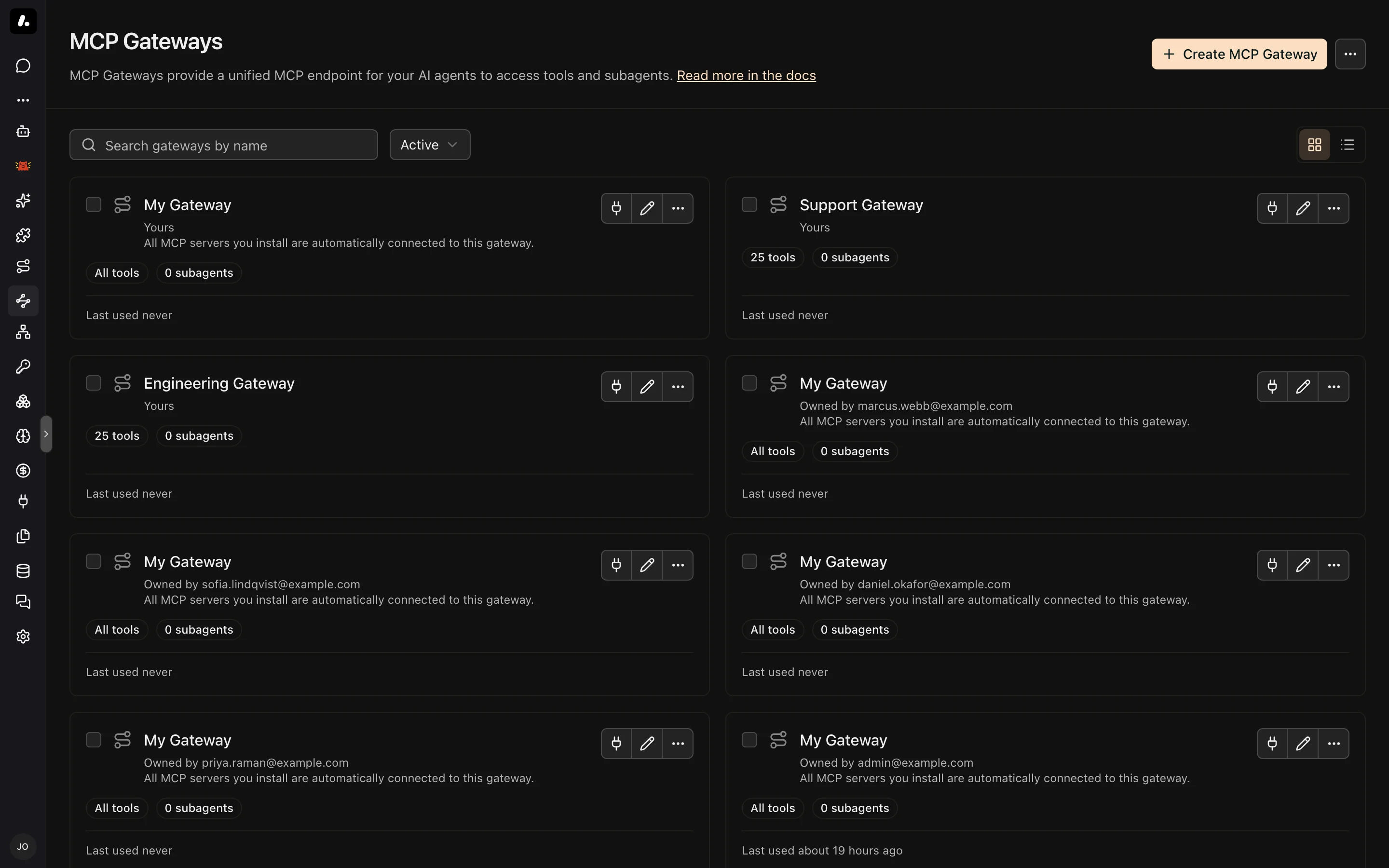
Create a Gateway
You may not need to. Everyone already has a personal gateway, My Gateway, with every tool they can use. Create a gateway when a team, an app, or a script needs a fixed set of tools.
- Go to MCP Gateways and click Create MCP Gateway.
- Enter a name, such as
support-tools. Under Advanced, choose the people and teams who can use it. - Under Tools & Knowledge, pick its tools. See Choose Its Tools.
- Click Create.
- Use it from your coding agent: go to Connect, click Customize setup, and pick the gateway under Gateway.
Your agent then lists only the tools you chose. For a script or your own app, use the authentication options on the gateway's Connect tab. See MCP Gateway Authentication.
Choose Its Tools
Give the client every tool its person can use, or only the ones you pick. Set it under Tools & Knowledge on the gateway's Settings tab.
| Mode | The client gets | Use it for |
|---|---|---|
| All | Every tool the signed-in person can use. New servers show up by themselves. | A person's own coding agent |
| Manual | Only the tools you pick. For each, pick a shared account, or Resolve at call time to use each person's own. | A team, an app, or a script |
- Subagents go here too. The client gets one
agent__<name>tool for each subagent, to hand it a task. - Progressive tool loading is on by default: the client gets
search_toolsandrun_tool. Turn it off in Manual mode when the client needs the full list up front. - A team or organization token has no person behind it, so it gets only the tools you picked, even in All mode.
Search Your Knowledge From Any Client
Let Claude Code or Cursor answer from your company's documents, with links to the sources. The gateway brings your knowledge bases into any MCP client: Confluence, Google Drive, SharePoint, uploaded files, and more.
- On the gateway, go to Tools & Knowledge.
- Under Knowledge sources, pick All for every source the person can use, or Manual to choose.
- Save. The client gets
query_knowledge_sources. - Ask the client a question, such as "What is our deployment rollback procedure?". Each result comes with its document title and link.
Each person finds only the documents they can open. A team or organization token finds only sources shared with everyone in the organization.
Publish Skills
ARCHESTRA_BETA=true.Give every MCP client the same skills, from one place. The gateway publishes them as skill:// resources. Clients that support the draft MCP Skills extension list and read them like local skills. Other clients do not see them.
- Open the gateway, go to Advanced, and find Skills over MCP.
- Pick All for every organization skill in the gateway's environment, or Manual to choose.
- Save, then check that your client lists a skill.
Manual says why a skill cannot be published. All skips it. Templated skills, other people's personal skills, and names that break the Agent Skills specification cannot be published.
What to Know
- Gateway access is its own grant. A person who can use the gateway can use its shared tools, even if they cannot see the server in MCP Registry.
- Custom headers: to pass headers from the client to the server, such as a tenant ID, list them under Advanced → Custom headers. Stdio servers cannot get headers.