
Agents
An agent is a reusable assistant: instructions, a model, and the tools, knowledge, skills, and subagents it can use. You build it once and use it everywhere: in Chat, from your coding agent, in messaging channels, and from other systems.
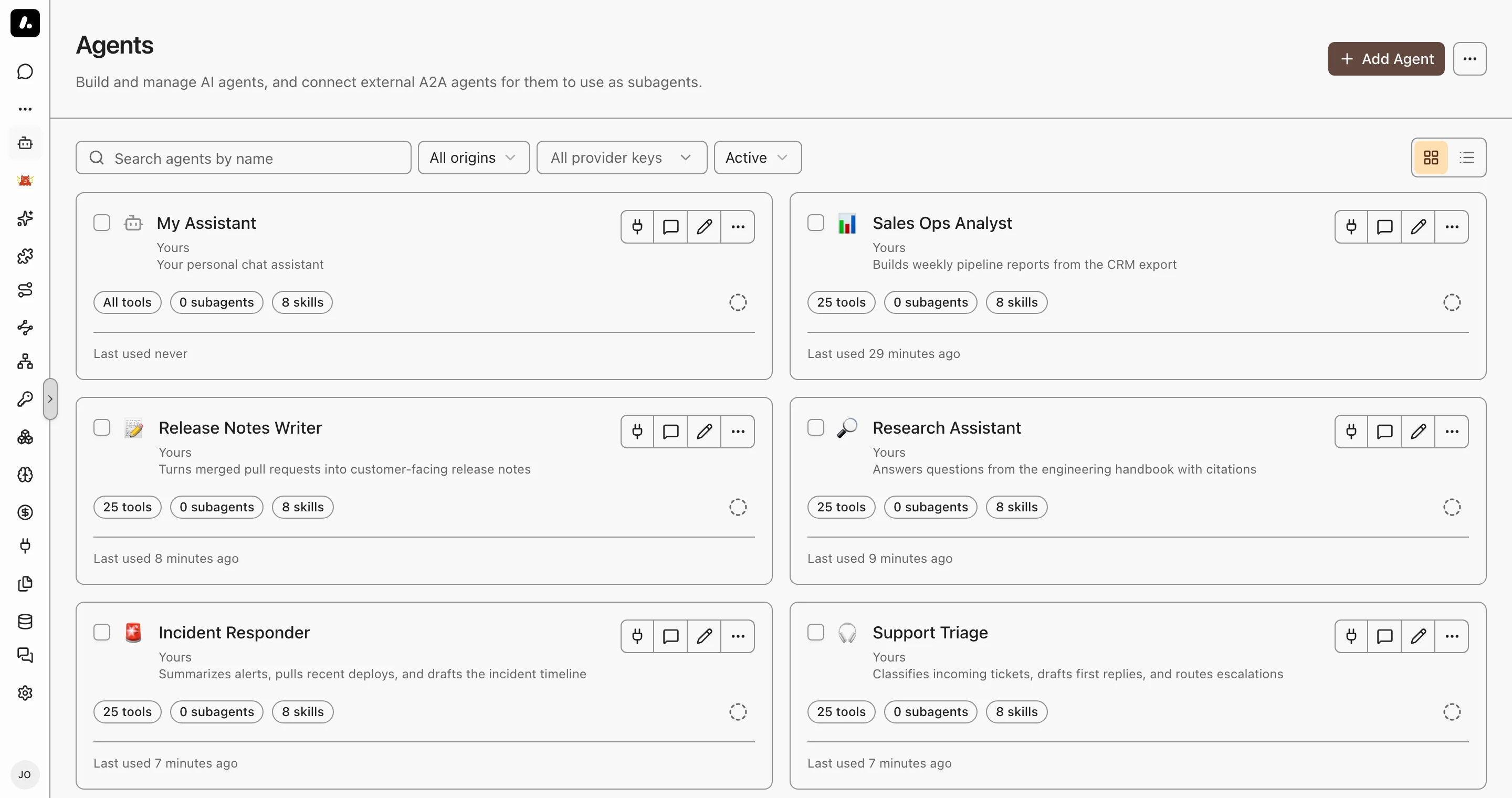
Create an Agent
- Go to Agents and click Add Agent.
- Start from scratch, or pick a template under Popular agents.
- On Configuration, enter a name and instructions, and choose the model.
- Click Continue setup to choose tools, knowledge, skills, subagents, and messaging channels.
- Click Create, then Chat to send your first task.
What to know:
- Instructions can use your details, such as your name, teams, and today's date. See Prompt Templates.
- To run the agent in its own container, with a live terminal, give it a dedicated runtime.
Choose What the Agent Can Use
On the Tools, Skills & Knowledge tab, each kind of resource has two modes:
- All: the agent can use everything the person using it can access, in the agent's environment. You can exclude items under All … except.
- Manual: the agent uses only what you assign.
This works the same for tools, knowledge sources, skills, and subagents.
What to know:
- Each person uses their own access. In All mode, two people can get different tools from one agent. In both modes, a tool that needs an account uses the person's own connection, unless you pin one.
- Built-in platform tools are excluded by default in All mode. Review the exclusions before you give an agent tools that change Archestra itself.
- The agent loads tools as it needs them. It starts with
search_toolsandrun_tool, not the full list. In Manual mode, you can turn off Progressive tool loading to send every assigned tool. - Missing connections: in Manual mode, choose when the agent prompts users to connect missing tool accounts (on call, on chat open, or required before chat). To use one account for everyone, pin a connection or resolve credentials at call time.
Use an Agent
Run an agent interactively, delegate work to it from your coding client, or trigger it from team channels and APIs:
- Chat and Projects: select the agent from the picker in Chat or scope it to a Project.
- Coding agents: once connected, hand off background tasks from your editor or CLI with
start_runand monitor their progress. See Hand Off Work. - Messaging channels: connect Slack, Microsoft Teams, Telegram, or Email on the agent's Messaging Channels tab. See Triggers & Channels.
- Automations and APIs: invoke the agent programmatically via Agent-to-Agent (A2A) calls or incoming webhooks.
What to know:
- Default agent: new chats automatically use your default agent. To change it, click Set as default on any agent card under Agents.
- Sidebar pinning: click Pin on an agent to keep it in the left navigation sidebar for quick access.
Prompt Templates
Tailor an agent's instructions to the person using it. Write Handlebars expressions in the Instructions field, on the agent's General tab. Archestra fills them in on each run:
You help {{user.name}}. Today is {{currentDate}}.
{{#includes user.teams "Engineering"}}You can use the engineering tools.{{/includes}}
| Expression | Gives |
|---|---|
{{user.name}}, {{user.email}} | The person's name and email |
{{user.role}} | Their organization role |
{{user.teams}} | Their team names, as a list |
{{currentDate}}, {{currentTime}} | The date and time in UTC, such as 2026-03-12 and 14:30:00 UTC |
What to know:
- Helpers: Handlebars blocks such as
#ifand#eachwork, and so doincludes,equals,contains, andjson. - Skills can use templates too. Add
templated: trueto the skill's frontmatter. See Writing Skills. - To keep an expression as text, add a backslash:
\{{user.name}}. An expression Handlebars cannot read stays as written.
Code Sandbox
Each conversation gets a private Linux container, so the agent can run shell commands and Python with run_command.
- Files you attach appear under
/home/sandbox/attachments/. - Files the agent saves appear in the conversation's Files panel.
- Network access follows the egress policy of the agent's environment.
What to know:
- Files stay between commands. Running processes do not.
- The sandbox is on by default. To turn it off, set
ARCHESTRA_CODE_RUNTIME_ENABLED=false. For setup, see Code Sandbox deployment.