
Slack
Mention the bot in Slack, and an Archestra agent answers in the thread. Each channel and direct message has its own agent. People can ask a different agent for one message.
Connect Slack
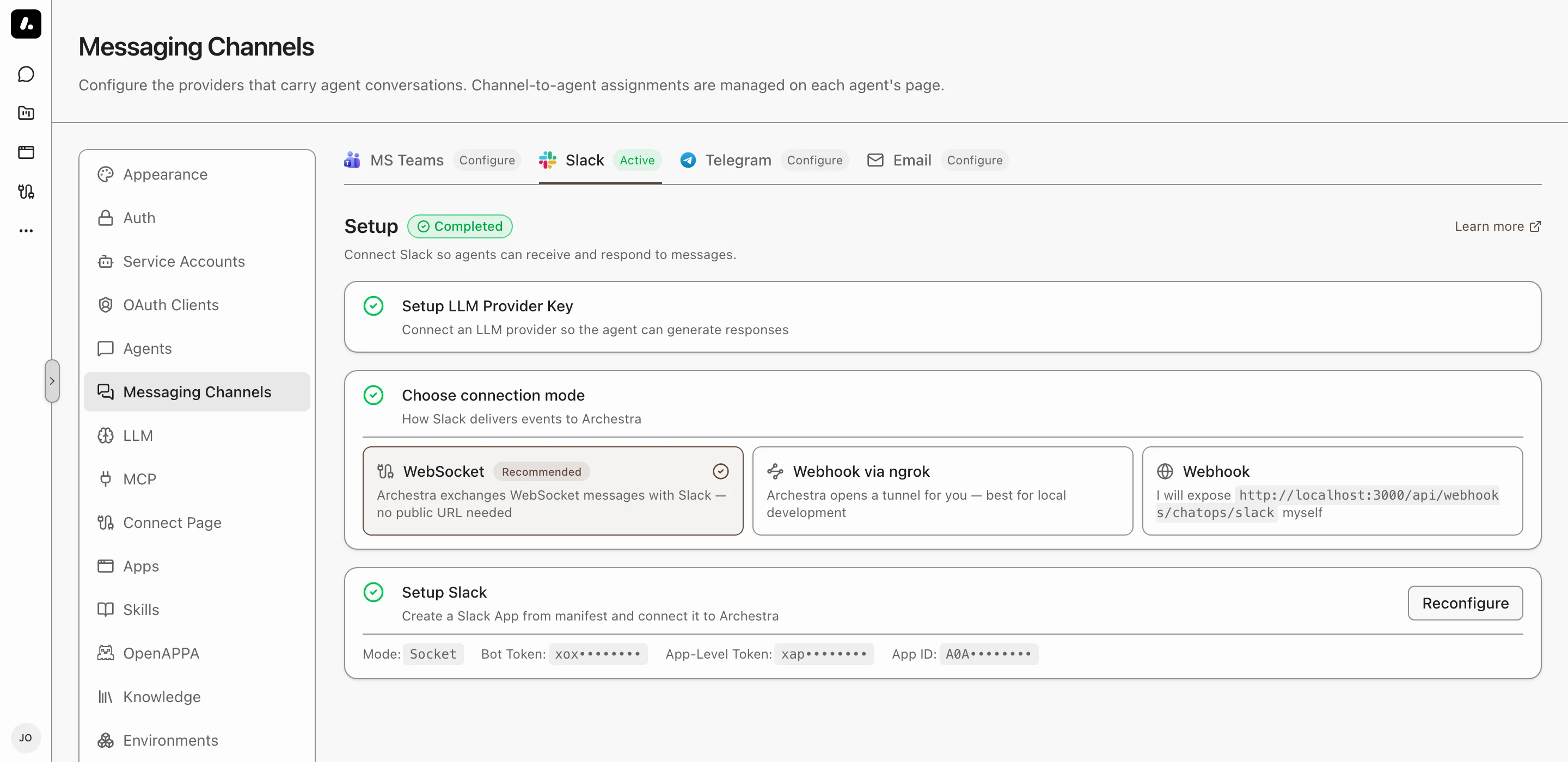
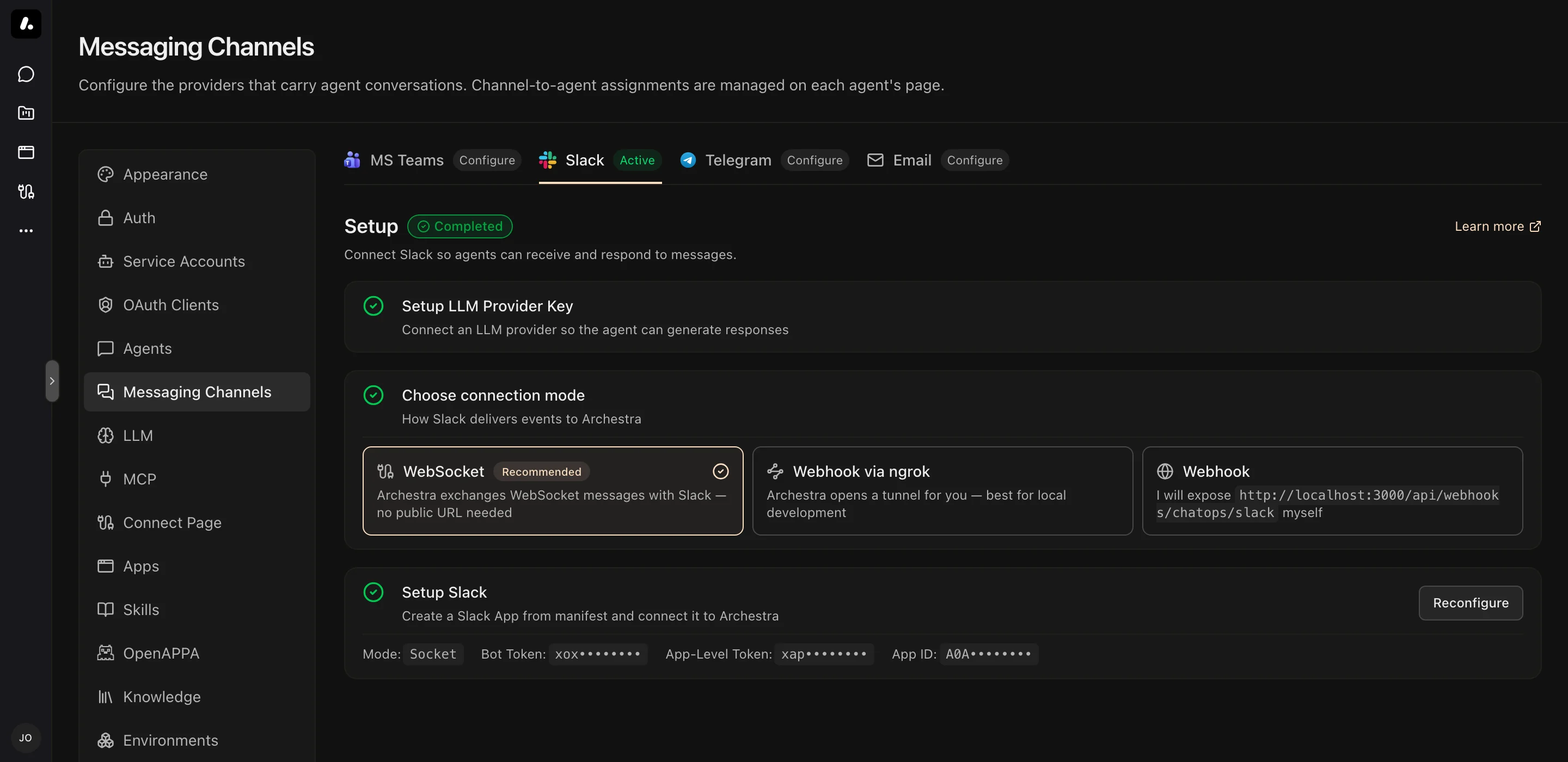
You need a Slack workspace where you can install apps.
- Go to Settings → Messaging Channels → Slack and click Setup Slack.
- Follow the wizard. It creates the Slack app, installs it, and saves its credentials.
- Pick a connection mode:
| Socket Mode (Default) | Webhook Mode | |
|---|---|---|
| Connects | Archestra connects to Slack | Slack calls your public URL |
| Needs a public URL | No | Yes |
| Use it for | Local setups, firewalls, VPNs | Production with a stable URL |
To configure Slack with environment variables instead, see the Configuration reference.
Pick the Agent for a Channel
- Invite the bot to the channel:
/invite @BotName. - Mention it:
@BotName what is the status of service X? - Pick an agent from the list. It answers this message and every later one in the channel.
To change the agent, run /archestra-select-agent, or add the channel to another agent. A direct message works the same way: each person picks the agent for their own DMs.
When the Bot Answers
- In a channel, the bot answers only when you mention it.
- In a thread, one mention is enough. It then answers every message in that thread.
- In a direct message, it answers every message.
- To answer every message in a channel, turn on Answer all messages in the channel's Settings.
To quiet a thread, send mute, or react with 🔇 or 🤫. The bot stops, and cancels any reply in progress. Mention it again to wake it.
Ask Another Agent Once
Put the agent's name and > before your message:
@BotName Sales > what is our Q4 pipeline?
The channel keeps its agent. Names match without regard to case or spaces, so salesteam > finds "Sales Team". An unknown name goes to the channel's agent, with a notice.
Channel Instructions
Tell the agent how to behave in one channel. Open the channel's Settings and write them as you would talk to the agent. For example: "Every message here is a task. Create it at once, and do not ask first."
They come first, before the agent's own instructions. They add to what the agent does, and never remove an ability.
Commands
Type these in the message box. You do not need to mention the bot.
| Command | What It Does |
|---|---|
/archestra-select-agent | Changes the agent for this channel |
/archestra-status | Shows the agent for this channel |
/archestra-help | Lists the commands |
The prefix comes from the Slack app name you choose in the wizard.
What to Know
- New people: someone who messages the bot without an Archestra account gets one. It has the organization's default role for new users, set in Settings → Auth. Find these accounts in Settings → Users.
- Welcome message: the bot DMs a new person a sign-up link, or a sign-in link when you use SSO. To turn it off, set
ARCHESTRA_CHATOPS_SIGNUP_WELCOME_ENABLED=false. - Files: the agent reads images, PDFs, and text files such as CSV, JSON, and Markdown. Files posted earlier in the same thread count too. With a code sandbox, it can open other files, such as ZIP archives.
- File access: downloads need the
files:readscope, which the app manifest includes. Reinstall an app created before that scope was added. - File limits: 20 files per message, 10 MB per file, 25 MB in total. Archestra skips larger files and tells the agent which files it did not get.
Troubleshooting
| Problem | Fix |
|---|---|
| The bot does not answer | Invite it to the channel. In webhook mode, make sure Slack can reach your URL. In socket mode, look for "Socket mode connected" in the backend logs. |
| "Request verification failed" | Webhook mode only. Check the signing secret on the app's Basic Information page, and your server's clock. |
| Socket mode disconnects | Check that the app-level token has the connections:write scope, and that Archestra can reach the internet. It connects again on its own. |
| "Could not verify your identity" | Add the users:read and users:read.email scopes under OAuth & Permissions. Then install the app again. |
| "Slack is configured for Socket Mode" | Slack sends webhooks, but Archestra expects socket mode. Turn on socket mode in the Slack app, or switch Archestra to webhook mode. |