
Projects
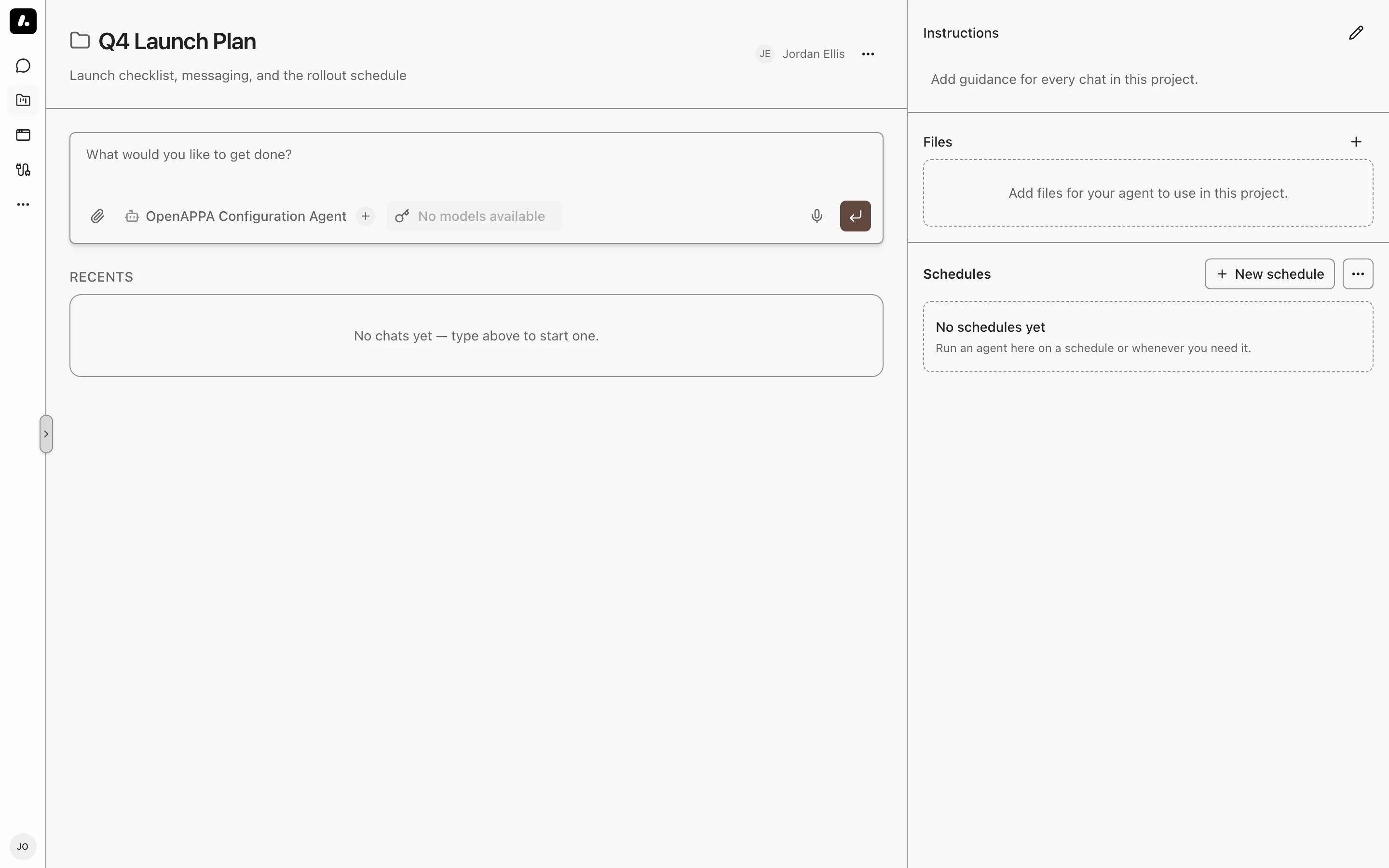
A project groups chats, Agent Runtime sessions, files, instructions, and scheduled tasks. Start with a private project, then share it with the people who work on it.
Creating a Project
Open Projects, create a project, and give it a name. You can also select Create project in a chat's menu to move that chat and its files into a new project.
Use Change project in a chat or runtime session's menu to move it into an existing project. Remove from project returns it to the main list.
Choose a default agent in the project's settings to preselect it for new chats and schedules. You can choose another agent when starting work. Agents with a dedicated runtime start a session in the project instead of a chat.
Files and Instructions
Drop files into the project's Files panel. Files an agent saves in a project chat also appear here. Every chat in the project can use these files. Text and Markdown files can be edited in the panel.
Edit the pinned instructions.md file to set instructions for the project's chats. For example, a release project can hold a draft changelog and instructions to group changes by feature.
External clients such as Claude Code can read and write project files through the Archestra MCP Server. See Chat, Project, and Knowledge Files to choose where a file belongs.
Scheduled Tasks
Select New schedule on the project page. Choose an agent, write the task, and set its cadence and time zone. Each run creates a chat or an Agent Runtime session in the project. Open the run to follow its progress and review the result.
Pause a schedule to stop automatic runs. You can still run it manually. Deleting a schedule removes its run history but keeps chats and sessions from past runs.
Sharing and Ownership
Open the project's settings and select Permissions to manage its audience. Access to the project lets members work with its files and start their own chats and sessions. Access to another member's chats or runs requires a separate permission. Only a runtime session's author can attach to its shell.
You can transfer ownership to another organization member. Files, instructions, schedules, and sharing stay with the project. Existing chats and scheduled tasks retain their authors and execution identities.
Labels
Add key-value labels under Advanced when creating or editing a project: stage: review, for example. Use the filters on Projects to find projects by label.
Deleting and Restoring
Deleting a project moves it to the trash. Its chats and runtime sessions return to the main list; its files and schedules are hidden. A project administrator can select the Deleted status filter and restore it.
Delete permanently destroys the project's files and schedules. Chats and runtime sessions remain. See Access Control for the permissions required.