
MCP Servers
The MCP Registry is your organization's own list of approved MCP servers. Add a server once, and set it up the right way: its URL or image, how it signs in, and who can see it.
Then anyone with access installs it in a few clicks, with their own account or a shared one. Nobody copies config files or passes secrets around.
Archestra handles the hard part: signing in to each server for each person.
- Each person's own account, through OAuth 2.1 or an API key they enter once. OAuth tokens refresh when the provider allows it.
- A shared service account for a team or the whole organization, such as a bot.
- Your company identity, with no install at all. Archestra trades the person's identity provider token for one the server accepts, through Entra On-Behalf-Of, Okta, RFC 8693, or ID-JAG.
Archestra picks the right account for each call. See Whose Account a Call Uses.
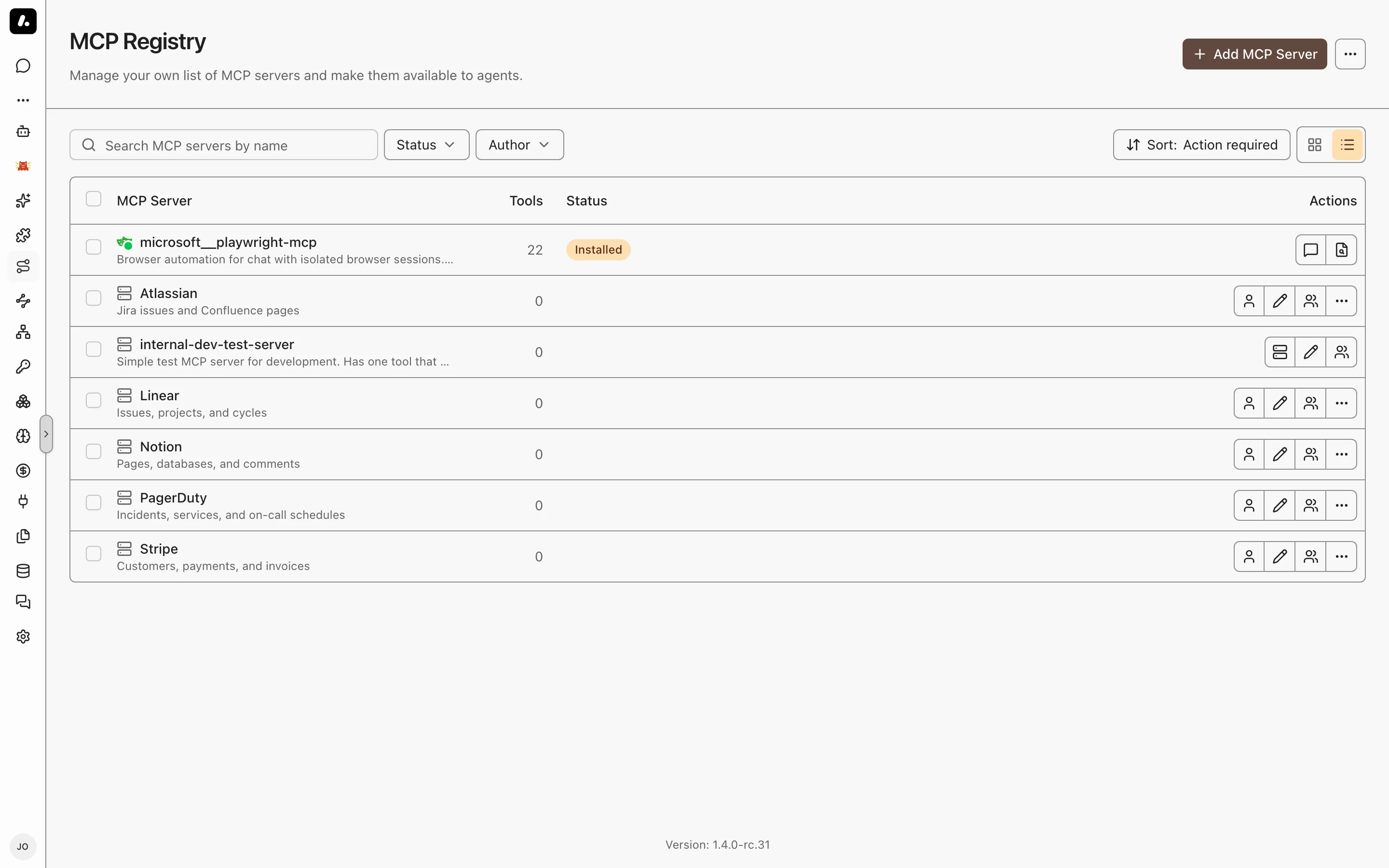
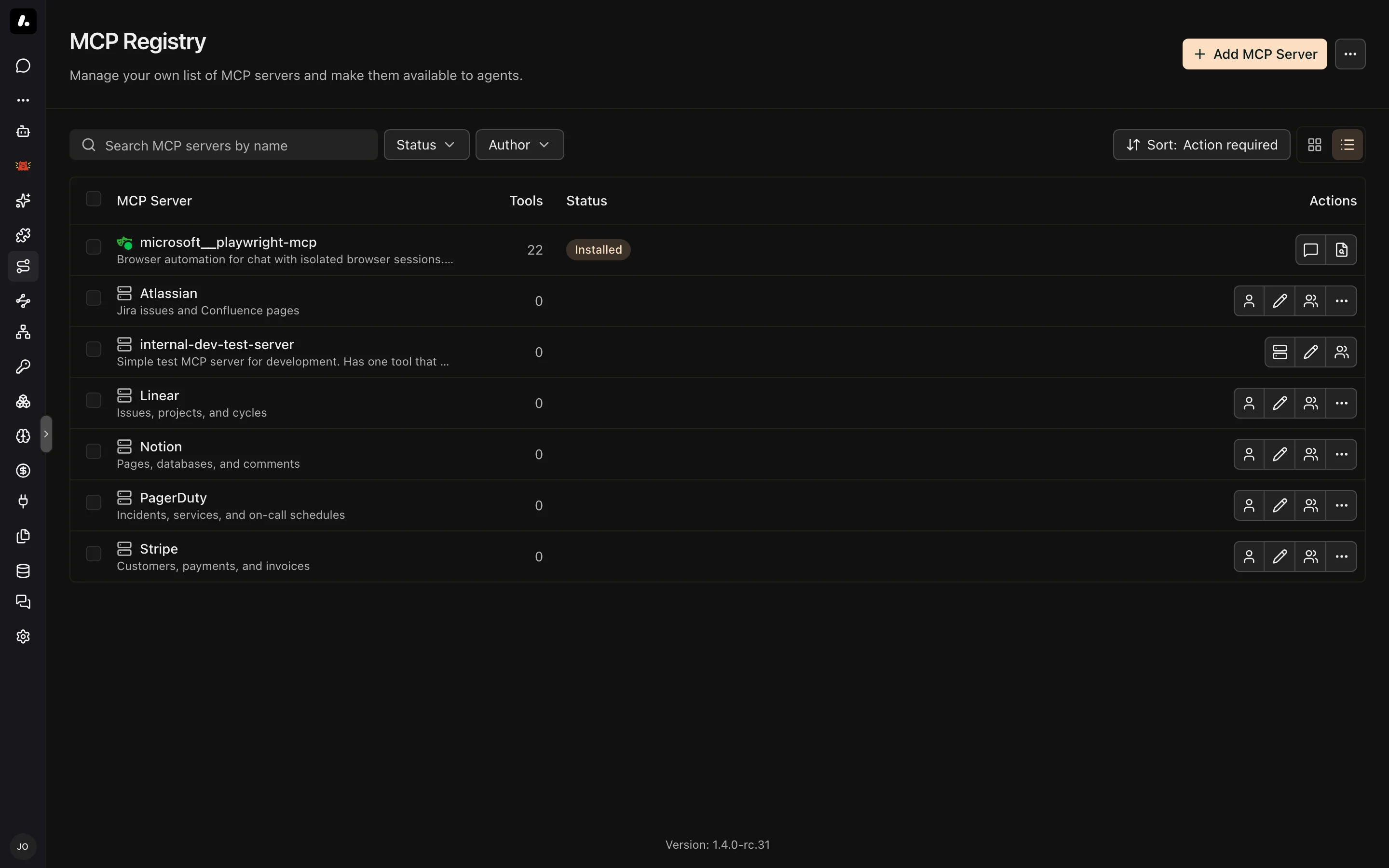
Add and Install a Server
- Add it: go to MCP Registry and click Add MCP Server. Pick Remote for a server that runs elsewhere, or Self-hosted for one Archestra runs.
- Install it: open the server and click Install. Enter its credential, or sign in to it.
- Give its tools out: add them to an agent or an MCP Gateway.
A client set up through Connect gets the new tools right away. Its gateway offers every tool the person can use. Other agents and gateways get only the tools you pick, unless you set them to offer all tools too. See Tool Assignment.
Know When a Server Breaks
When a server breaks, the person who can fix it hears about it. Your GitHub sign-in expires, so you see a count next to MCP Registry. Your admin does not, because only you can sign in again as you.
Open the registry and sort by Action required. Each broken server says what to do:
- Needs re-authentication: click Re-authenticate.
- Failed to start or Not running: see Debug a Server.
Waiting on someone else to fix one? Click Dismiss to hide it for you only.
What to Know
- Remote or self-hosted? Pick remote when someone already runs the server. Pick self-hosted when Archestra should run it, hold its secrets, and show its logs.
- New tools on a server? Open it, go to Inspector, and click Refresh Tools. To refresh on a schedule, set
ARCHESTRA_MCP_SERVER_TOOLS_REFRESH_INTERVAL_MINUTES. - Renaming a server renames its tools too, such as
reports__export. Assignments and policies stay. Clients must reload their tool list.