
Install a Server
When an agent uses a tool, it acts as a real account in that app. Ask an agent to open a GitHub issue with your account, and the issue shows your name. The agent sees only what you can see.
Installing a server connects your account to it. Each person installs with their own account, or a team shares one. Archestra picks the right account for every call.
Install a Server
Pick who owns the account, then enter its credential. Owner decides who else can use it.
- Go to MCP Registry, find the server, and click Install.
- Pick the Connection owner:
- Personal: your own account. Only your calls use it.
- Team: one account for a team, such as a bot account. Needs
mcpServerInstallation:update. - Organization: one account for everyone.
- Enter the credential, or sign in to the provider, and click Install.
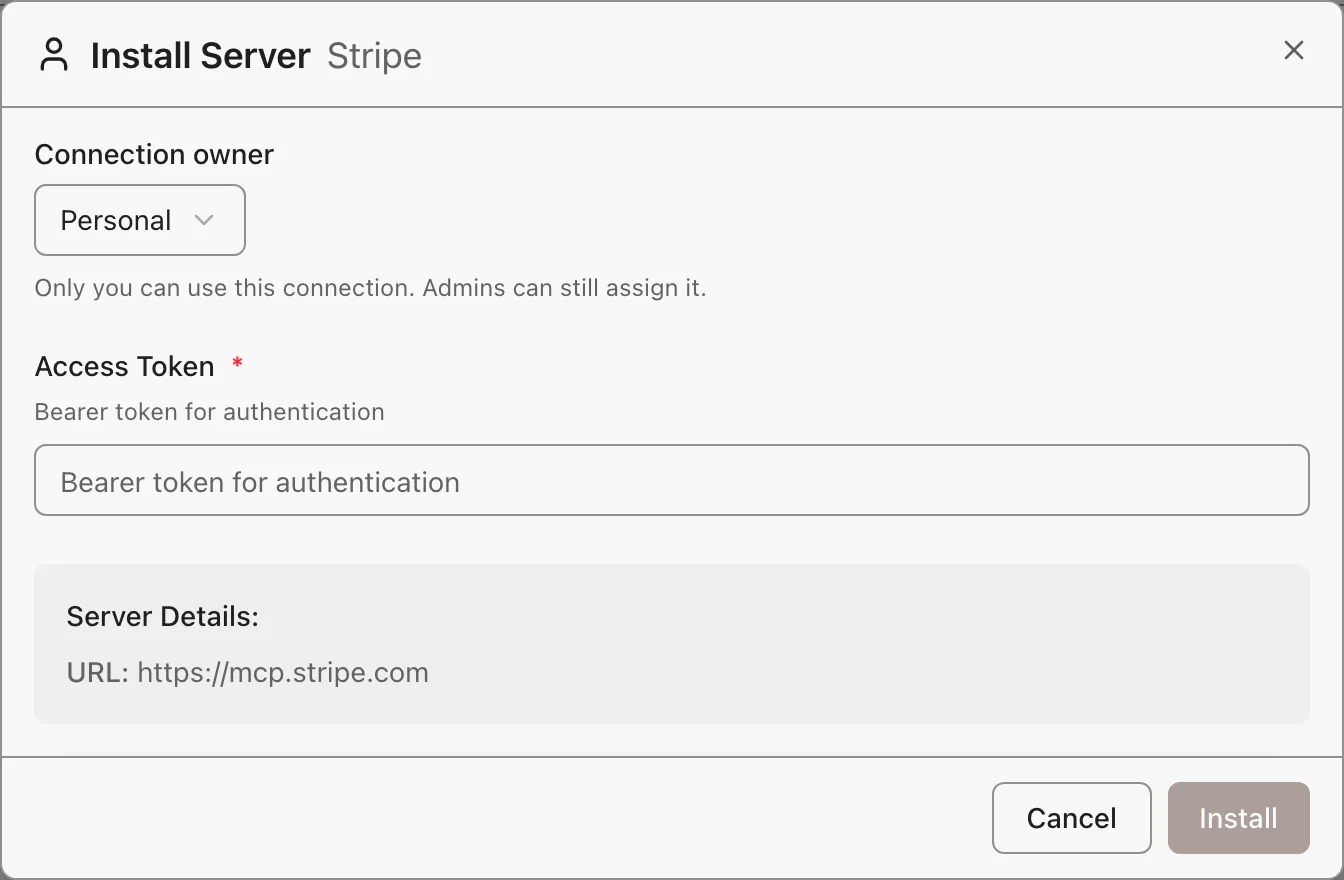
A team or organization install stays when the person who added it leaves. A personal install goes with its owner.
Per-User or Shared: Pick the Default
When a server has both personal and shared installs, its default decides which one a call uses. Set Default credential on the server:
- On behalf of the user (Recommended): each call runs as the person who made it. A person with no install of their own gets a team or organization install they can use.
- Always use one service account: every call runs as the shared account you pick.
An agent or gateway can override this for each tool. See Credential Resolution.
What to Know
- No account to use? The tool returns an error with a setup link. Follow it, then try again.
- Credential rejected, or OAuth scopes changed? Click Re-authenticate.
- Which account ran a call? See Identity in the MCP Gateway logs.