
Desktop MCP Servers
ARCHESTRA_BETA=true.Let Archestra use MCP servers running on your device. A desktop MCP server runs on each person's device, and agents reach it through the MCP bridge.
Link Your Device
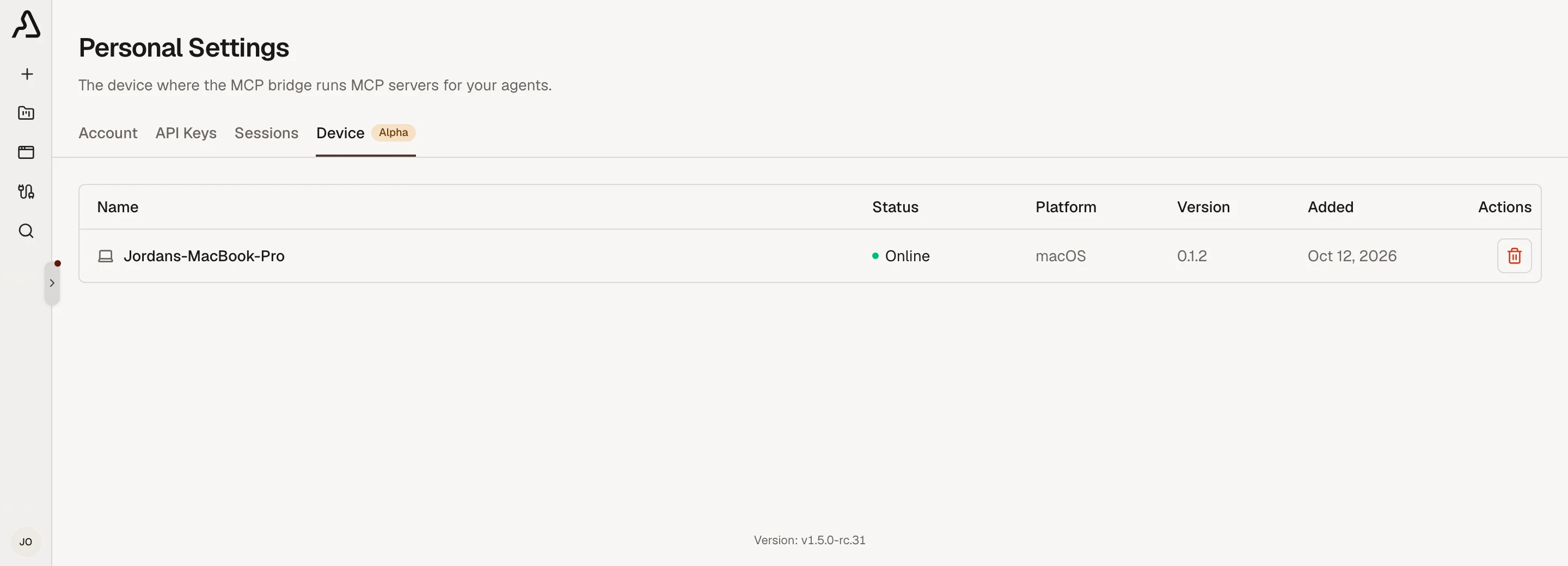
A desktop MCP server runs on a device that is linked to your account. Link your device first, in Personal Settings.
- Go to Personal Settings → Device, and click Set up the MCP bridge.
- Copy the command, and paste it in a terminal on your device. On Windows, click Use the Windows command and paste it in PowerShell.
- Back in Archestra, make sure your terminal shows the same code, and click Approve.
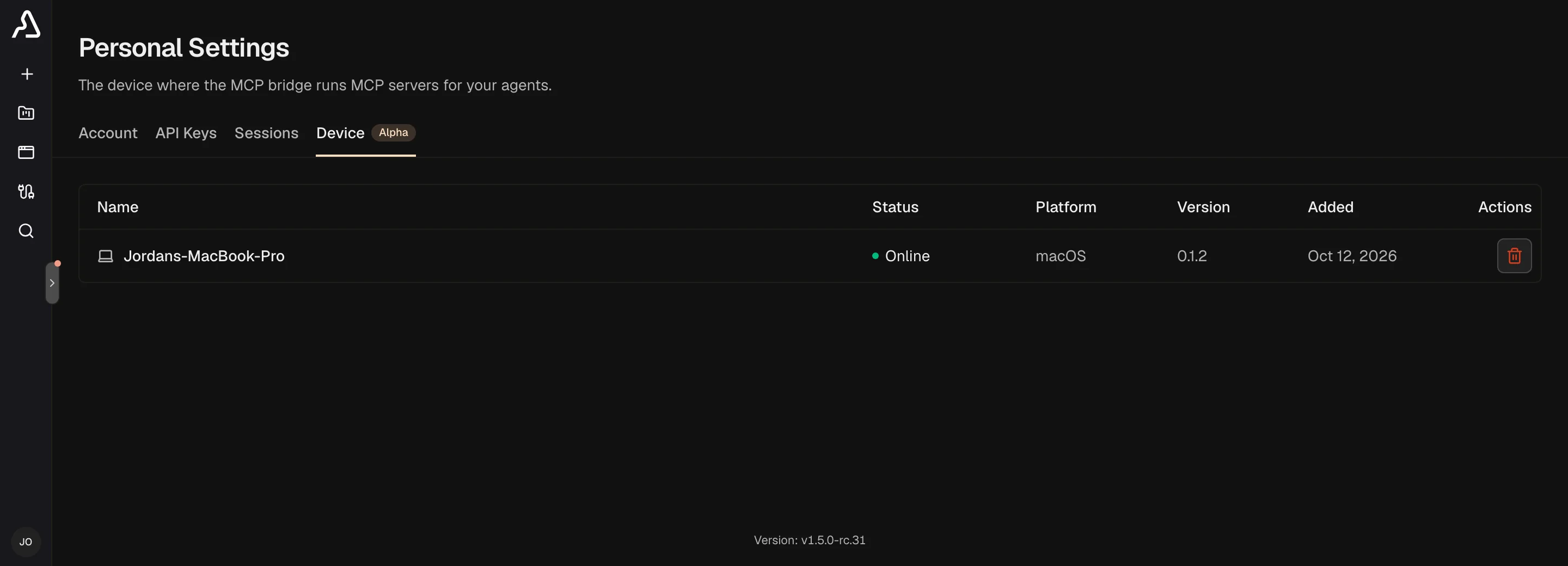
The Device tab then shows your device as Online.
- The command installs the MCP bridge, the program that starts MCP servers on your device. It runs in the background, and starts again each time you log in.
- To stop, update, or remove the MCP bridge, see the Archestra CLI.
- You have one device. Linking another one replaces it.
Add a Desktop MCP Server
The command you enter here is the command that runs on your device. You need mcpRegistry:create.
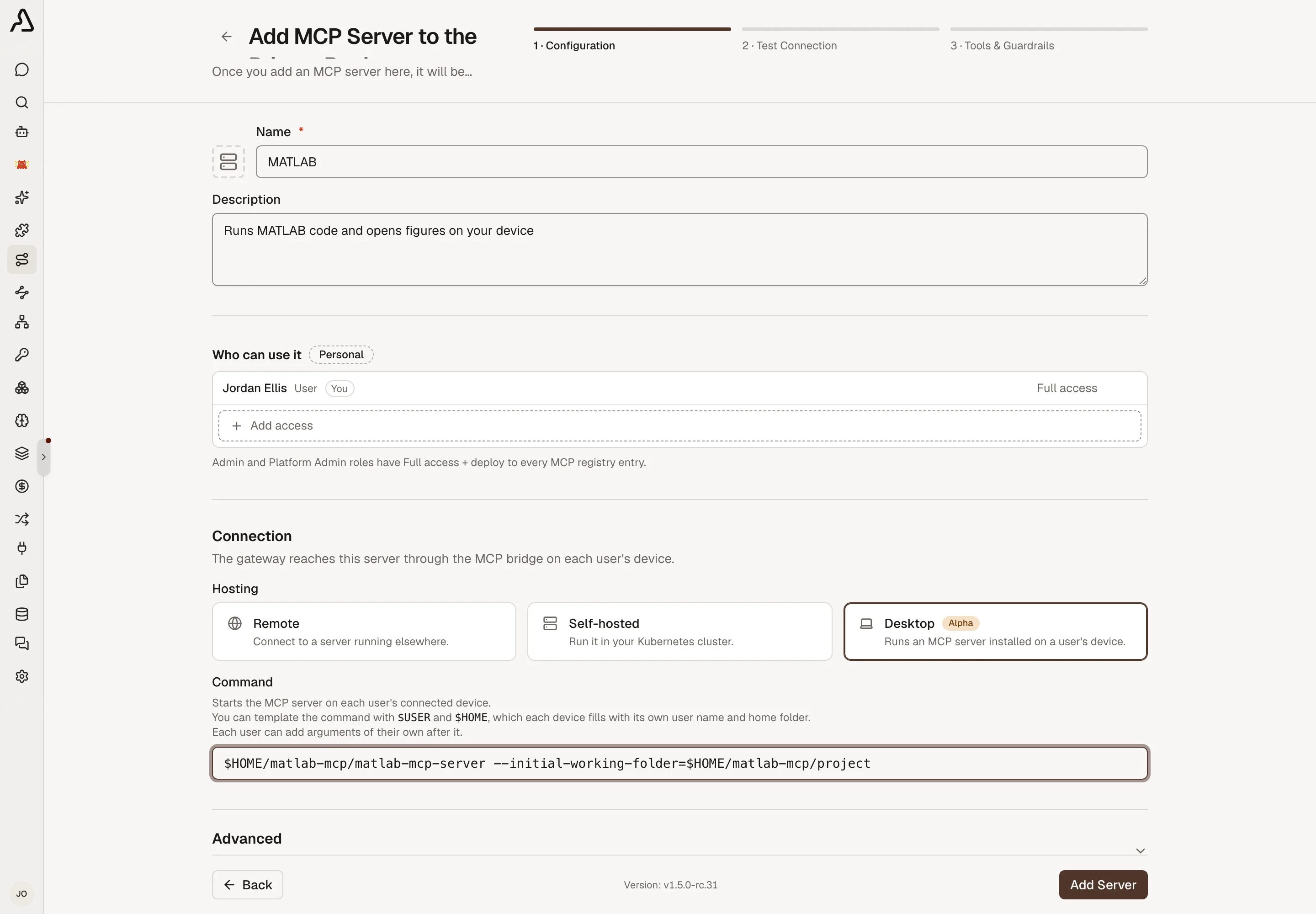
- Go to MCP Registry, click Add MCP Server, then Start from scratch.
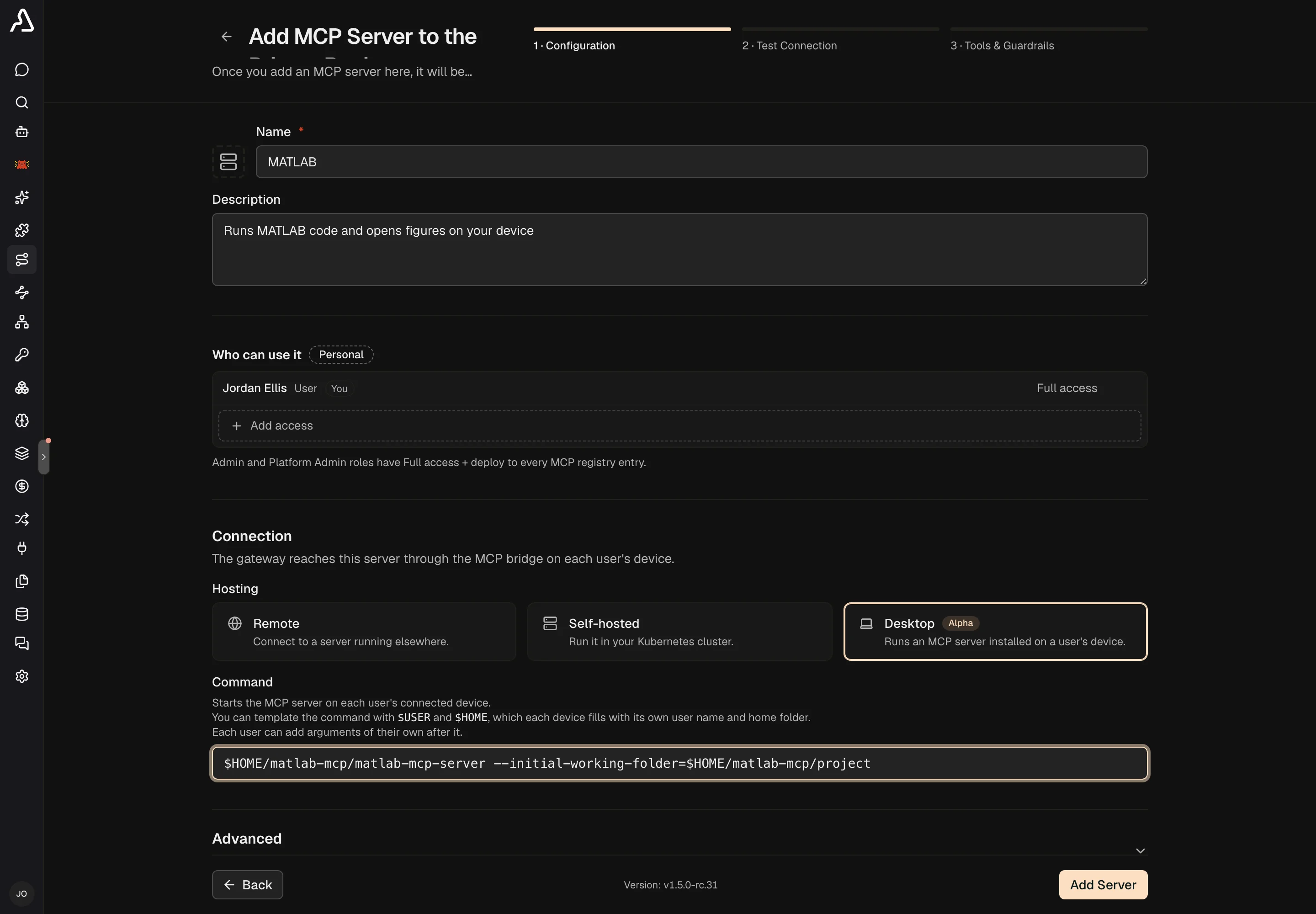
- Enter a Name, and under Hosting pick Desktop.
- Under Command, enter the command that starts the MCP server.
- Click Add Server.
The program that the command starts must already be installed on the device. Archestra does not install it.
- The same command runs on each person's device. Write
$USERand$HOMEfor the user name and the home folder of that device. - No shell runs the command, so
~and pipes do not work.
Connect the Server
Connecting starts the MCP server on your linked device. After Add Server, you are on Test Connection.
- Click Connect.
- To add your own arguments to the command, enter them under Arguments (one per line). Then click Connect.
- When the dialog says that the server is connected, click Open chat.
Example: MATLAB
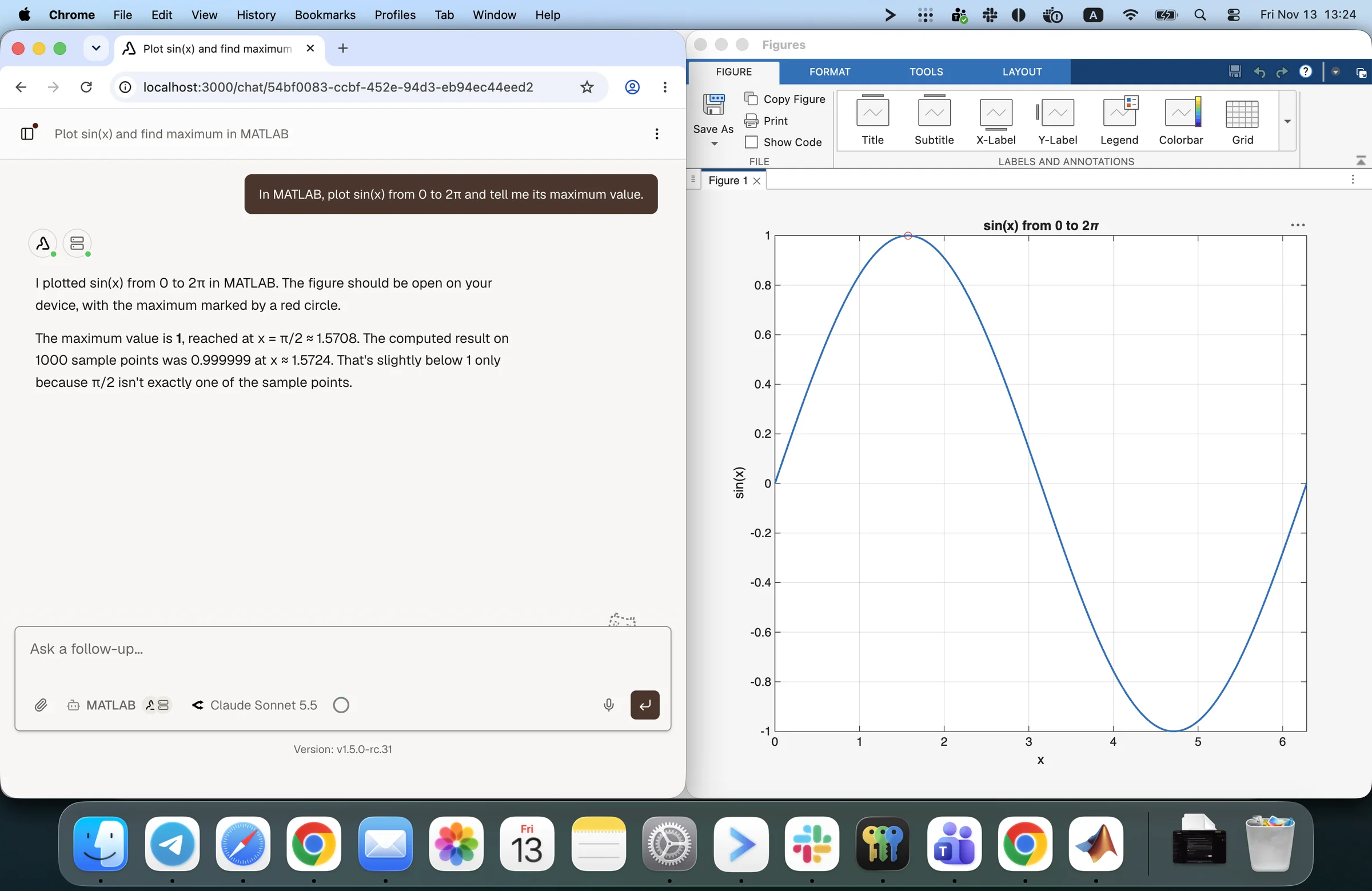
Ask an agent for a plot, and MATLAB draws it on your device. This example uses the MATLAB MCP Server from MathWorks.
-
Add a desktop MCP server named
MATLABwith this command. Change the paths to where the MATLAB MCP Server is already installed on your device:text$HOME/matlab-mcp/matlab-mcp-server --initial-working-folder=$HOME/matlab-mcp/project -
Click Connect, then Open chat.
-
Send this message:
textIn MATLAB, plot sin(x) from 0 to 2π and tell me its maximum value.
MATLAB opens the figure on your device, and the agent answers with what MATLAB found.
Fix a Server That Does Not Connect
Find what you see in MCP Registry or in the dialog, then fix it on your device.
| You see | Do this |
|---|---|
| Device not linked | Click it, and link your device. |
| Waiting for your device | Click it to open Personal Settings → Device. If the device is Offline, wake it, or run archestra bridge start on it. |
| The program … was not found on this device. | Install the program that the command starts, or put it on your PATH. The MCP bridge picks it up automatically. |
On any other error, run archestra bridge status to find the log file, and read the server's errors there.