
MCP Apps
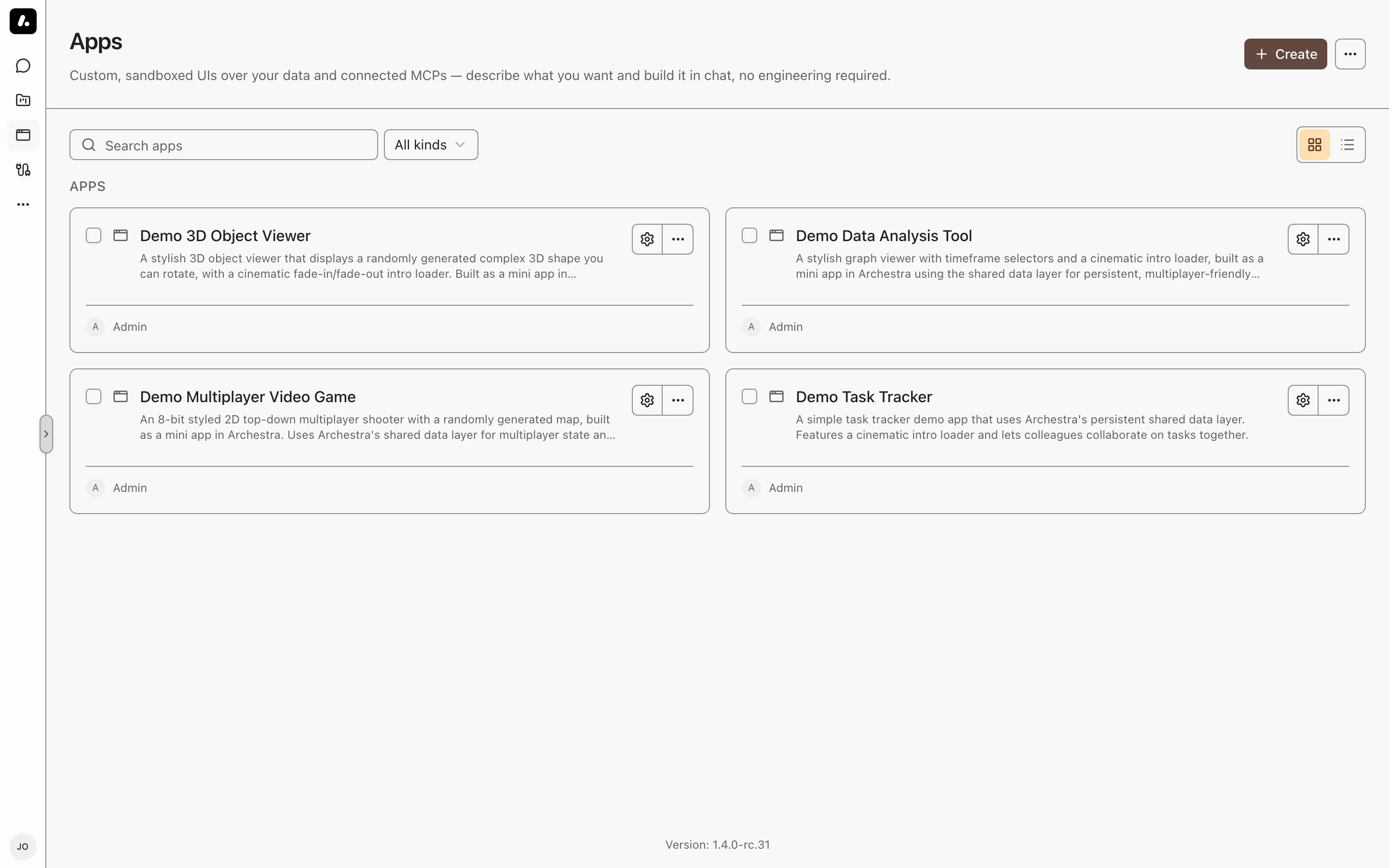
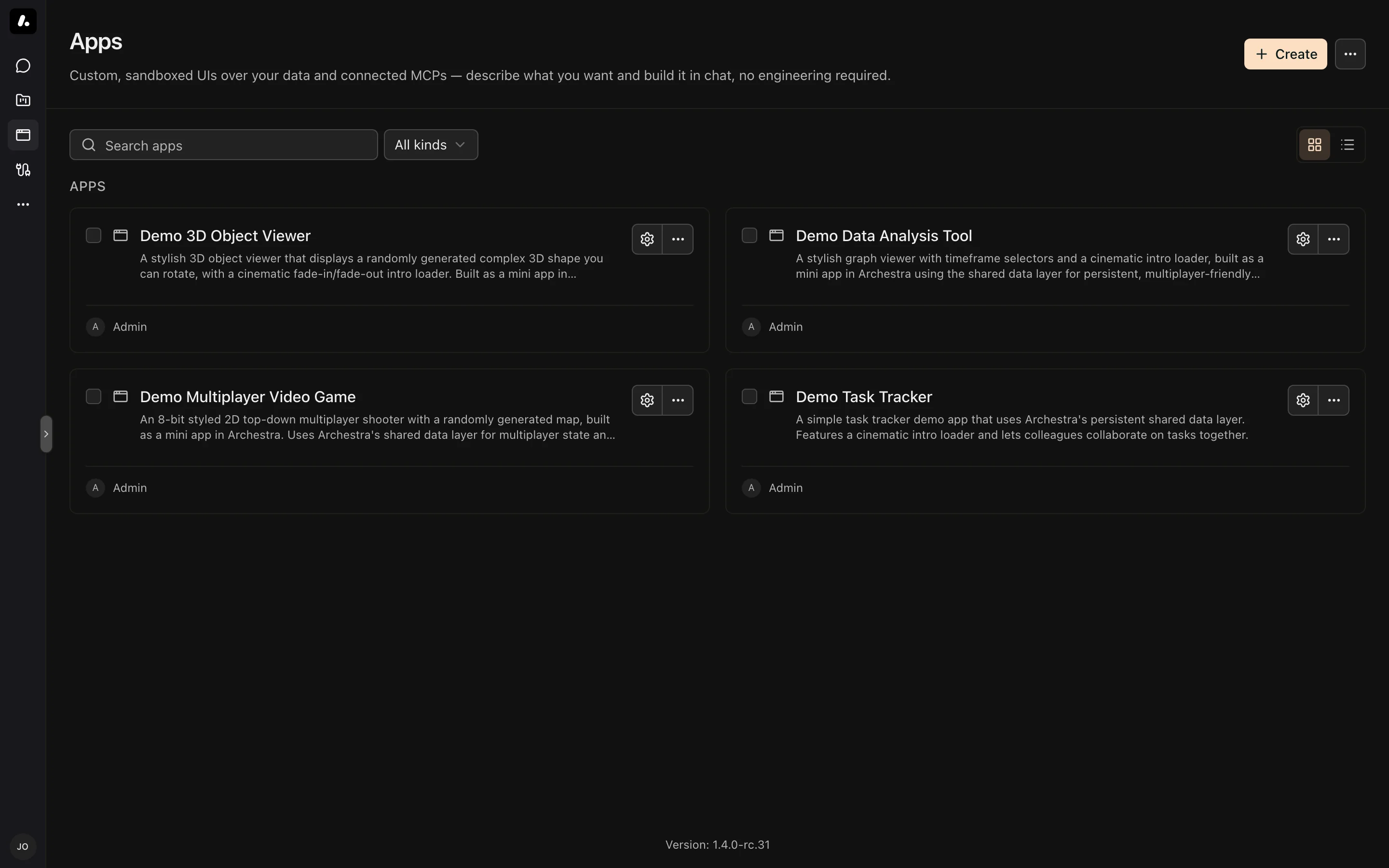
An app is an interactive interface you build by asking an agent — a dashboard, a form, or a tracker, for example. Apps run in a sandbox, keep their own data, and call MCP tools as the person using them.
The Apps gallery also shows apps provided by installed MCP servers. This page covers apps you build in Archestra. For app code, see the Apps SDK Reference.
Building an App
Ask an agent in chat to build an app — "build me a tracker for open vendor reviews", for example. The agent asks up to three questions, builds the app, checks it, and shows it in the conversation. You can keep asking for changes in the same chat.
New agents get the app tools by default. Agents created before Apps was enabled need them assigned. The agent follows the built-in build-app skill.
Each edit saves a new version. To undo one, open the app's menu on the Apps page, choose Version history, and restore an earlier version. Restoring adds a new version, so no history is lost. You can also ask the agent to roll back.
Running an App
- From the gallery: select an app card. It opens in a new chat, which joins your chat list only after you write in it.
- Standalone: open the app at
/a/<slug>, without chat around it. - In chat: apps render inline when an agent builds or opens them.
Each app is backed by its own MCP server. Its permissions, environment, assigned tools, and deletion are managed from its card in the MCP registry.
Who Can Use an App
Resource permission grants set each app's audience. You can grant access to users, teams, service accounts, roles, or everyone.
| Access | Allows |
|---|---|
| Read | Seeing the app |
| Use | Running the app |
| Update | Editing the app |
Managing permissions needs a separate grant. The creator starts with full access. Sharing a chat does not share the apps in it — each viewer needs access to each app.
An app runs with the viewer's permissions and credentials, and its code can see the viewer's name and email. Share apps only with people you trust with the app's tools and data. See Shared-App Trust Boundary.
Disabling an App
Turn off an app in App settings to pull it back without deleting it. It leaves other people's galleries and every agent. No chat can read or change it, including yours. It stays in your gallery, marked Disabled, until you turn it back on.
Transferring Ownership
You can transfer an app you own to another member. Its address, versions, data, sharing, and MCP server move with it. Tool calls still use each viewer's credentials.
Fullscreen
An app can fill the page instead of sitting next to the conversation. The control is on every surface that frames an app — the hover bar over an inline app, and the top bar of the right panel. Press it again, or Escape, to go back.
The sidebar remains visible in fullscreen.
Set Opens in to Fullscreen in App settings to open the app that way by default. Leaving fullscreen keeps it off for the rest of that view.
Locking an App
A locked app is immutable. Agents refuse every change to it — edits, tool assignments, deletion — until it is unlocked. Viewing and running are unaffected. An agent may unlock an app only when you directly ask it to; it never unlocks one on its own. Lock or unlock an app in App settings, or ask an agent in chat.
Defaults for New Apps
Two settings in Settings → Apps govern how new apps start. Both are off by default. Flipping them never touches existing apps.
New apps are disabled by default creates every new app disabled. The app stays author-only and cannot be run until you enable it in App settings.
New apps are locked by default creates every new app locked.
The creating chat can finish building an app under either default. Other chats respect the default immediately. Manually locking or disabling the app ends the creating chat's exception.
Icons
Give an app an icon in App settings — an emoji, or an image you upload. It shows wherever the app does: the /apps gallery, the pinned list in the sidebar, and the pill that opens it in chat. Without one, the app keeps the generic app glyph.
An app and its backing MCP server share one icon, so setting it in App settings also sets it on the server's page in the MCP registry.
An agent can pick an icon when it scaffolds an app, so an app built in chat usually arrives with one.
Labels
Labels are key-value tags that organize your apps — env: prod, for example. You add them in App settings.
The /apps gallery filters by label. Pick a key, then the values you want. Choosing values under two keys narrows the list to apps carrying both. Choosing several values under one key widens it to apps carrying any of them.
Apps from installed MCP servers show their server's labels, so one filter covers the whole gallery. You edit those on the server's page in the MCP registry.
Agents can read and set labels through the built-in app tools, so you can ask one in chat to tag an app.