
Chat & Projects
Start a conversation to delegate tasks to an agent, attach reference files, and collaborate in real time. Every prompt flows through the LLM Proxy and MCP Gateway, enforcing guardrails, access policies, and audit logging.
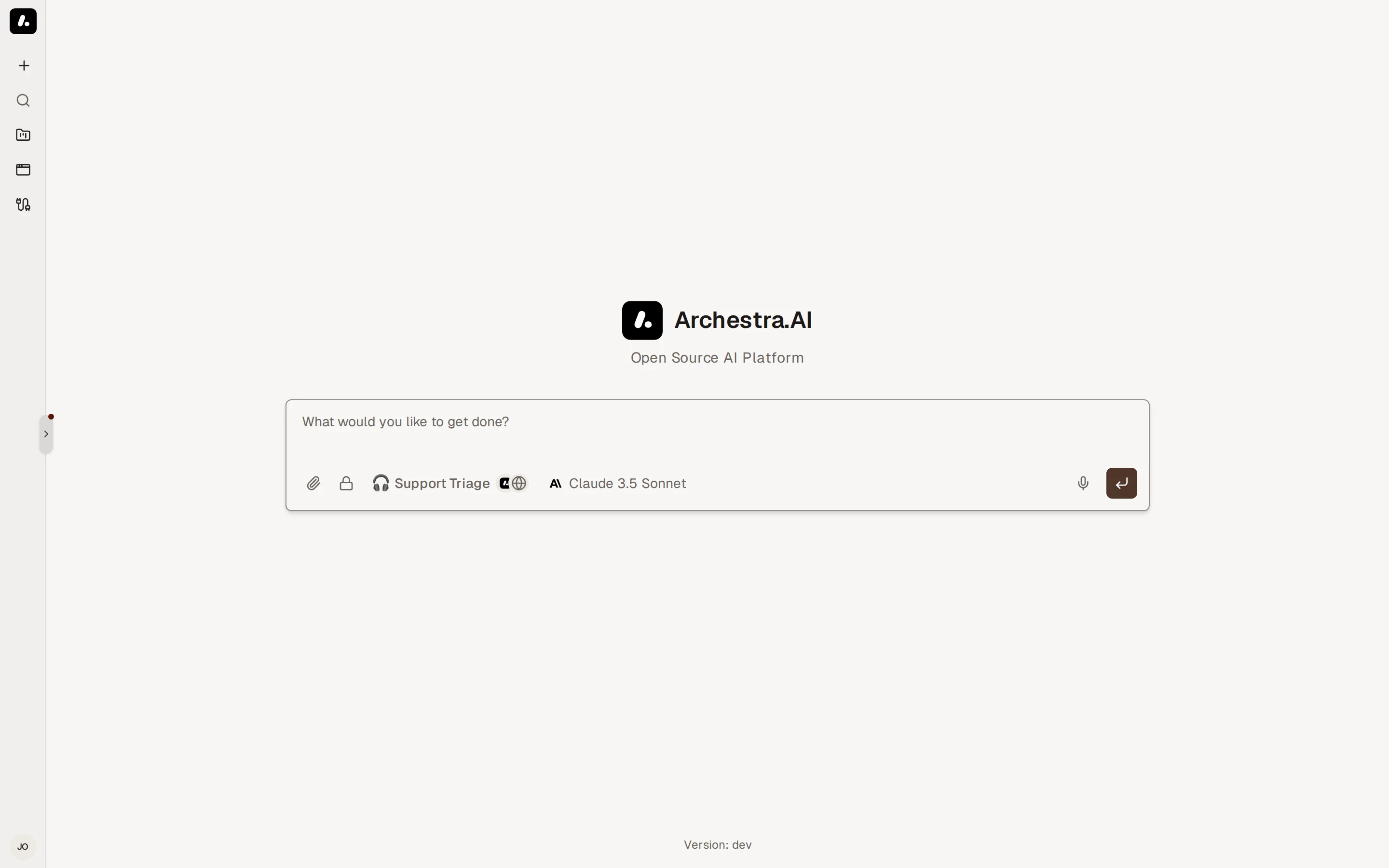
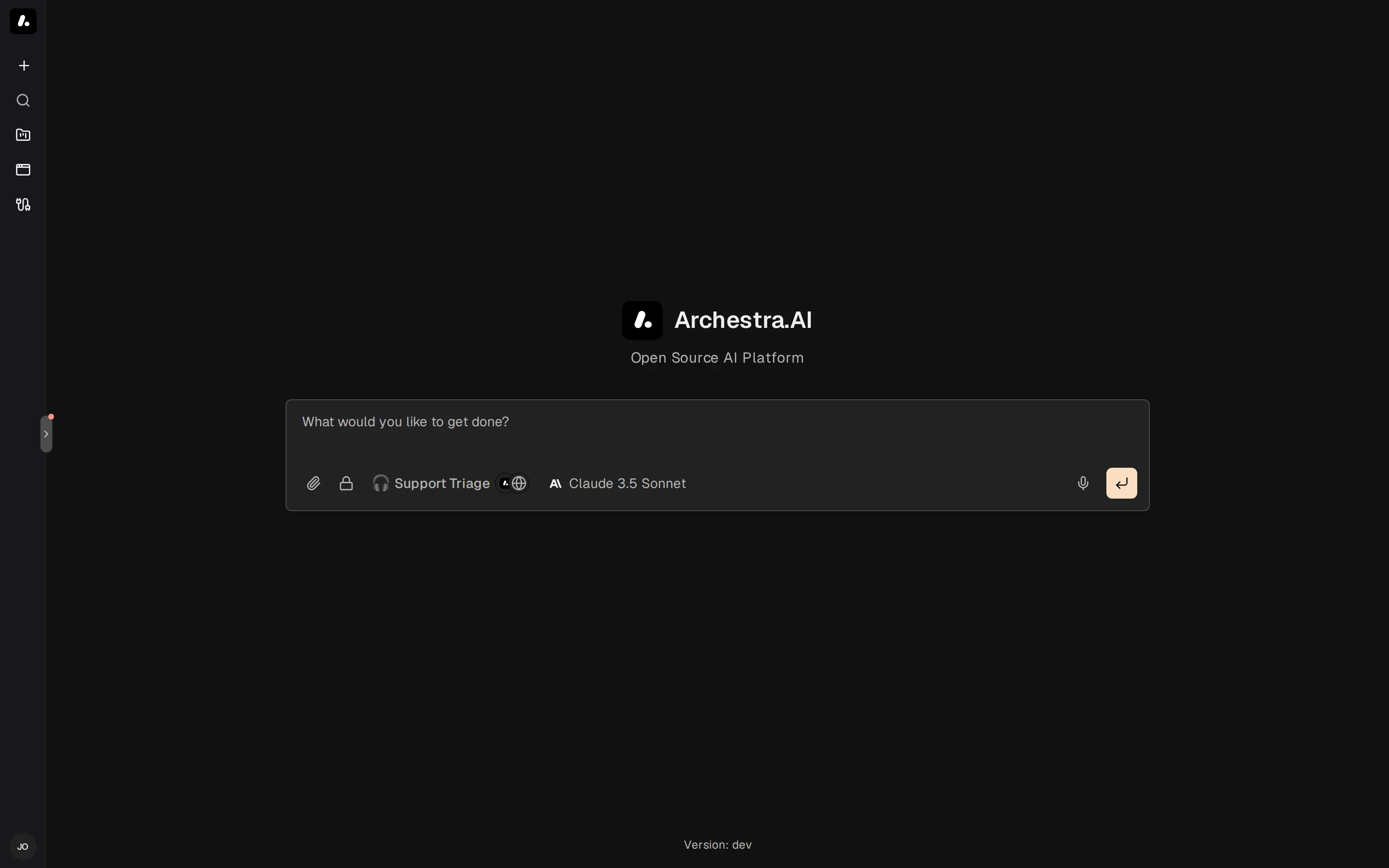
Starting a Conversation
Choose an agent and prompt it to analyze data, run commands, or generate code.
- Select New chat in the sidebar, or press
Option+N(orAlt+Non Windows/Linux). Starting conversations requireschat:create. - Choose an agent from the Agent menu.
- Enter your prompt in the composer and press
Enterto send. PressEscapeto halt an active completion.
You can continue typing while the agent generates a response. Queued messages wait in line and send automatically when the current turn finishes. Viewing past chats requires chat:read.
Choosing a Model and Reasoning Depth
Override the default model and reasoning depth for an individual conversation without changing the agent definition.
The model selector displays the active model for the chat. A badge marks whether the model inherits from the agent configuration or the organization default. Choose another model to override it for this session, or select Reset to default. Badges like Vision, PDF, and Tools indicate each model's supported modalities.
When a selected model supports extended reasoning, Reasoning depth controls thinking intensity: Default, Low, Medium, or High.
Attaching Files and Running Commands
Upload files directly into the prompt or trigger specialized skills with slash commands.
Select Attach files in the composer to upload documents, spreadsheets, or images. Files that the model cannot process directly save into the chat's Files panel, where containerized agents can access them on disk. To persist an attachment for reuse across conversations, select Save to knowledge. See Knowledge Files.
Type / in the composer to display available commands. Every skill granted to your agent appears as an executable command — for example, /deep-research. See Agent Skills.
Run /compact to summarize earlier messages and keep conversations within the model's context window. The Context usage ring beside the composer tracks active token consumption and provides a Compact now button.
Approvals and Questions
Review sensitive tool calls and provide real-time clarifications during agent execution.
When a tool requires human approval, execution pauses and an approval card appears inline. Select Approve to run the tool, or Decline to cancel execution and prompt the agent to adjust its plan.
If an agent requires clarification mid-run, an interactive question prompt renders in the message feed. Submit your response directly in the card or select Dismiss question.
Managing and Sharing Conversations
Manage conversations from the sidebar or share transcripts across your team.
The sidebar lists recent conversations chronologically. Open a chat's context menu to pin it to the top of the list, rename it, assign it to a project, or remove it with chat:delete. Press Cmd+K (or Ctrl+K) to open the search palette and jump across chats instantly.
Open Chat actions in the conversation header and choose Share to grant access to individual users, teams, or roles. Shared chats are read-only for recipients; viewers can select Start New Chat from here to fork the history into their own editable conversation. To save an offline transcript, select Export Markdown from the same header menu.
Encrypted Chats
Protect sensitive discussions with end-to-end encryption where only the originating browser holds the decryption key.
Select the lock icon in the composer, or press Option+I (or Alt+I on Windows/Linux), before sending your first message. Your browser generates a unique AES key client-side and retains it locally. Archestra encrypts conversation messages, attachments, logs, and error outputs with that key before saving them to the database.
Encrypted conversations open only on the browser and device that created them. Sharing, chat forking, project assignment, compaction, and saving files to knowledge are disabled for encrypted conversations.
To enable encrypted chats organization-wide and allow designated key holders to recover them if browser storage is lost, administrators configure key escrow; see Key Escrow for Encrypted Chats.