Connect Your Agents
How the one-command setup script connects your AI tools, and how to audit or undo it

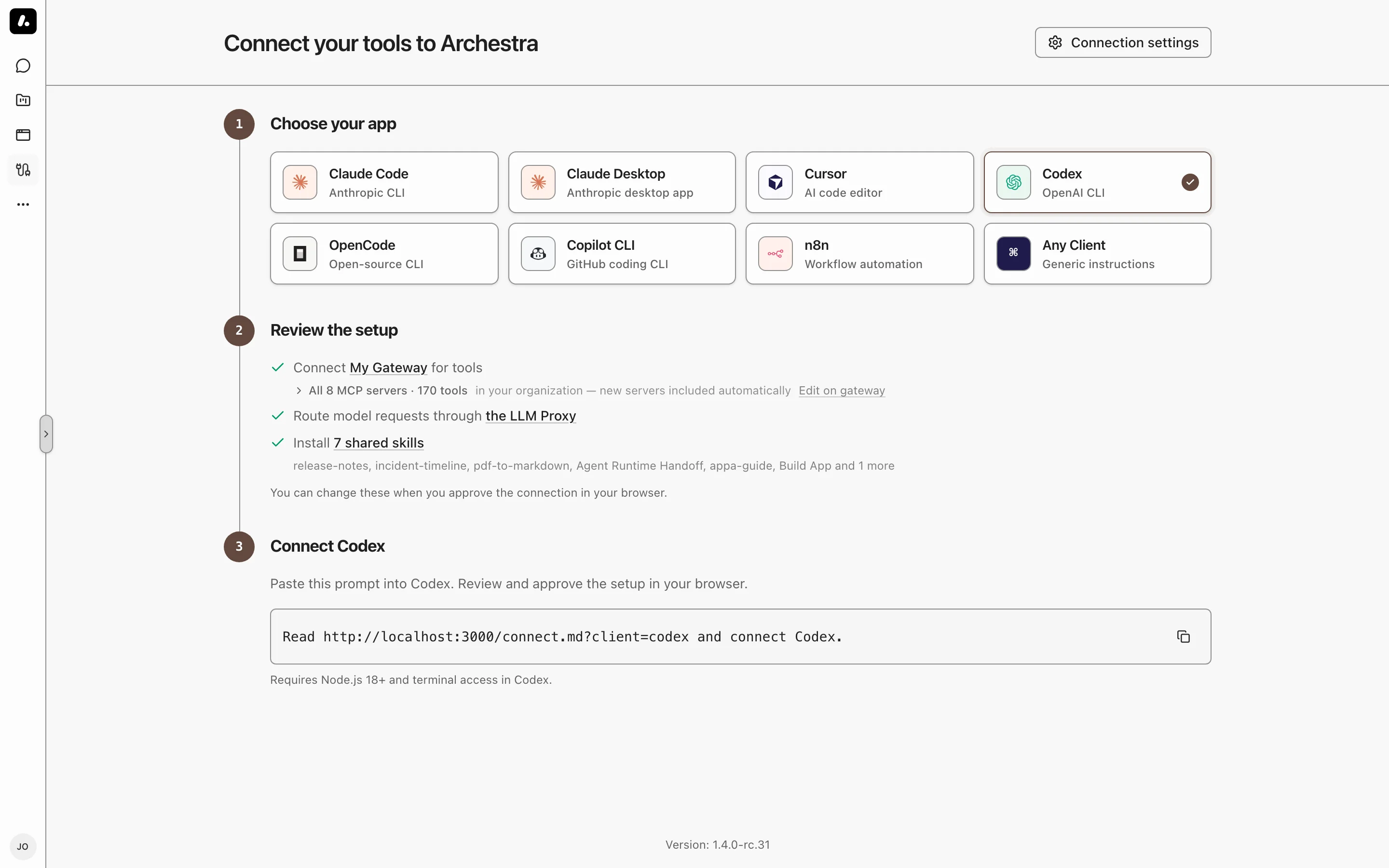
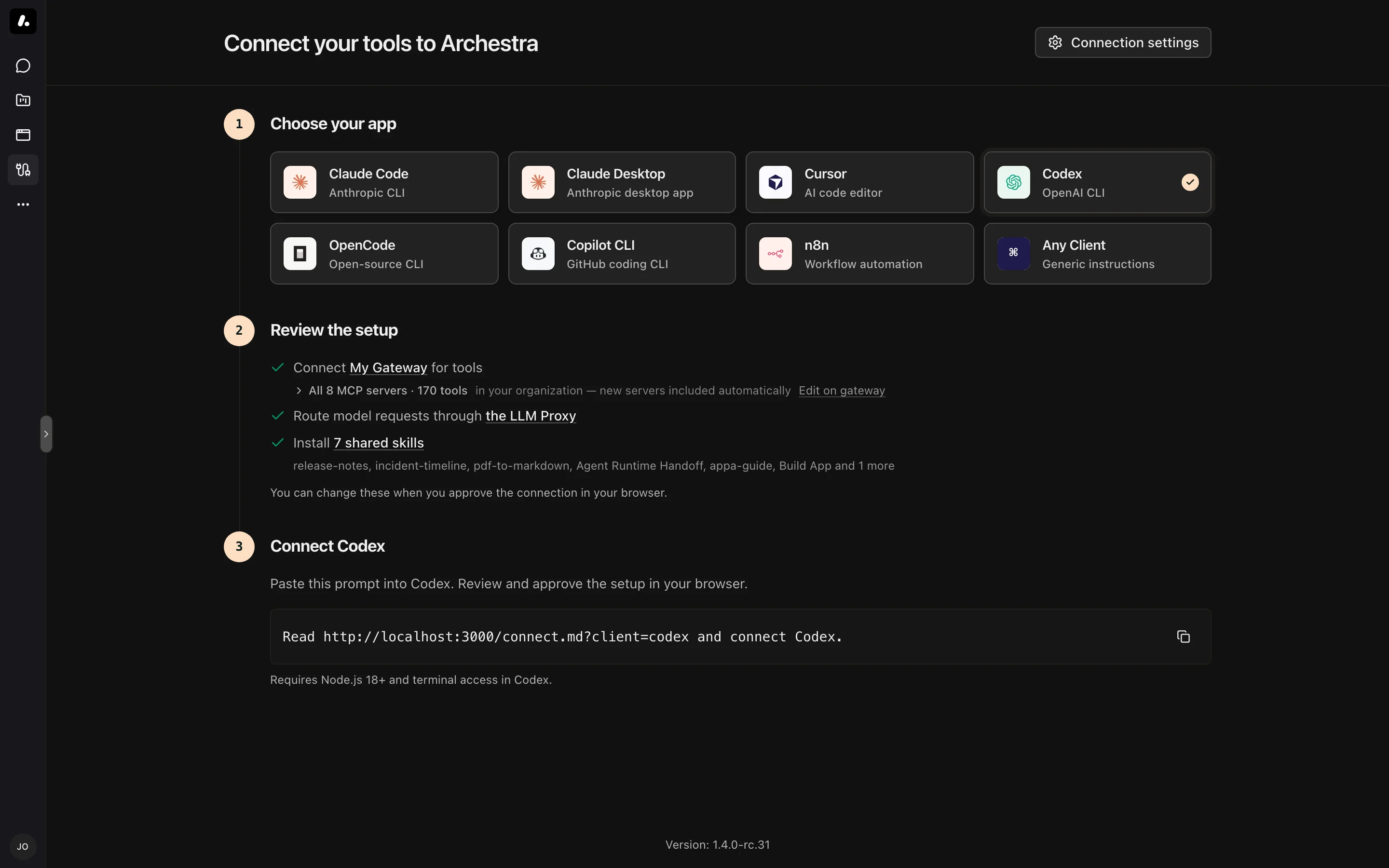
The Connection page lets you connect your local coding agent to Archestra with a single command. You pick the client — Claude Code, Codex, etc., and the page gives you a setup script to paste and run in your terminal.
On macOS and Linux the command is curl -fsSL <url> | bash. On Windows it is irm <url> | iex. Running it configures the client in place.
What the Script Configures
A script can set up three things, in any combination you selected on the page:
- MCP gateway — gives the client access to your Archestra tools. Its tools unlock after a one-time sign-in.
- LLM proxy — routes the client's model calls through Archestra. In passthrough mode the script leaves your own provider credential untouched and changes only the base URL. In virtual-key mode it injects a key Archestra provisions for you.
- Skills — installs a shared skills bundle into the client.
The exact commands and files differ per client — see Supported Clients below.
Attribution Headers
When it wires up the LLM proxy for Claude Code or Claude Desktop, the script adds two Archestra headers to every model request:
- X-Archestra-Agent-Id names the client — Claude Code or Claude Desktop — so the proxy logs show which tool made each call. It carries no secret.
- X-Archestra-Virtual-Key attributes the request to you. In passthrough mode your own provider credential still pays for inference; this key just tells the proxy whose request it is. Treat it as a secret.
For Claude Code the script writes these into ANTHROPIC_CUSTOM_HEADERS in ~/.claude/settings.json; for Claude Desktop they go in the Custom headers field. The merge replaces only these two lines, so any other headers you set stay put.
Idempotence and Backups
You can run the command as many times as you want. Nothing stacks up.
CLI registrations remove the old entry before adding the new one. Config-file edits are key-scoped merges: the script rewrites only the values it manages and leaves the rest of the file alone. Re-running after a key rotation replaces the stale value in place — it never duplicates a header or a provider block.
Before the script edits an existing config file, it copies that file once to a .archestra-backup sibling. The copy happens only on the first run, so it always holds your pristine, pre-Archestra configuration.
Secrets and the One-Time Link
The script carries credentials, so treat its output as a secret — do not share or commit it. It passes secrets through environment variables and stdin, never as command arguments, so they stay out of your shell history and the process list.
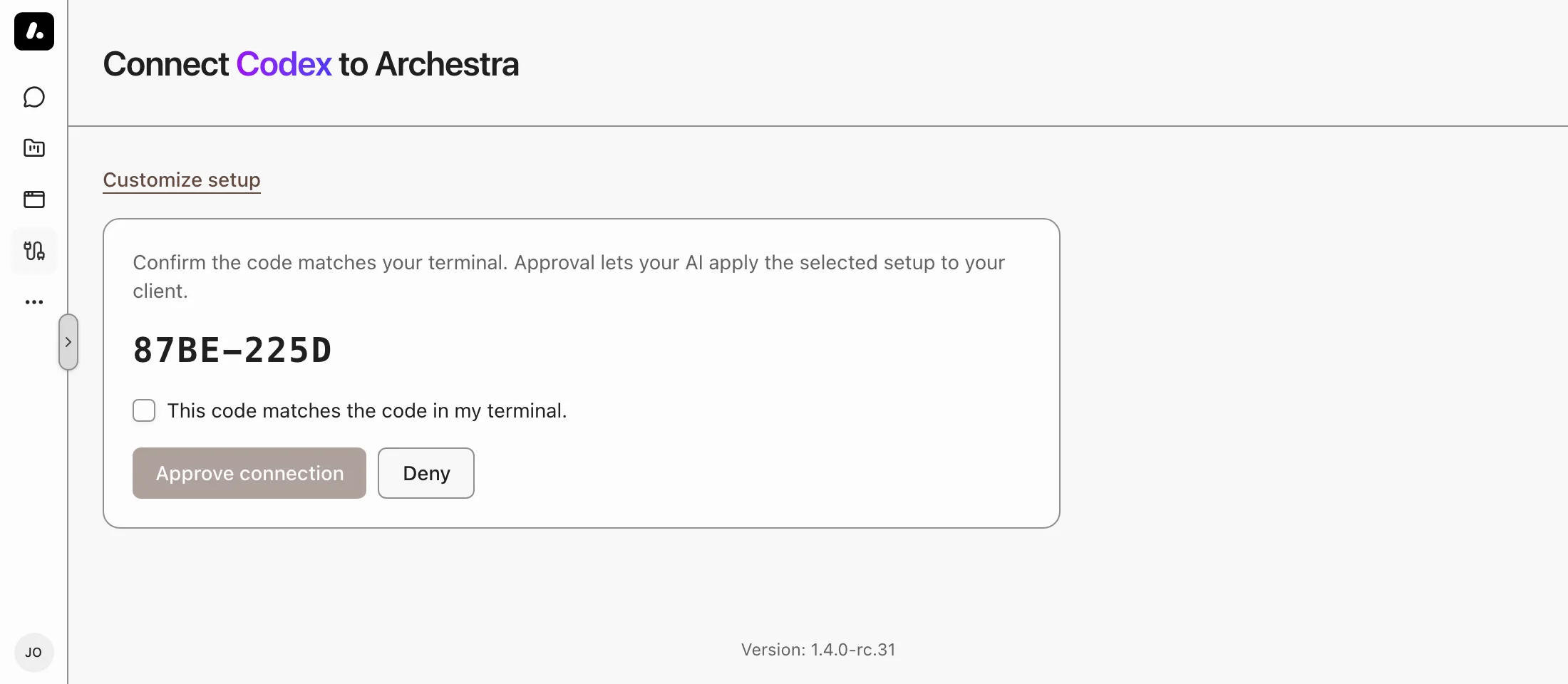
The setup link is single-use. It expires 15 minutes after you generate it and is consumed the first time it is fetched. Generate a fresh command from the page whenever you need to run the setup again.
Reading the Source Before You Run It
The command pipes a remote script into your shell, so you may want to read it first. Save it, inspect it, then run the saved file:
curl -fsSL '<url>' -o archestra-setup.sh
less archestra-setup.sh
bash archestra-setup.sh
You can also read the generator. A deterministic renderer builds the script with no hidden network calls: platform/backend/src/services/connection-setup-script.ts for macOS and Linux, and connection-setup-script.windows.ts for Windows. What you receive is exactly what those files produce.
Supported Clients
Four clients get the one-command script: Claude Code, Codex, Cursor, and Copilot CLI. Claude Desktop, n8n, and Any Client get copy-paste instructions you apply in the app yourself. Each section lists what changes and how to undo it. To also cut off access on the server, delete the connection's virtual key on the Virtual API Keys page and revoke any skills share link on the Skills page.
Claude Code
For a full walkthrough, see Using Claude Code Max Subscription.
The claude CLI must be on your PATH.
- MCP gateway — runs
claude mcp add --transport http <name> <url>. Finish withclaude /mcp, select the gateway, and sign in once in your browser. - LLM proxy — merges
ANTHROPIC_BASE_URLand the Archestra attribution headers into~/.claude/settings.json. Virtual-key mode also setsANTHROPIC_AUTH_TOKEN. For Amazon Bedrock it sets the Bedrock variables instead and prints anAWS_BEARER_TOKEN_BEDROCKline to add to your shell profile. - Skills — runs
claude plugin marketplace addthenclaude plugin install. - Backup —
~/.claude/settings.json.archestra-backup. - Revert — restore the backup, or delete the Archestra env keys; run
claude mcp remove <name>; drop the exported Bedrock token from your profile.
Codex
The codex CLI must be on your PATH.
- MCP gateway — runs
codex mcp add <name> --url <url>. Runcodexonce to finish the browser sign-in. - LLM proxy — adds a marker-delimited
[model_providers.<name>]block to~/.codex/config.toml. Virtual-key mode signs in withcodex login --with-api-key. Start Codex through the proxy withcodex -c model_provider=<name>. - Skills — runs
codex plugin marketplace add. - Backup —
~/.codex/config.toml.archestra-backup. - Revert — restore the backup, or delete the
# >>> archestra:<name> >>>block; runcodex mcp remove <name>.
Cursor
Cursor is a desktop app, so the script edits its files directly and prints the UI-only steps.
- MCP gateway — merges the server into
~/.cursor/mcp.json. Turn it on in Cursor under Settings → MCP. - LLM proxy — prints the values to paste under Settings → Models: the base URL to override and the API key to verify.
- Skills — prints the clone URL to paste into
/add-pluginfrom the command palette. - Backup —
~/.cursor/mcp.json.archestra-backup. - Revert — restore the backup, or remove the server entry from
mcp.json; clear the model override in Settings.
Copilot CLI
The copilot CLI must be on your PATH.
- MCP gateway — runs
copilot mcp add --transport http <name> <url>. - LLM proxy — prints the
COPILOT_PROVIDER_*andCOPILOT_MODELexportlines to add to your shell profile, because a piped script cannot set variables in your shell. For a GitHub Copilot subscription the script runs the GitHub device flow locally, so your token never leaves the machine. - Skills — runs
copilot plugin marketplace add. - Backup — none; the proxy settings are
exportlines you add yourself. - Revert — run
copilot mcp remove <name>; delete the export lines from your shell profile.
Claude Desktop
For a full walkthrough, see Using Claude Desktop (Cowork).
Note: Claude Desktop's third-party inference cannot reuse a Claude Pro or Max subscription. To keep paying through a subscription, connect Claude Code in passthrough mode instead.
Claude Desktop is a desktop app, so you apply every change in its UI — there is no script and nothing on disk to back up.
- MCP gateway — enable Developer Mode, open Developer → Configure Third-Party Inference, add a blank managed MCP server, and paste the gateway URL. Sign in once in your browser.
- LLM proxy — in the same form, paste the gateway base URL and your API key, then add the Archestra attribution headers under Custom headers.
- Revert — remove the connector and clear the inference credential in the app.
n8n
n8n is a workflow tool, so you configure nodes inside n8n — there is no script and nothing on disk to back up.
- MCP gateway — add the "MCP Client Tool" node, paste the endpoint URL, and set authentication to Bearer Auth with a token or to MCP OAuth2.
- LLM proxy — add the provider's chat-model node, create a credential, and paste the base URL and key. Most providers are supported; Bedrock routes through an OpenAI-compatible URL.
- Revert — delete the node or its credential.
Any Client
Selecting Any Client gives copy-paste instructions instead of a one-command script. The page shows the MCP gateway URL with its authentication, and the LLM proxy base URL and key. You apply them to whatever tool you use — an editor plugin or a custom agent, for example.
Use Case
Acme's Archestra administrator onboards engineering team members with one link to the Connection page. Acme engineers using Claude Code, Codex, etc. run the script from the connection page to integrate with Archestra. Now Acme managers can control inference costs, govern tool use, see LLM traffic logs, share skills, MCP registry, etc. while their engineers keep using the tools that make them most productive.