
Using Claude Desktop (Cowork)
Route Claude Desktop's inference and tools through Archestra
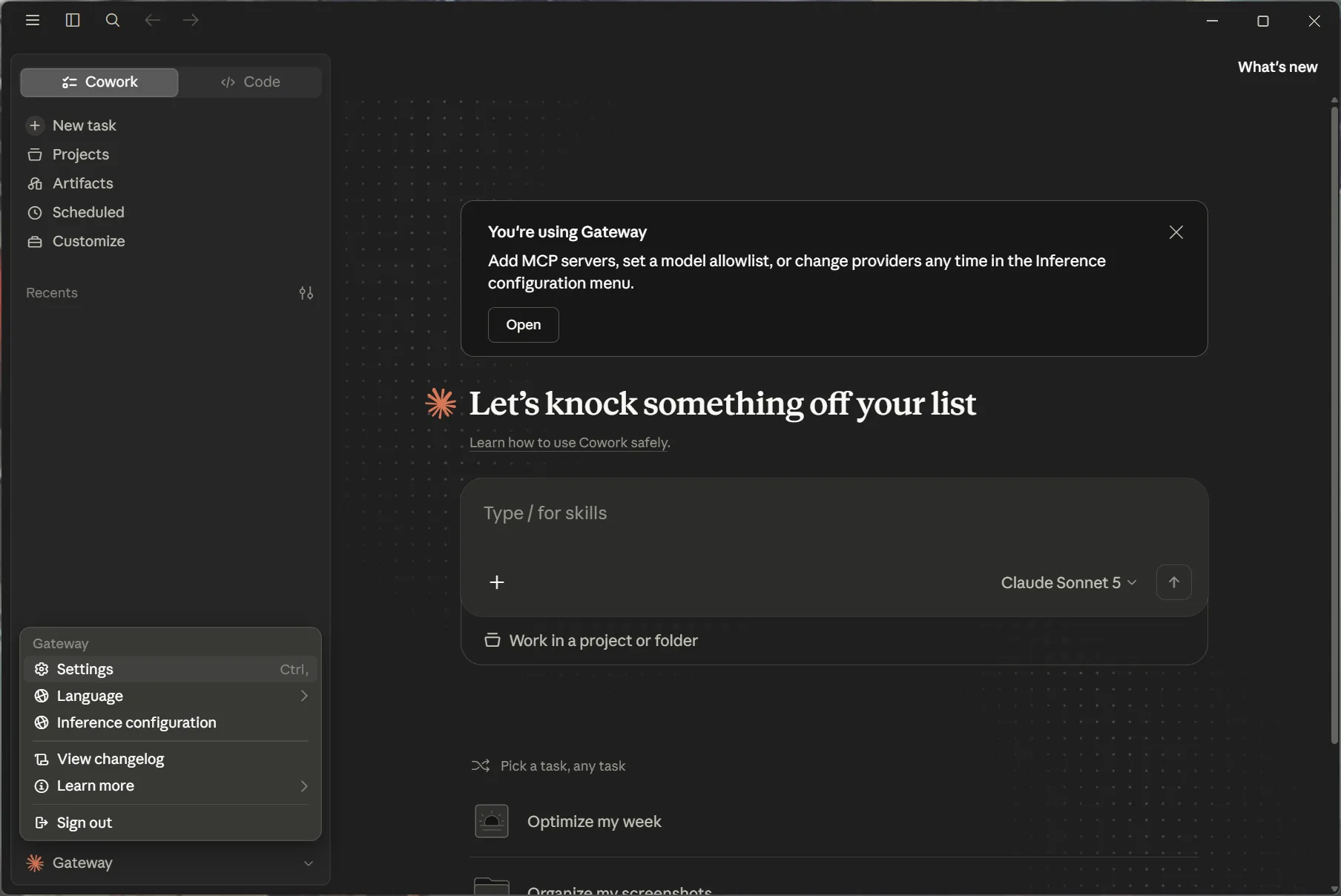
Claude Desktop uses a downloadable setup helper or a terminal command. The setup script supports macOS, Windows, and Linux. Linux requires Anthropic's official Desktop beta.
Use Case
You use a Claude Pro or Max subscription for local Cowork tasks. Archestra routes those requests through its LLM Proxy for policies and request logs. For example, ask Cowork to summarize a local project README using Haiku.
Requirements
Install Claude Desktop. The downloadable installer uses Desktop’s built-in runtime. You do not need Node.js, Python, or Claude Code. Subscription access requires your existing Claude subscription.
MCP sign-in requires HTTPS, including local deployments. Use a trusted local HTTPS reverse proxy for development. Inference alone supports HTTP on localhost and loopback IP addresses. The Anthropic proxy must forward to Anthropic, without a Vertex AI endpoint override.
Setup
Connecting the LLM Proxy switches Desktop to third-party inference mode. That mode keeps its own conversation history, so your Claude.ai conversations do not appear there at first. See Import Conversations to bring them over, and Revert before switching. Tools-only setup does not require third-party inference.
Open Connect and select Claude Desktop. Review your authentication, model, gateway, and platform. The platform defaults to your detected operating system and remains editable. Finish active Desktop tasks before installing. Download the installer and open the .mcpb file in normal Claude Desktop. Confirm installation in Desktop’s native dialog. The setup helper opens your browser for sign-in and restart confirmation. You can remove the helper from Desktop’s Extensions settings afterward.
The Advanced: terminal setup option requires Python 3.9+ and Claude Code for subscription sign-in. It remains available for existing third-party profiles that cannot install Desktop extensions.
The installer checks inference before changing your configuration. It backs up changed files, preserves manually created profiles, and restarts Desktop. Rerunning setup replaces the installer-managed connection, including its gateway and skills settings. Installing from another deployment replaces the previous managed connection. If macOS rejects automatic quitting, the installer waits for you to quit from Desktop’s menu. You do not download or import a profile manually. Keep the download and generated command private; they contain an expiring setup ticket. Installation redeems the ticket once. Download a new installer if it expires.
Connect From An Agent
The Connect prompt automates setup for coding clients with permitted host-terminal access. Ordinary Cowork cannot reliably run installation in Auto mode. Use Connect → Claude Desktop and download the setup helper instead. Installing it is your direct action; it does not require a Cowork installer tool call. Desktop’s native extension confirmation remains required.
Subscription Inference
Subscription setup opens Claude’s browser authorization page. Its consent screen names the subscription connection “Claude Code”. The CLI does not need to be installed. Only inference access is requested. The resulting token stays on your computer. You do not copy it into Archestra. Valid existing tokens are reused when you rerun setup. Tokens expire after up to one year and can be revoked earlier. Rerun setup after expiration or revocation.
Model access and usage limits depend on your Anthropic account. Send a message and check LLM Proxy Logs for its response and billing mode. Subscription credentials are recorded with subscription billing mode.
API-Key Inference
Choose API key in the review step's authentication settings. Archestra provisions a personal virtual key backed by your configured Anthropic key. The installer applies it without a Claude subscription sign-in.
Tools And Skills
Installing the gateway does not complete its authentication or enable it for every conversation. Follow the Enable your gateway in Claude Desktop step on Connect after restarting. A connected checkmark in Settings confirms the connection, not its selection for your conversation. Ask Claude to list the gateway's tools to verify availability.
The skills selected on Connect install automatically after Desktop restarts. Setup pins the selected snapshot; rerun Connect to install an updated snapshot.
Import Conversations
Setup turns on Settings → Import in Desktop. Desktop also offers an import when you start a new chat or task. Sign in to Claude.ai there to copy your chats and projects. You can also import a Claude.ai data export, or earlier Cowork and Code sessions from this computer.
Import is a one-time copy, not a sync. Rerun it any time to add newer conversations — it skips the ones already imported. New messages in an already imported conversation are not copied. Conversations you start in third-party mode stay on this computer and never appear on Claude.ai.
Importing from Claude.ai needs network access to claude.ai, api.anthropic.com, and storage.googleapis.com. Claude.ai can refuse or delay an export — when your organization disables data export, for example.
Revert
To return to standard Claude Desktop, choose Anthropic sign-in on Desktop's sign-in screen. Sign in with your original Claude account to access its conversations. Setup and import delete nothing, so your original Claude.ai history is still there. This is Anthropic's documented return path. If your Desktop version does not expose that option, contact your administrator or Anthropic support. Organization policy can hide Claude sign-in.
Keep the Claude-3p application data directory. Deleting it can remove conversations created in third-party mode. Removing the setup extension alone does not revert your inference settings.
To use another third-party profile, select it in Configure Third-Party Inference and restart Desktop. To return to another deployment, run its installer again. The installer keeps .before-archestra backups of existing configuration files it changes. These backups do not include conversation history.
See Connect Your Agents for other clients.
In Logs → LLM Proxy, filter by Claude Desktop to review its requests. Claude Code has a separate filter. Older requests with generic Claude attribution appear as Claude Code.