
Telegram
Connect Archestra agents to Telegram chats and groups
Archestra connects to Telegram through a bot. Messages sent to the bot — in direct messages or group chats — are routed to the configured agent, and responses appear back in the chat.
Telegram uses long polling: Archestra makes outbound requests to the Telegram API, so no public URL, webhook, or ngrok tunnel is needed. The only credential is a bot token.
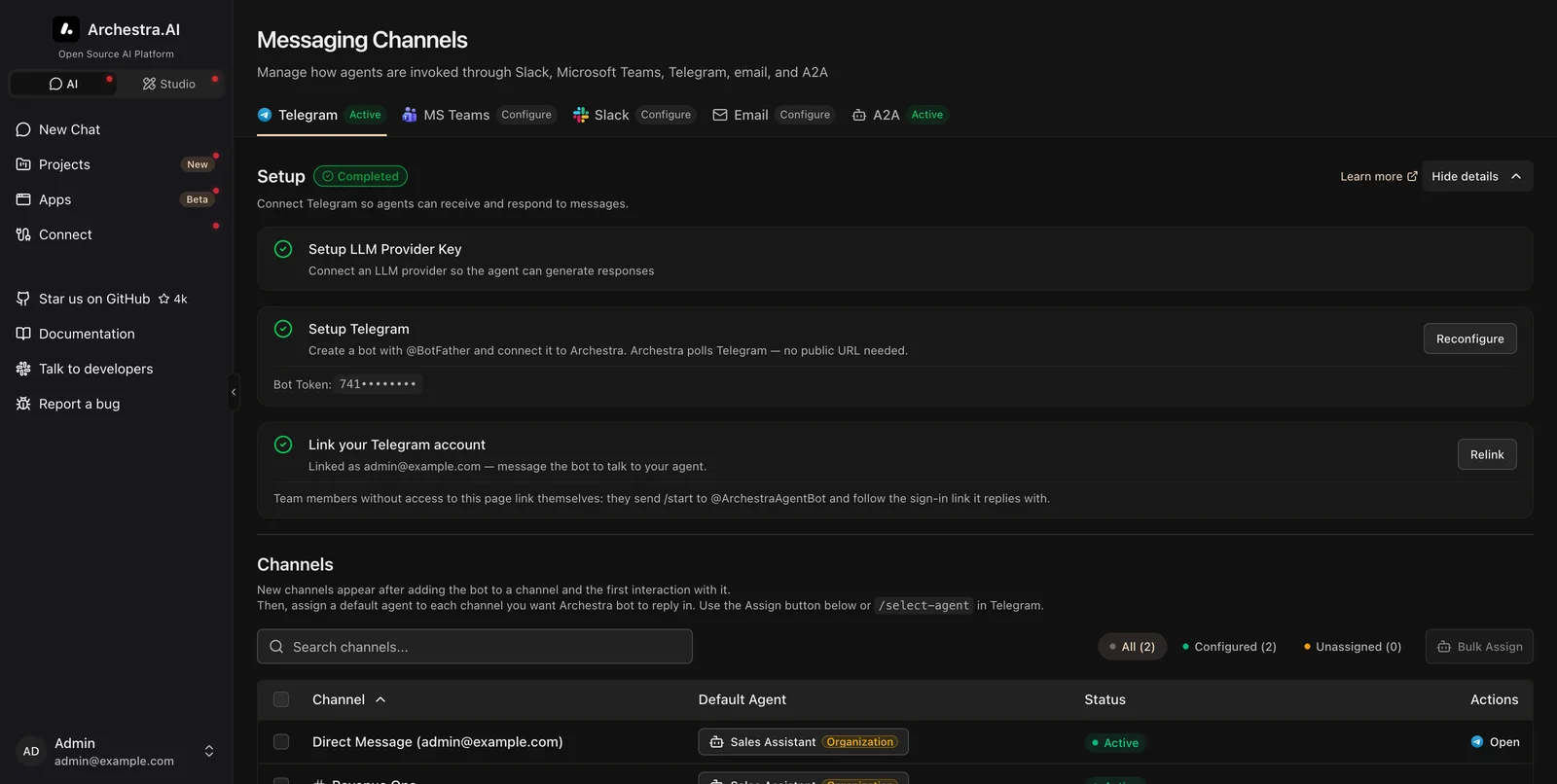
Setup
- In Telegram, message @BotFather, send
/newbot, and pick a display name and username. BotFather replies with a bot token. - Paste the token into the Telegram setup on the Messaging Channels page (or set it via environment variables, see Deployment).
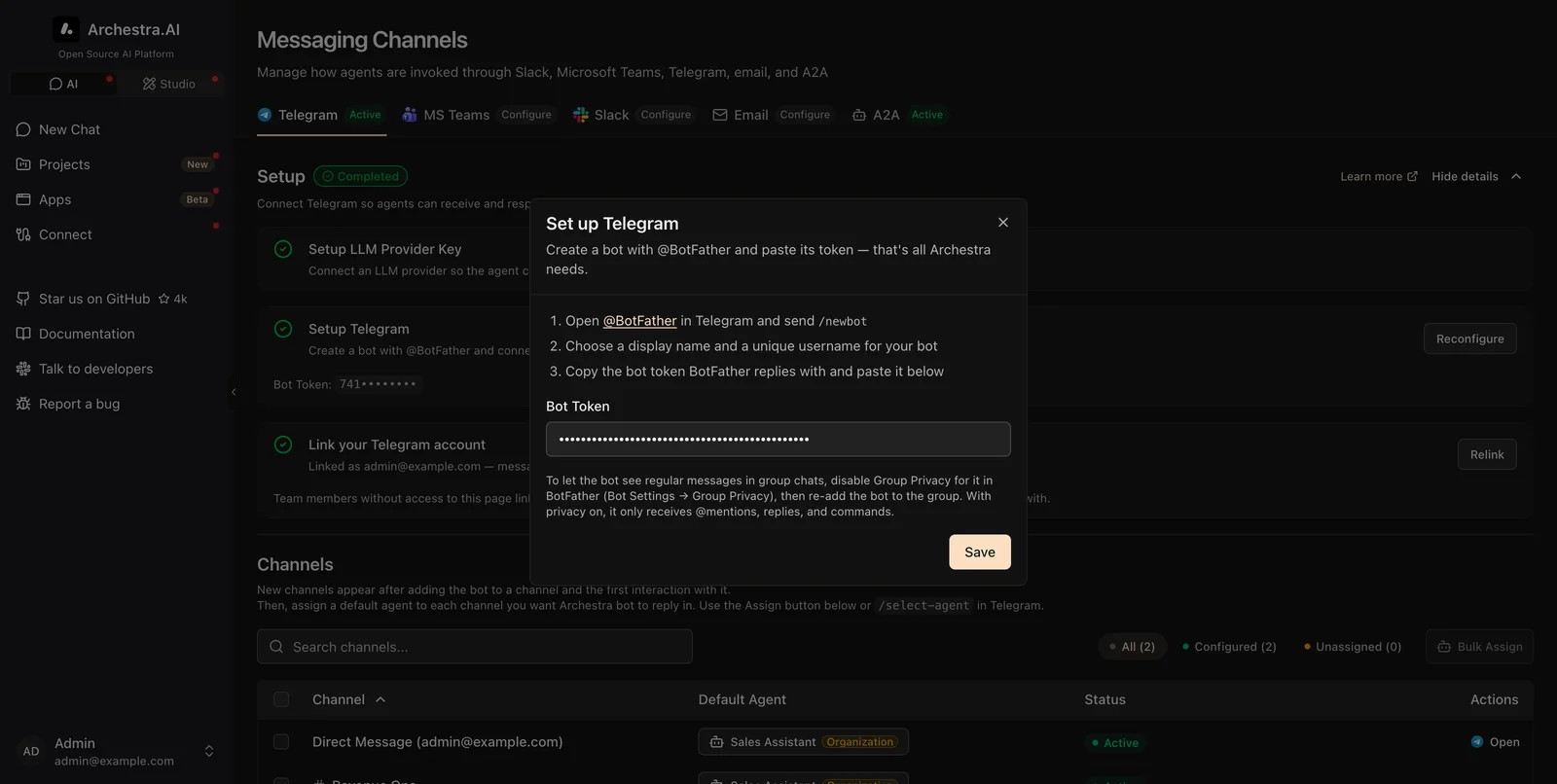
Archestra validates the token and starts polling immediately.
Linking Telegram Accounts
Telegram does not expose email addresses, so the bot cannot match users to their accounts automatically like Slack and MS Teams do. Each user links their Telegram account once, from either side:
- From the Telegram channel page: click Link Telegram account, then tap Start in the Telegram chat that opens.
- From Telegram: send
/startto the bot and open the sign-in link it replies with.
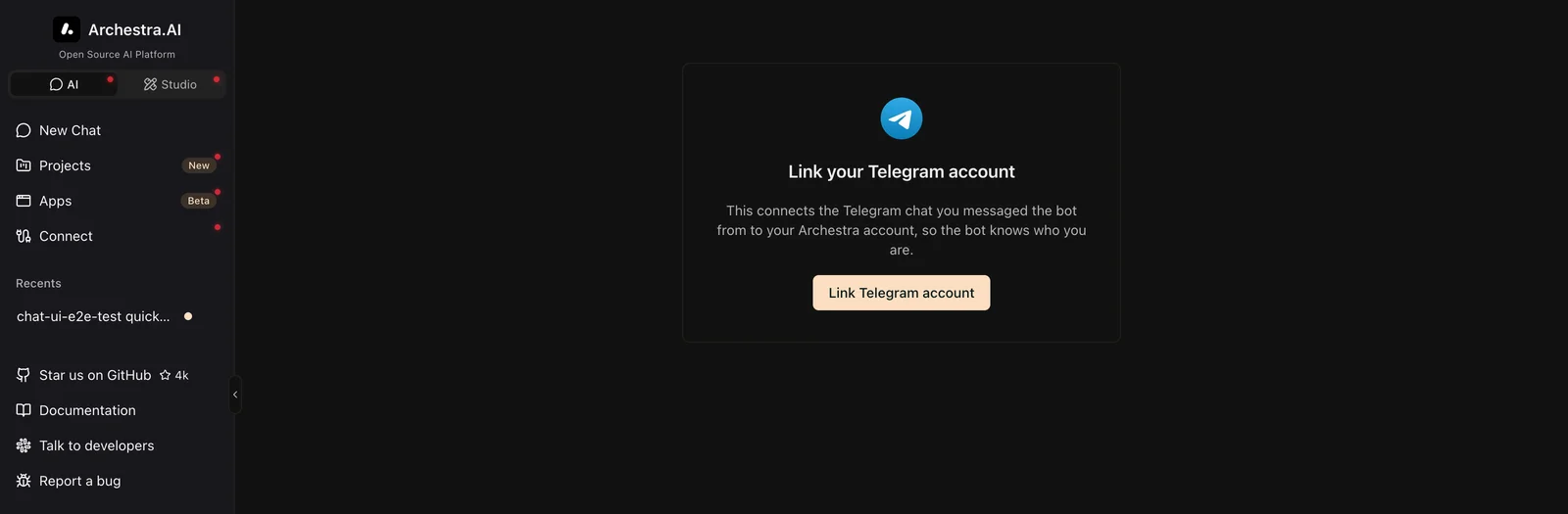
Both paths use a one-shot code, valid for 15 minutes. The signed-in web session provides the identity and the Telegram chat proves ownership, so neither side can be spoofed.
Group members link the same way before the bot answers them — an unlinked user gets a short reply telling them to send /start. Access control matches the other channels: users only reach agents their teams have access to.
Usage
Direct messages
Every message in a DM gets a reply. On first contact the bot asks which agent should handle the conversation (unless an org default agent resolves it automatically).
Group chats
Add the bot to a group. For it to work there, either make it a group admin or disable its Group Privacy setting in BotFather:
- Privacy on and not an admin (Telegram's default): the bot only receives
/commandsand replies to its own messages — plain messages and@botnamementions never reach it, so it cannot answer them. - Privacy off, or the bot is a group admin: the bot hears every message. The agent joins the conversation — it answers mentions and replies always, answers other messages when they're for it, and stays silent when people are clearly talking to each other.
To disable Group Privacy: in BotFather, /mybots → your bot → Bot Settings → Group Privacy → Turn off, then remove and re-add the bot to the group — Telegram caches the setting per membership.
In supergroups with Topics enabled, each forum topic is a separate conversation for the agent.
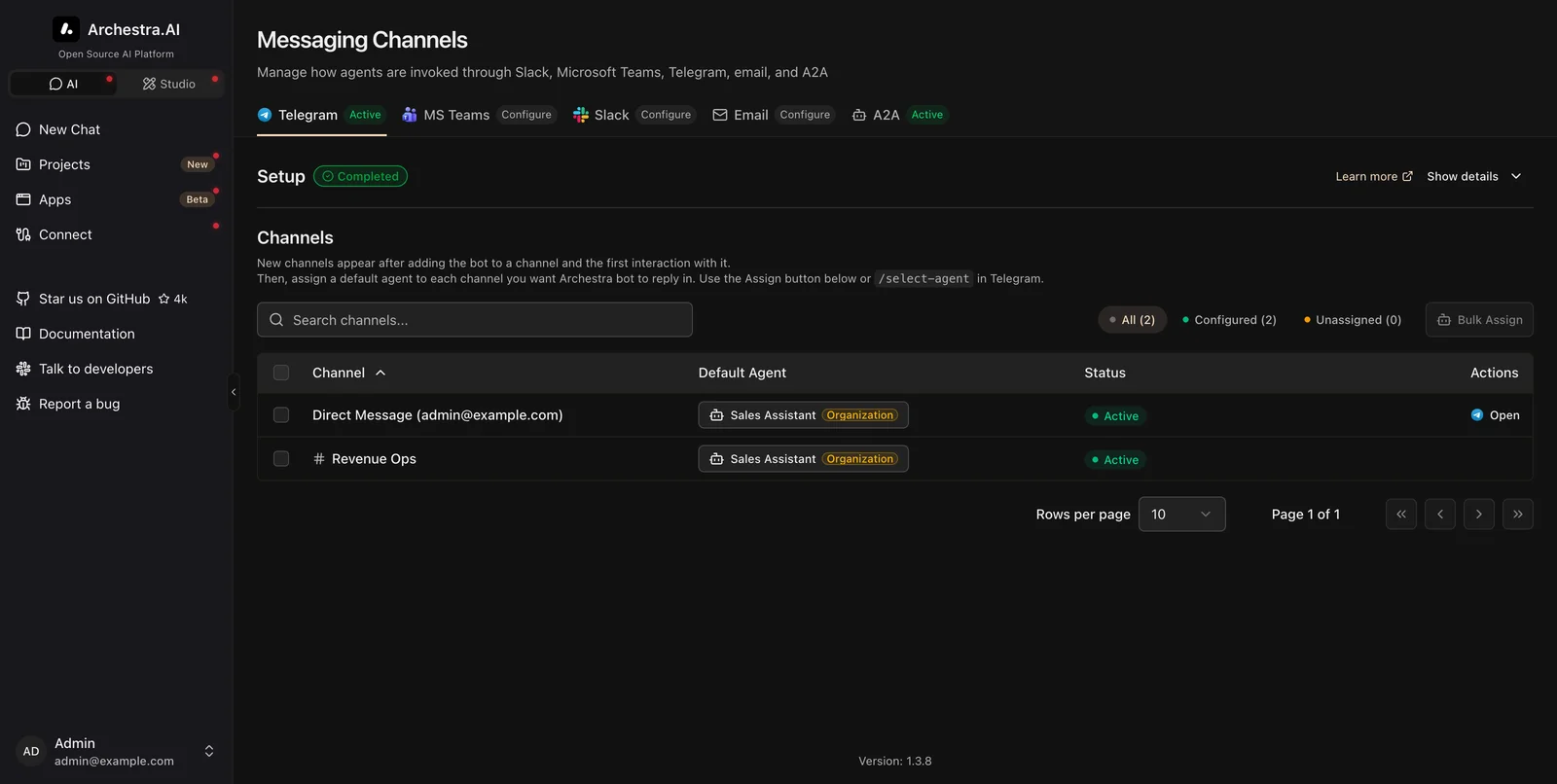
Each chat shows up on the channel page, where you assign the agent that answers there. Groups appear the moment the bot is added; DMs appear when the account is linked.
Commands
| Command | Description |
|---|---|
/select-agent | Change which agent handles this chat |
/start | Link your Telegram account (DM only) |
/help | Show available commands |
Switching agents inline
AgentName > message routes a single message to a different agent, same as Slack and MS Teams:
Sales > what's our Q4 pipeline?
Tool approvals
When an agent needs approval to run a tool, the bot posts the tool name and arguments with Approve/Decline buttons. Only the user who triggered the request can decide.
Conversation Memory
Telegram bots cannot read chat history, so Archestra keeps each conversation server-side. The agent remembers earlier messages in the chat — in groups, the shared history covers all participants. When a conversation grows past the model's context window, older messages are compacted into a summary and the bot posts a short notice in the chat.
Sending a follow-up while the bot is still typing cancels the pending answer. The bot replies once — to your latest message, with the earlier one still in context.
Attachments
Photos and documents sent to the bot are downloaded and passed to the agent, subject to the same size limits as other channels (10 MB per file). Files over the limit are noted to the agent by name so it can tell the user.
Limitations
- The server-side conversation covers messages the bot received. Group messages sent while Group Privacy was on (and other messages Telegram never delivered) are not part of the history.
- Telegram allows a single polling consumer per bot token. With multiple backend replicas, one replica receives updates and the others back off; do not reuse the same token in another system.
Troubleshooting
Bot not responding in a DM
- Check the integration is enabled and the token is valid (the status shows "configured")
- Make sure your Telegram account is linked — send
/startto the bot to check
Bot not responding to @mentions in a group
- Group Privacy is on (the default): Telegram only delivers
/commandsand replies to the bot's messages. Send/select-agentto confirm the bot is alive, then disable Group Privacy in BotFather and remove and re-add the bot to the group
"This Telegram account isn't linked" reply
- Send
/startto the bot and follow the sign-in link it replies with
409 conflict errors in backend logs
- Another process is polling with the same bot token — stop it or issue a new token via BotFather (
/revoke)