
Sharing Skills
Your coding agents can use Archestra skills in two ways:
- Installed: the skills live in the agent itself, so it uses them like its own. This page covers this way.
- Over MCP: a connected agent finds and loads skills through the MCP Gateway. Nothing is installed.
To install skills, Archestra serves them from one git repository, the shared marketplace. Your agent reads it as a plugin marketplace or a skills folder.
Installing from the Connect Page
Shared skills install when you connect your agent. Go to Connect and choose your client. Review the setup lists the shared skills the setup installs. Run the setup prompt in your client and approve the setup in your browser. Skills are all or nothing: you can turn Install shared skills off, but not pick single skills.
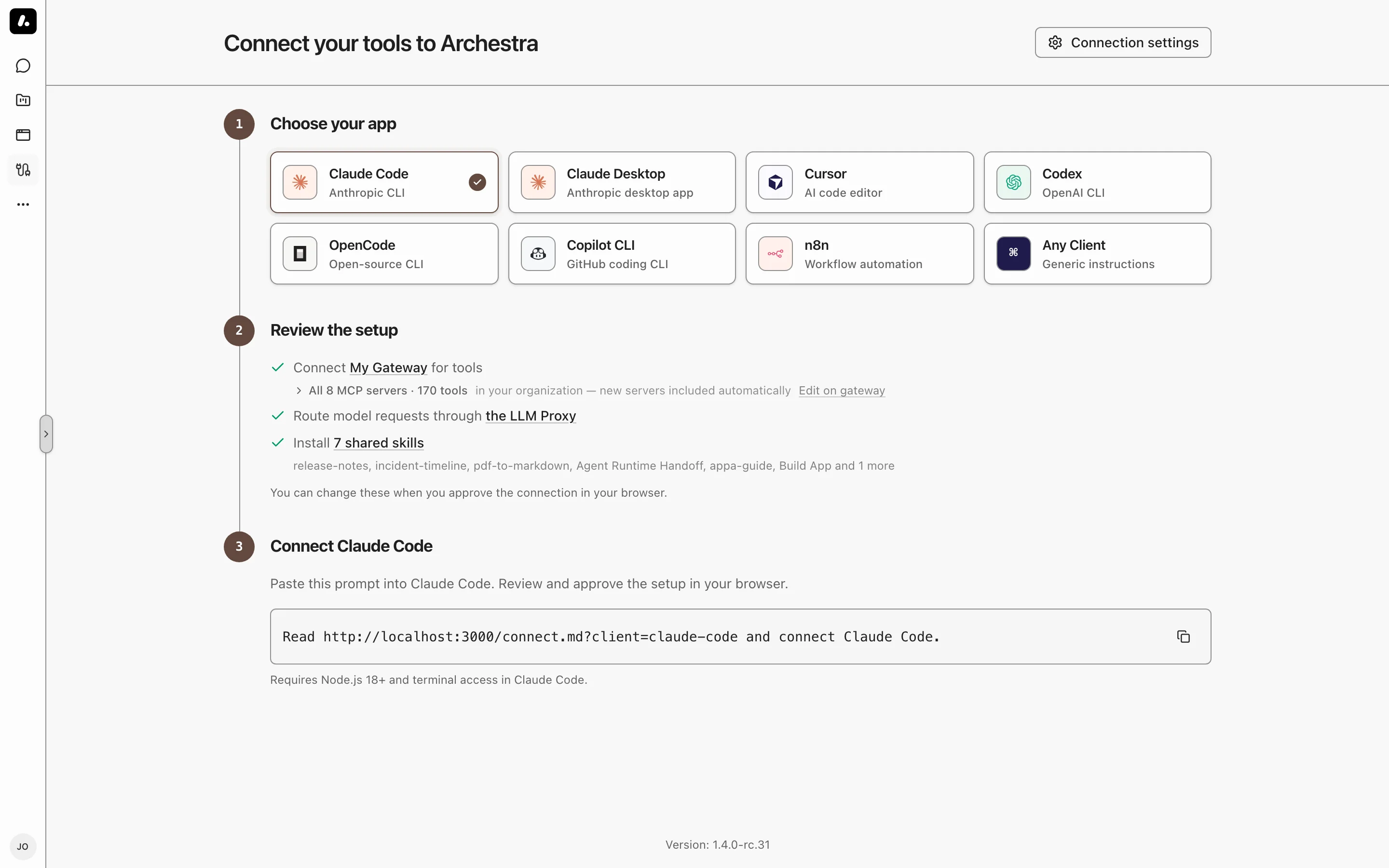
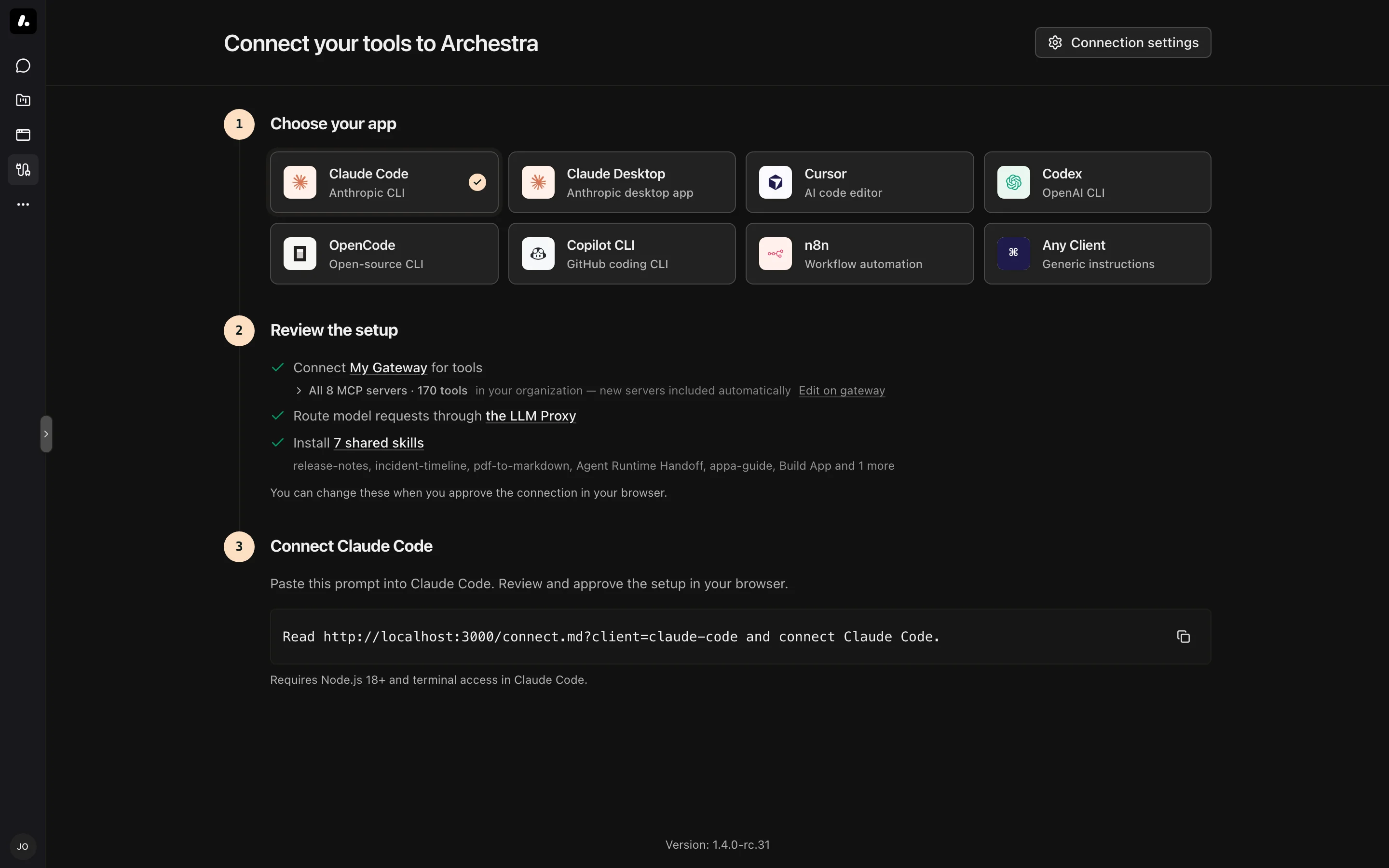
The setup installs every skill shared with you, and picks up skills added later.
A setup that also installs plugins, and every Claude Desktop setup, installs a snapshot link instead. A snapshot with plugins expires after 30 days.
The Shared Marketplace URL
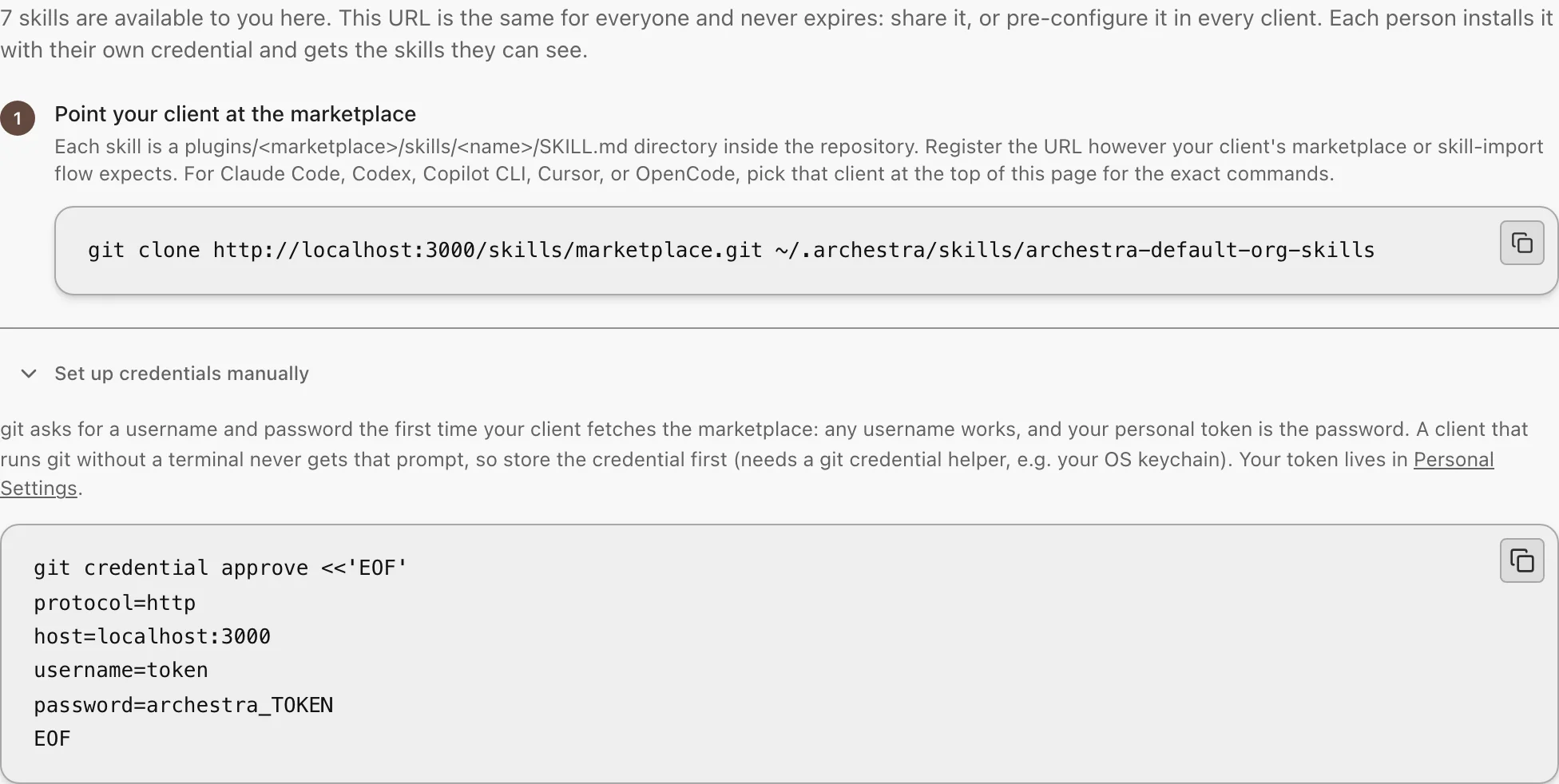
Use this to add shared skills to a client by hand. Every deployment has one URL: https://<your-archestra-host>/skills/marketplace.git. It never expires.
-
Go to Connect, choose Any Client, and find Install shared skills. Copy the URL.
-
Add it to your client:
claude plugin marketplace add <marketplace-url> claude plugin install <marketplace-name>@<marketplace-name> -
When
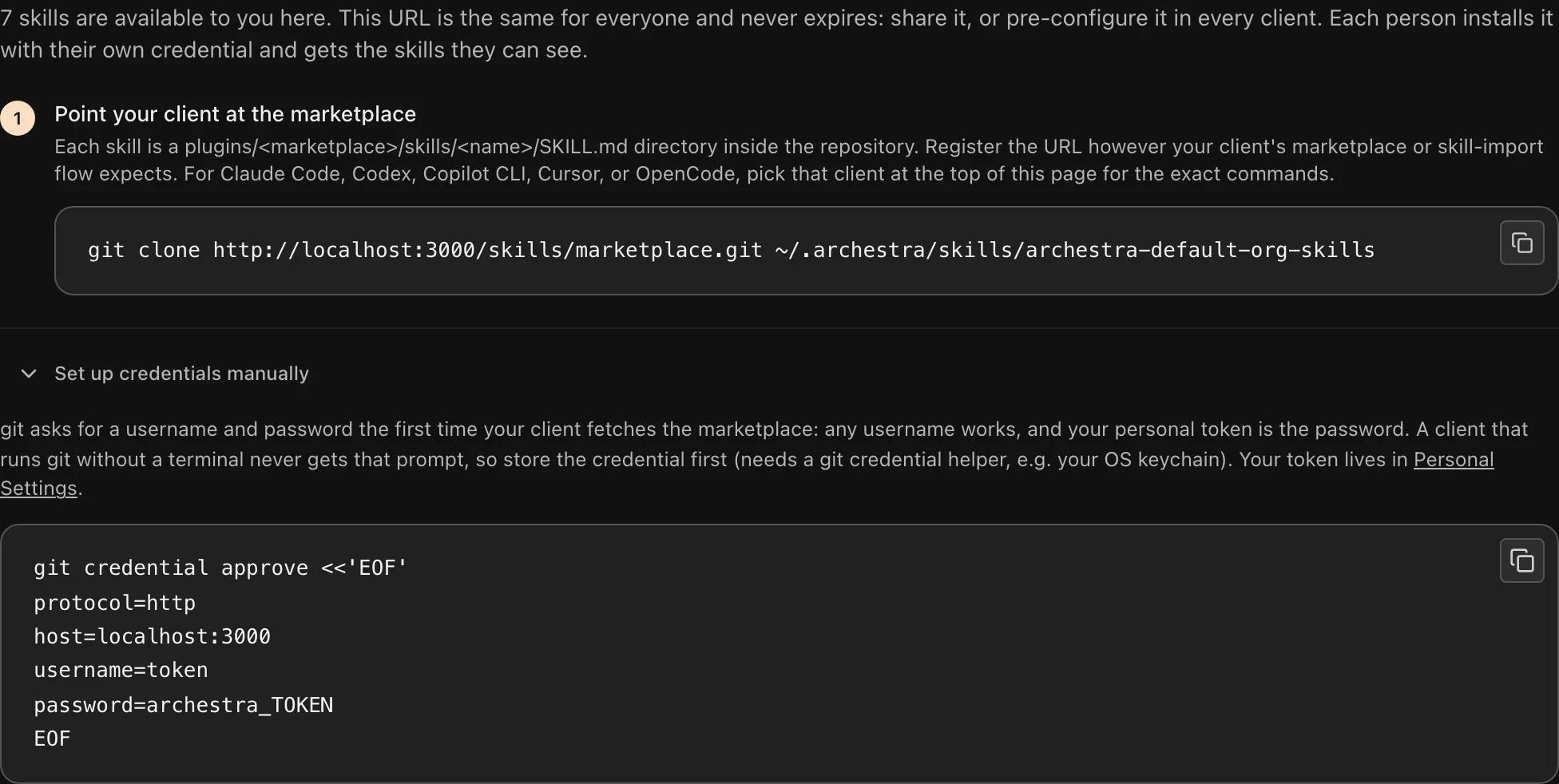
gitasks you to sign in, enter any username. The password is your personal token from Personal Settings. If your client never shows a sign-in prompt, expand Set up credentials manually and run the command there.
What to know:
- You get every skill you can read in Archestra: organization, team, personal, and shared with you.
- Each skill becomes a slash command named after it. "Build App" becomes
/build-app. - The marketplace name looks like
archestra-acme-skills. - Access ends when you leave the organization or lose read access to skills.
Anonymous Access
To let anyone clone the marketplace without signing in, go to Settings → Skills → Skills marketplace access and pick Allow anonymous clones. Anonymous clones get only organization-wide skills. Treat this as a public listing: anyone who can reach the deployment can install them.
Updates
Clients pick up skill changes on their own. Cursor is the exception. Pull the changes yourself:
git -C "$HOME/.cursor/skills/<marketplace-name>" pull --ff-only
Snapshot Links
A snapshot link shares your skills with people who have no account on this deployment. You need the read, use, and manage permissions actions on all skills (*). See Granular Access Control.
- Go to Connect, choose Any Client, and expand Share a snapshot link.
- Pick when it expires: 30 days, 90 days, or Never expires.
- Click Create link and copy the URL. Archestra shows it only once.
What to know:
- The link covers the skills that exist when you create it. Edits reach it. New skills do not. Refresh link adds them and replaces the URL.
- Revoke stops new installs. Copies already installed stay on people's machines.
Server Configuration
The marketplace needs git on the Archestra server. To change where Archestra finds git or stores the marketplace cache, see ARCHESTRA_GIT_BINARY_PATH and ARCHESTRA_SKILL_MARKETPLACE_CACHE_DIR.