Limits
Set budgets and rate limits in Limits so a busy key, runaway agent loop, or shared credential stops when it hits its allowance instead of running up your provider bill. Organization-wide access to limits requires llmLimit:read; creating, editing, or deleting them requires llmLimit:create, llmLimit:update, or llmLimit:delete. Team admins can also manage their child teams' allocations.
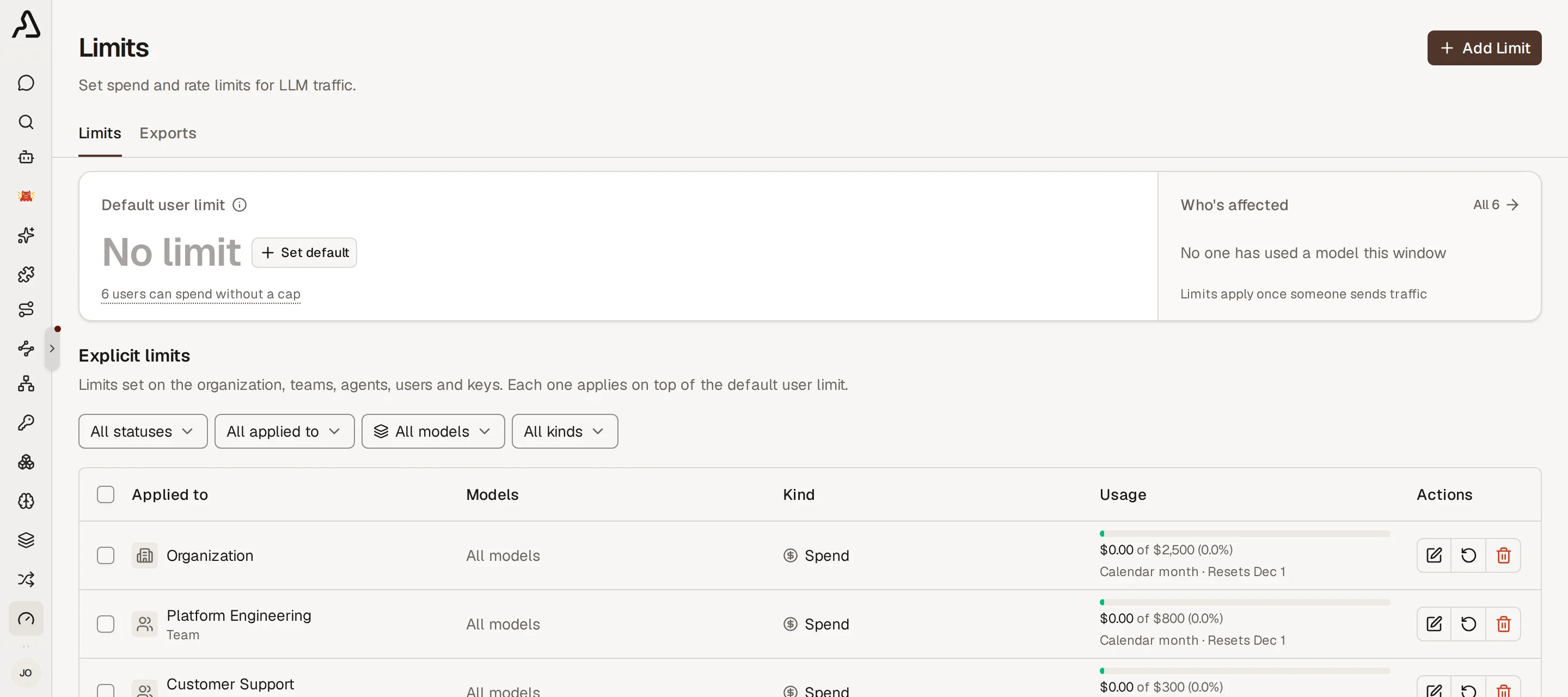
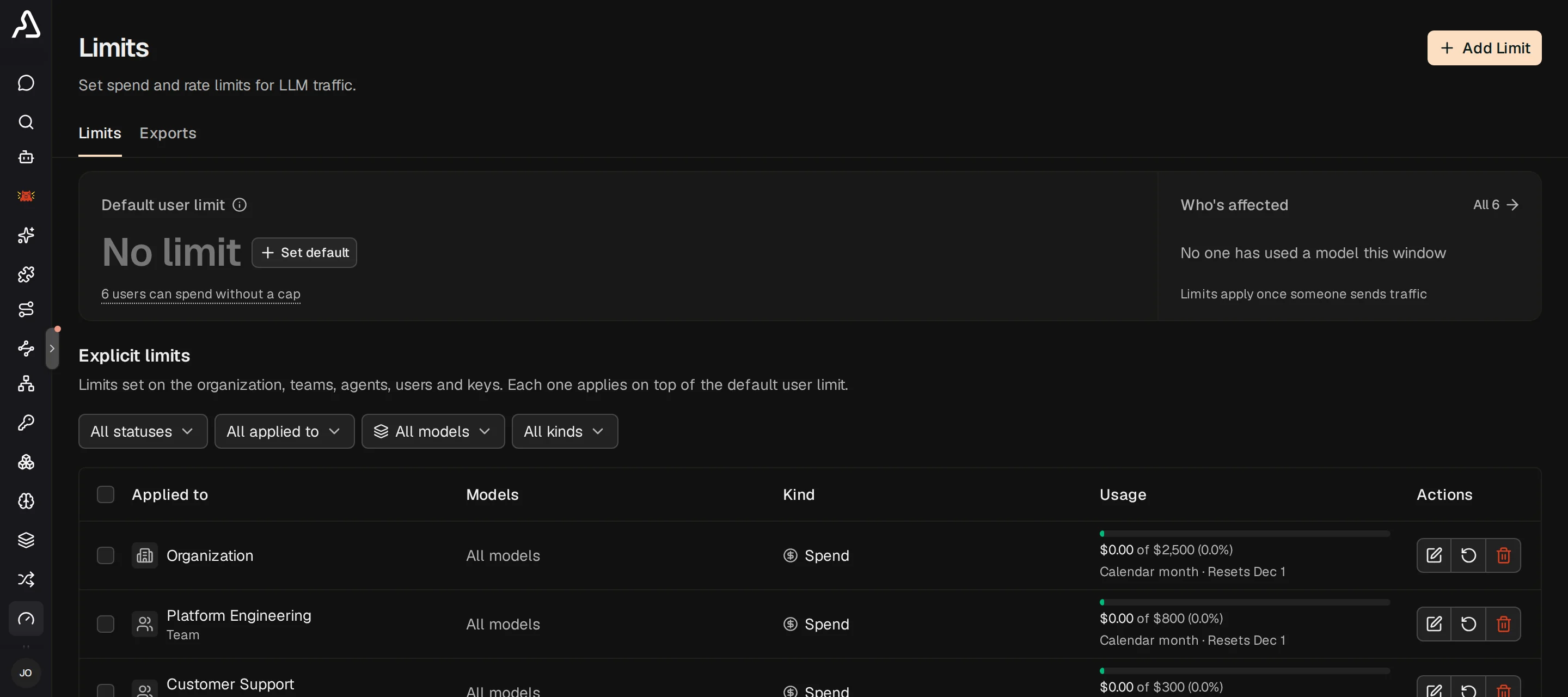
Create a Limit
- Go to Cost Controls → Limits and click Add Limit.
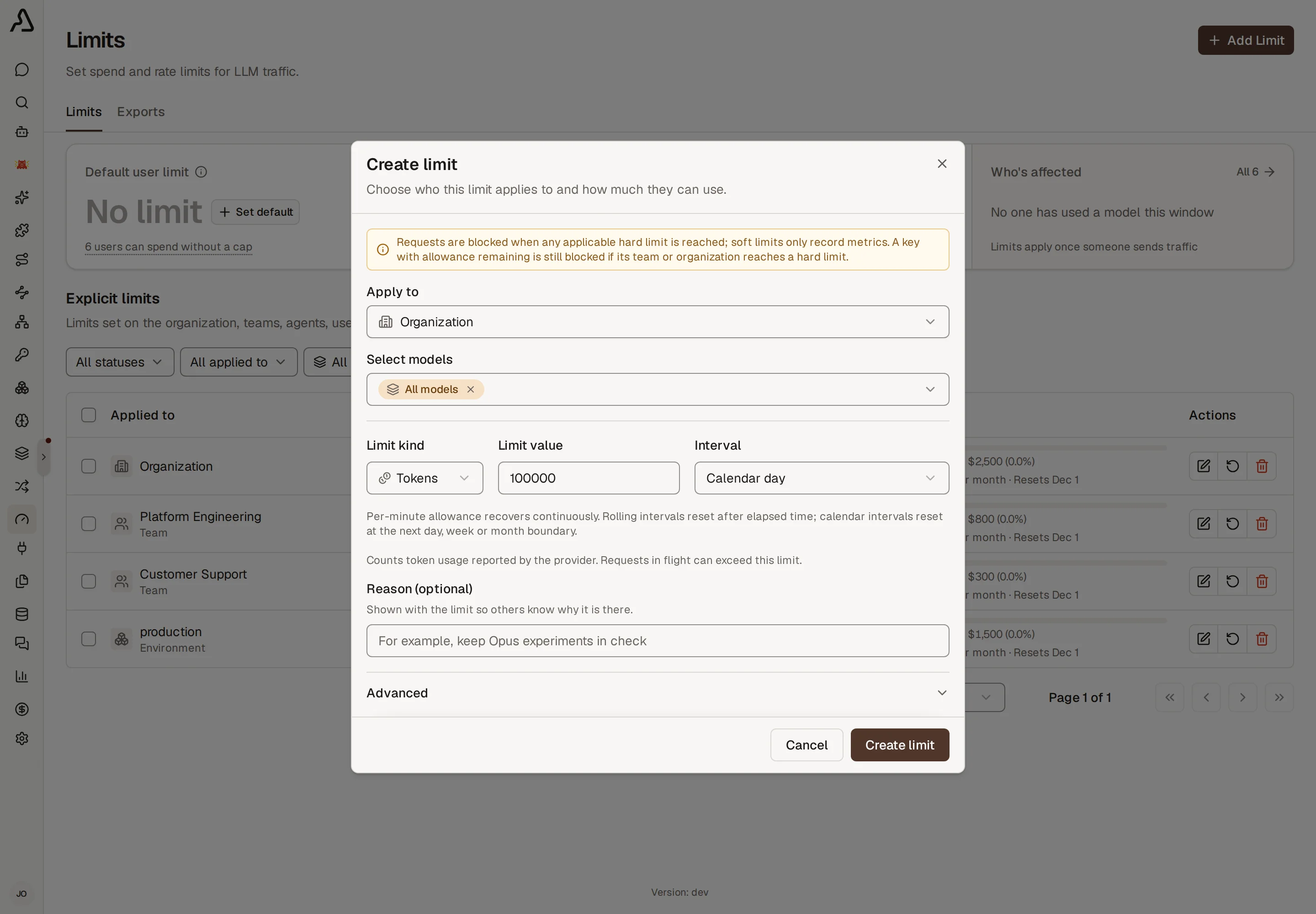
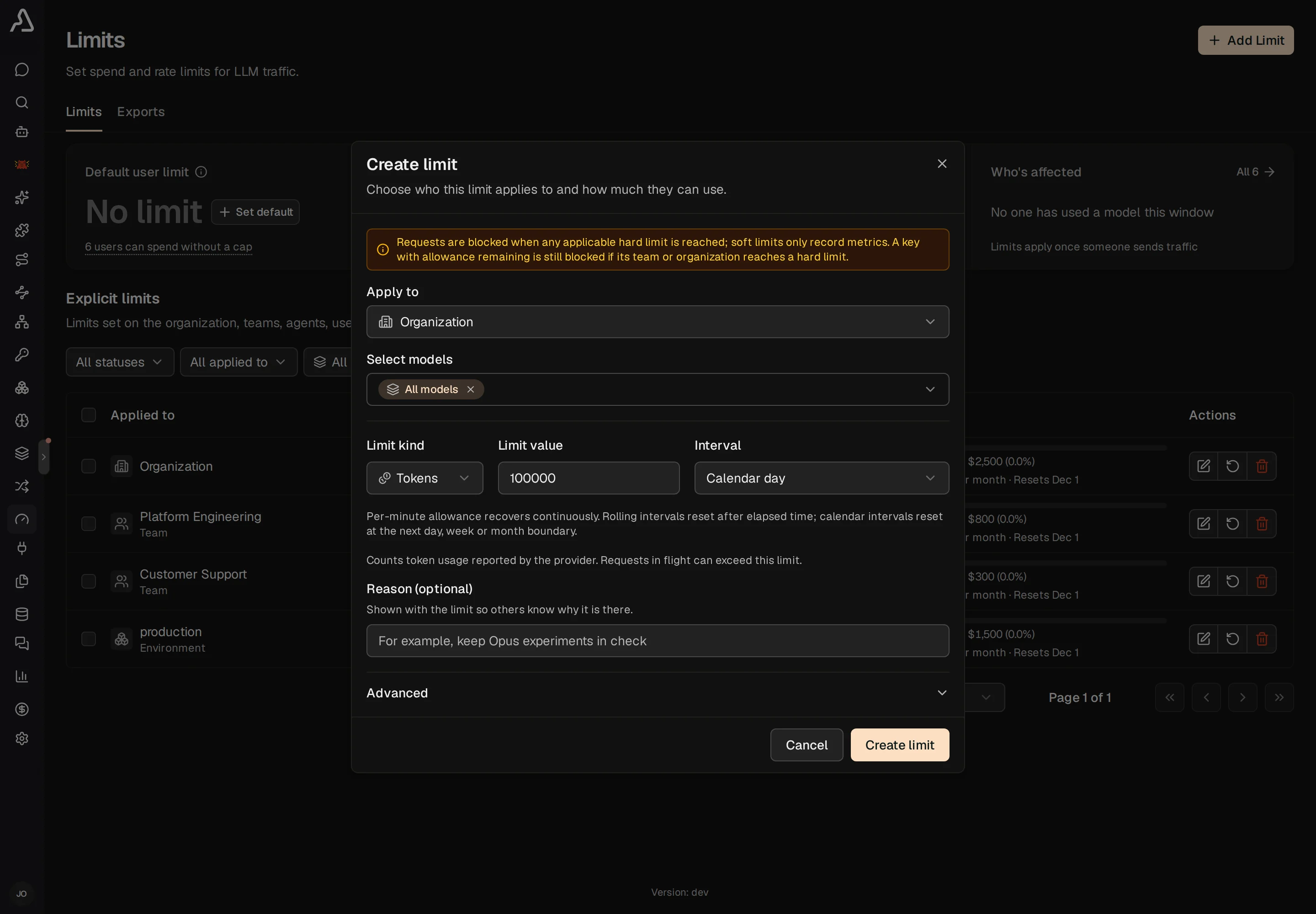
- Under Apply to, choose the scope (Organization, Team, Virtual key, User, Agent, LLM OAuth client, or Environment) and select the target entity.
- Under Select models, keep All models so every model shares one pool, or pick specific models to cap only those models.
- Enter a whole-number Limit value, choose the Limit kind (Spend, Tokens, or Requests), and pick the reset Interval.
- Optionally expand Advanced to choose Behavior (Hard limit blocks; Soft limit observes without blocking) or add labels, then click Create limit.
Scopes and Limit Kinds
Organization, Team, and Virtual key scopes support all three limit kinds, including per-minute rate limits. User, Agent, LLM OAuth client, and Environment scopes support Spend limits on hourly, multi-hour, weekly, monthly, and calendar intervals.
| Scope | Spend ($) | Tokens | Requests |
|---|---|---|---|
| Organization, Team, Virtual key | Rolling (1h–1m) and calendar intervals | Per minute, plus all rolling and calendar intervals | Per minute, plus all rolling and calendar intervals |
| User, Agent, LLM OAuth client, Environment | Rolling (1h–1m) and calendar intervals | — | — |
When more than one rule matches a call, every matching hard rule must allow it:
- Every matching scope must allow the request. A virtual key with remaining allowance is still blocked if its billing team or the organization has reached its cap.
- Model-specific and all-models rules both apply. A call to
claude-sonnet-4-6checks both any rule targetingclaude-sonnet-4-6and any rule set to All models on the same scope. - Multi-model rules share one pool. Selecting multiple models on a single rule caps their combined spend, tokens, or requests together.
- Team budgets include child teams. A request billed to a team counts against that team and every parent team. Without a billing team, it counts toward teams the person belongs to, directly or through a child team, and the agent is shared with.
Team Limits
Open Cost Controls in the sidebar to view usage for teams you administer and their child teams. Use Add Limit and select a child team to give it an allowance. See team member and admin roles.
You can create, edit, delete, and reset child-team limits, including allocations set by your organization. Your own team's ceiling stays read-only unless you also administer one of its parent teams. A child with allowance left is still blocked when a parent reaches its limit.
In Virtual Keys, you can create keys and manage spend caps for members of your team and its child teams. Choose a billing team under Who pays for this key?, then select an eligible Key owner. Team admins cannot manage members' keys without a billing team, and only the owner can copy a key created for them.
Other limit scopes still require the organization permissions above. Organization-wide spend requires llmCost:read.
Limit Behavior
Hard limit blocks requests when the allowance is exhausted. Soft limit keeps requests flowing and records exceeded checks in Prometheus. Use soft limits to observe a workload before enforcing a cap. Existing limits and newly created limits default to hard.
Choose Behavior under Advanced when creating or editing an explicit spend, token, or request limit. Changing behavior preserves recorded usage and the reset schedule. A soft limit does not override another matching hard limit. Default user allowances remain hard.
See Limit Metrics for the counters. Your existing monitoring and alerting stack can use them to notify your team.
Reset Intervals
Each limit resets or recovers according to its Interval:
| Family | Options | How it resets |
|---|---|---|
| Per minute | Per minute (Tokens and Requests on Organization, Team, or Virtual key) | Allows bursts up to the limit value and recovers continuously over 60 seconds (for example, 60 requests per minute recovers 1 request per second). |
| Rolling | Every hour, Every 12 hours, Every 24 hours, Every week, Every month | Resets once the full interval has elapsed since the previous reset. |
| Calendar | Calendar day, Calendar week (Sun), Calendar week (Mon), Calendar month | Resets at 00:00 local server time at the start of the next day, Sunday, Monday, or month. |
Reset a Spend Limit
Unblock a spend limit before its next scheduled reset. In Explicit limits, click Reset usage on the limit and confirm. Spend starts again at $0, and cost reports keep the past usage.
- A Calendar interval keeps its schedule. A Rolling interval next resets one full interval after your reset.
- Token, request, and per-minute limits have no Reset usage. They recover on their own schedule.
- Resetting a limit needs
llmLimit:update. Team admins can also reset child-team allocations. Resetting a child does not reset its parents' usage.
Default User Spend Limits
At the top of Limits, the Default user limit card sets a baseline per-user spend allowance without creating a separate rule for every member. Click Set default (or Edit), enter a Limit per user ($), choose an Interval, and pick All models or specific models. Every user gets their own individual counter of that size, while any matching organization, team, virtual key, agent, OAuth client, or environment rules in Explicit limits still apply on top.
- Environment override: click Environment override (or N environment overrides → Add environment override) on the card to set a different default per-user cap for a specific Environment.
- Custom limit for one user: under Who's affected, click All N to open Users and their limits, open a user's actions menu (...), and select Set custom limit (or create a User spend limit in Explicit limits). You can include an optional Reason note that appears in the drawer and table. A hard custom user limit overrides any environment override and the organization default, and starts its own counter at
$0. A soft custom user limit observes usage alongside the hard default allowance. - Reset a user's current window: in Users and their limits, click Reset on a user at their limit (or Reset usage from ..., or Reset all N when filtered to At limit) to zero their spend for the current window immediately. The next scheduled reset stays unchanged and past usage remains in cost reports.
How Usage Is Counted
- Spend (
$): counts metered API-key calls at the model's token prices, cache reads and writes included. Calls on flat-rate subscriptions record$0spend and do not consume spend limits (see Subscription vs Metered Cost). A charge estimated for a missing price counts too, and the limit shows Includes estimates. - Tokens: counts newly processed input and output tokens reported by the provider after each call finishes (including cache writes and subscription traffic; reused cached input does not consume token limits). Because token counts arrive when a response completes, requests already in flight can push usage slightly past a token limit before subsequent requests are blocked.
- Requests: counts one request when the proxy admits a model call, including subscription traffic.
When a Request Is Blocked
When any matching hard rule is exhausted, the proxy rejects the call before forwarding it upstream:
| Limit reached | HTTP status | Error code | Details |
|---|---|---|---|
| Spend | 402 Payment Required | token_ | Returned when any matching spend limit has reached 100%. |
| Tokens or Requests | 429 Too Many Requests | archestra_ | Includes a Retry-After header (in seconds) indicating when enough allowance recovers or resets. |