
Costs
Open Costs & Limits → Costs to see where your organization's model spend, tokens, and requests go across virtual keys, teams, agents, models, people, apps, skills, and custom labels. Viewing organization-wide costs requires llmCost:read.
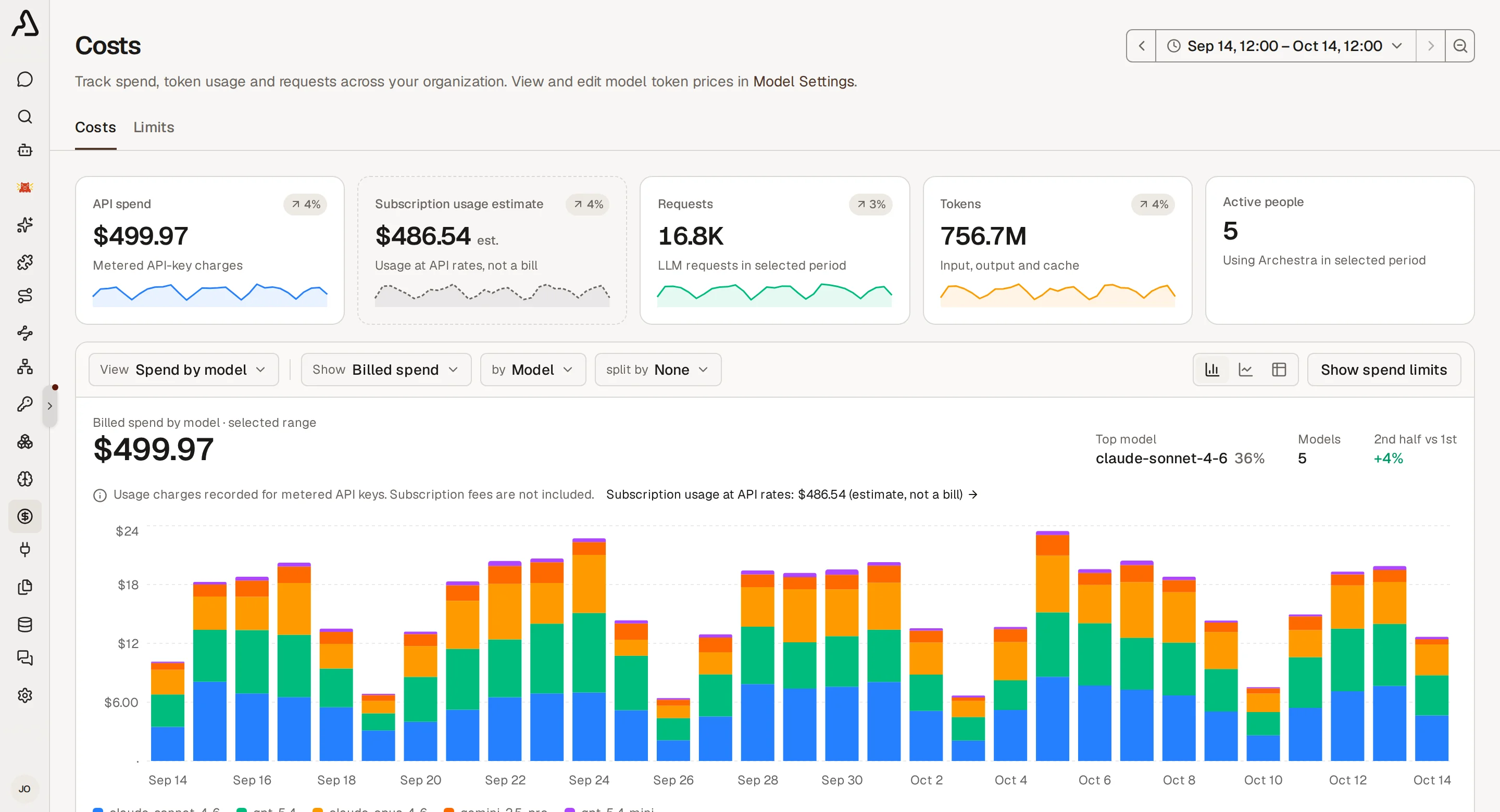
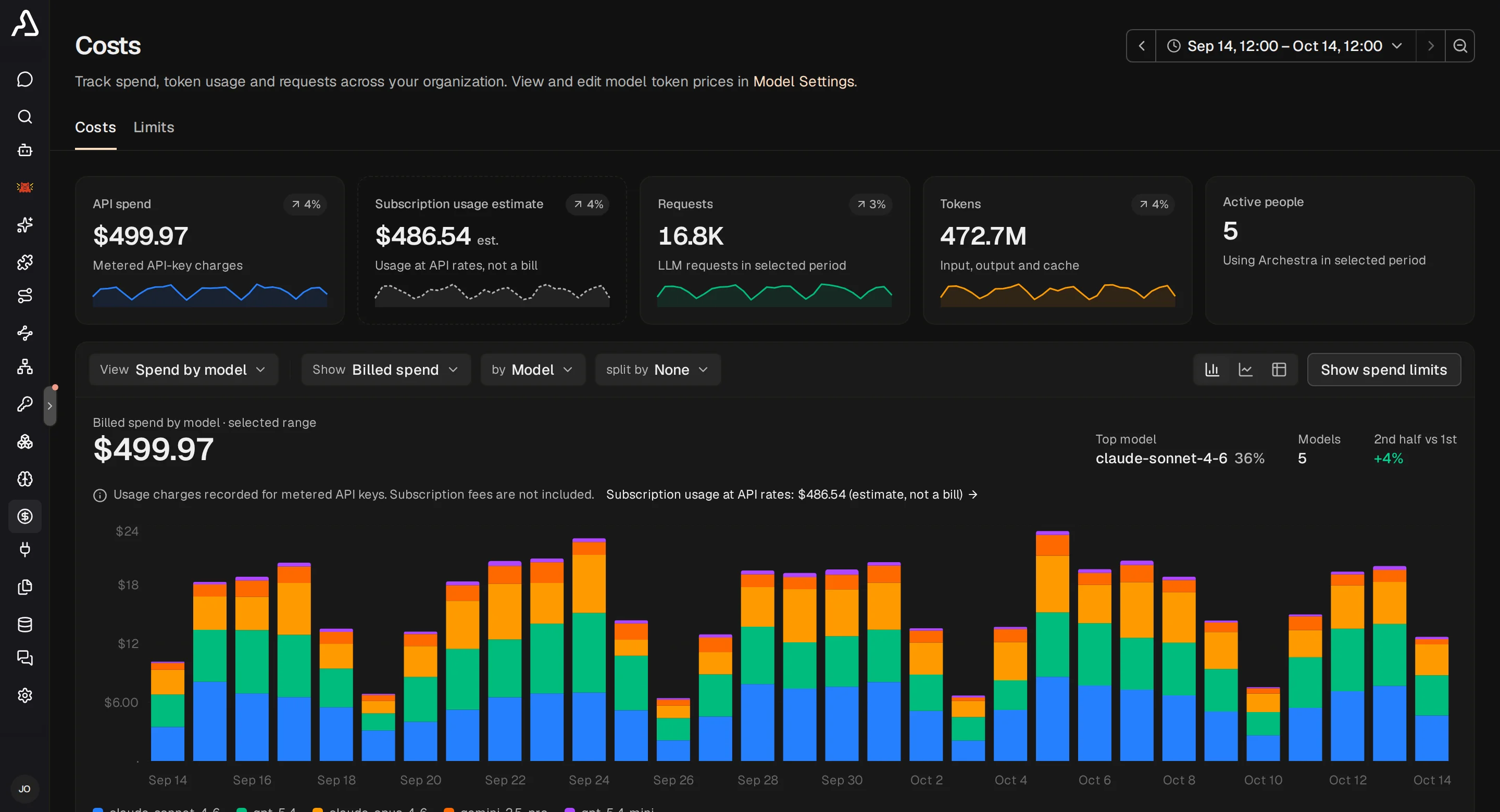
Headline Totals
Pick a time range in the top-right corner (Today, Last 7 days, Last 30 days, Last 90 days, or Custom). Five summary cards at the top of the page update for that window:
- API spend: metered charges from per-token API keys.
- Subscription usage estimate: what calls through flat-rate subscriptions would have cost at list API rates (see Subscription vs Metered Cost).
- Requests: total model calls in the selected period.
- Tokens: newly processed input and output tokens (including cache writes; reused cached input is shown separately and does not add to the total).
- Active people: distinct users who ran a model call in the period.
Slice Usage in the Cost Explorer
Below the headline cards, use the cost explorer to break down usage by any dimension or start from a preset View:
- Choose Show to pick the metric: API spend, Subscription estimate, Requests, Tokens, Cost / 1k requests, Tokens / request, Cache hit rate, Active people, App runs, or Skill activations.
- Choose by to group rows by Virtual key, Team, Agent, Model, Provider, Person, App, Skill, MCP server, MCP tool, or Label.
- Optionally choose split by to break each row down by a second dimension, such as Team split by Model or Label split by Team.
Switch between Summary (ranked totals, share of total, and period-over-period trend) and Pivot (a heat-shaded matrix with time buckets or split values as columns). Click any row to isolate it in the chart, click Copy as CSV to export the current table, or click Show ... limits in the toolbar to jump to Limits filtered to the selected scope or row.
Group Proxy Costs by Label
When external gateways, CI jobs, or backend services call the LLM Proxy with a Virtual Key or OAuth Client, tag those credentials with key=value labels (such as cost_center=engineering or env=staging) to group their spend in the explorer.
Label attribution resolves on each request in this order:
- Labels on the authenticated Virtual Key or OAuth Client take priority.
- If the credential does not set a given label key, the request inherits that key from its billing Team.
- Labels are captured when the request starts, so editing a key's or team's labels later does not rewrite past cost reports.
In Costs & Limits → Costs, set by to Label and pick a label key (defaults to cost_center), or choose the Spend by cost center preset view. Requests without the selected label key appear under Unlabeled.
View Your Own Usage
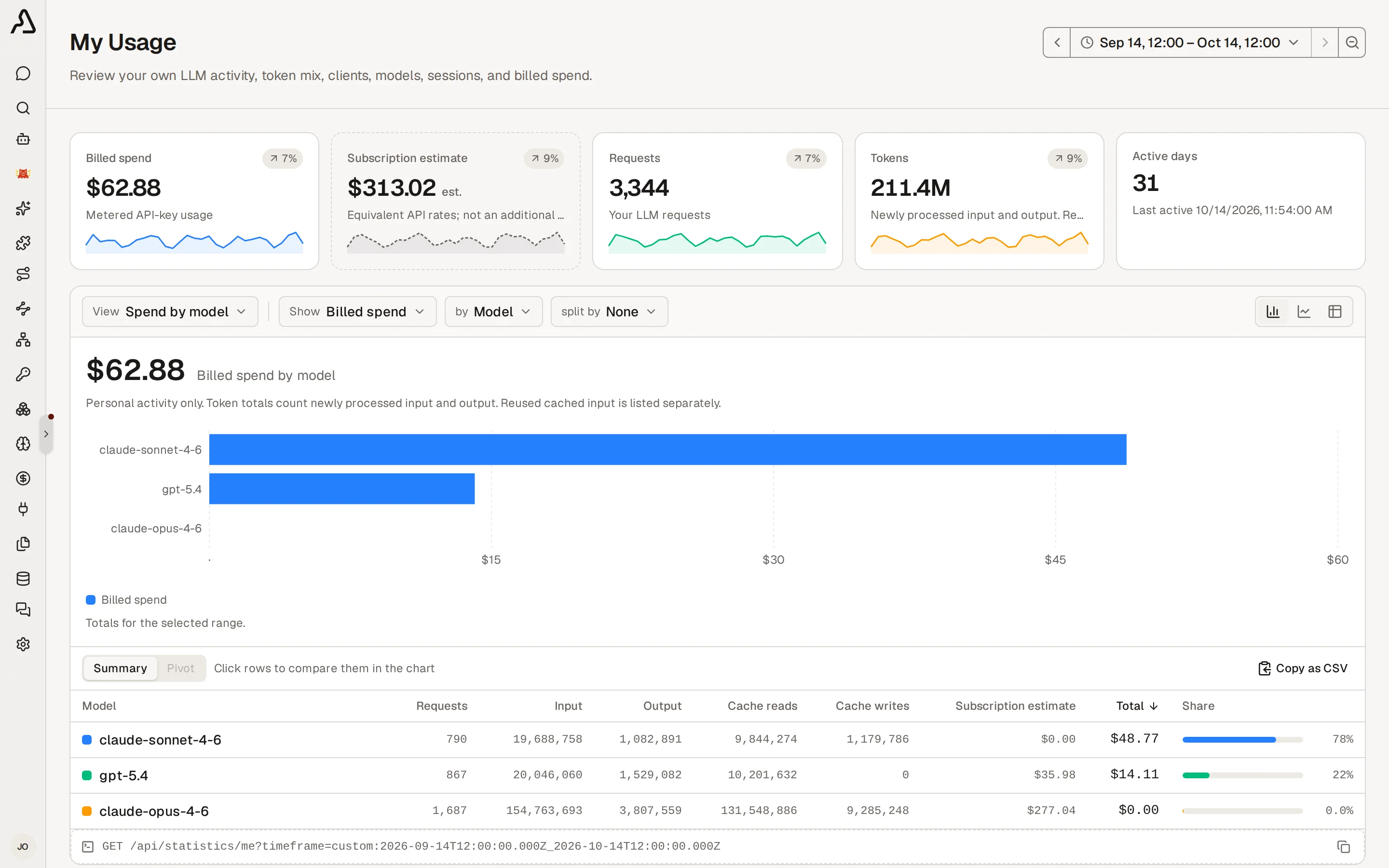
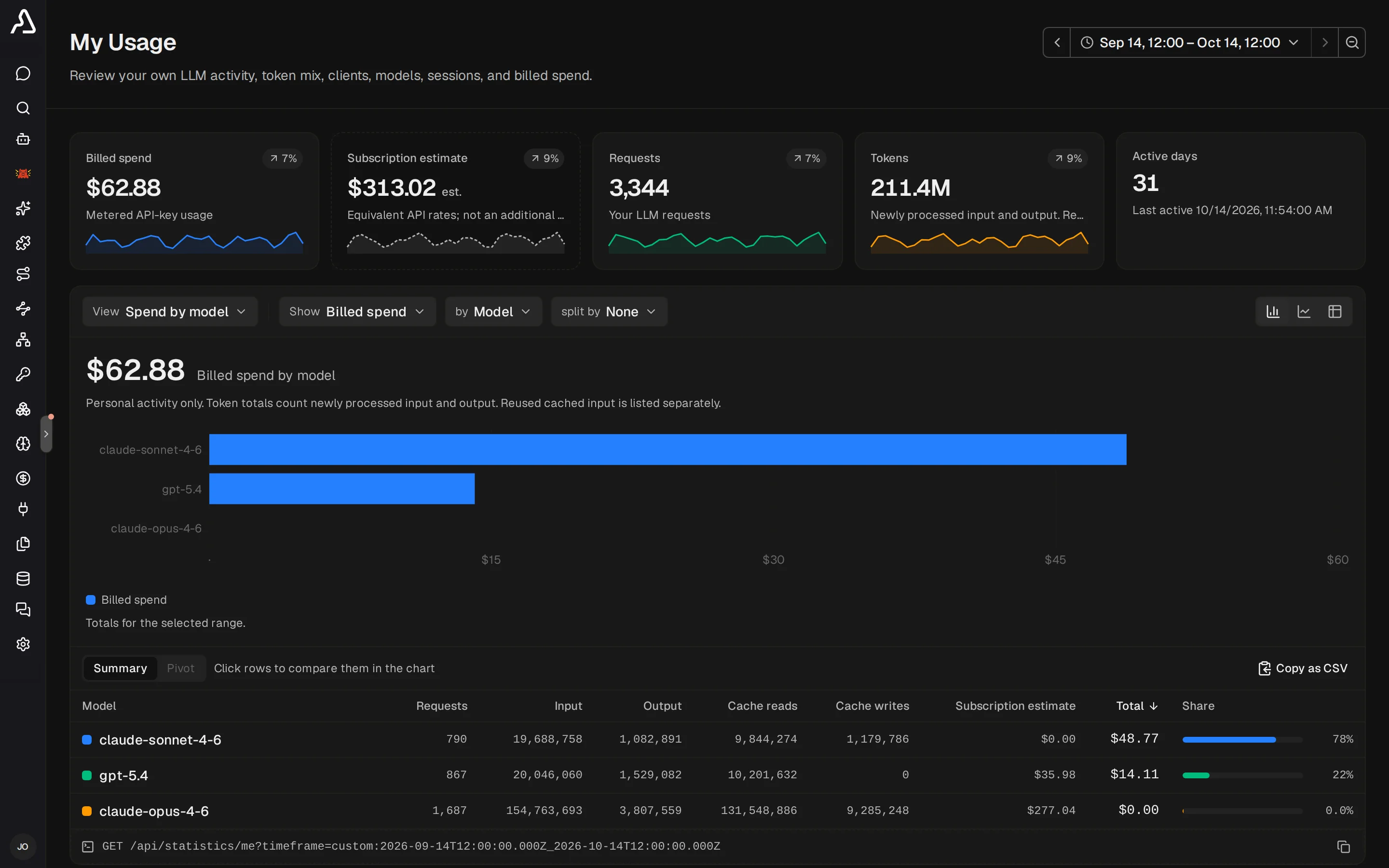
Anyone signed in to Archestra can open My Usage in the sidebar to see their own personal spend, subscription estimate, requests, and tokens without needing llmCost:read. It offers the same date range picker, chart, and explorer controls—grouped by Agent, Model, Provider, Virtual key, Access method, App, or Skill—scoped to calls attributed to your account.
What to Know
- Query the same data via API: the footer of the cost explorer shows the exact
GET /api/statistics/costsorGET /api/statistics/llm-proxyrequest behind the current view so you can copy it for scripts or internal billing pipelines. - Export to Prometheus and Grafana: for real-time scraping and alerting, use the LLM cost and token counters in Prometheus Metrics.