Managed Agents
A managed agent gets a dedicated runtime: its own container, running an agent such as Claude Code or Codex. You get a live terminal, and the files persist. Send follow-ups and continue later with the same files.
Managed Agents become available when your Kubernetes cluster serves the Agent Sandbox API. They need persistent storage and the Agent Sandbox controller. See Setup.
A run uses the agent's instructions, tools, skills, and permissions. Its model calls go through the LLM Proxy and its tools through the MCP Gateway, so logs, guardrails, and cost limits apply.
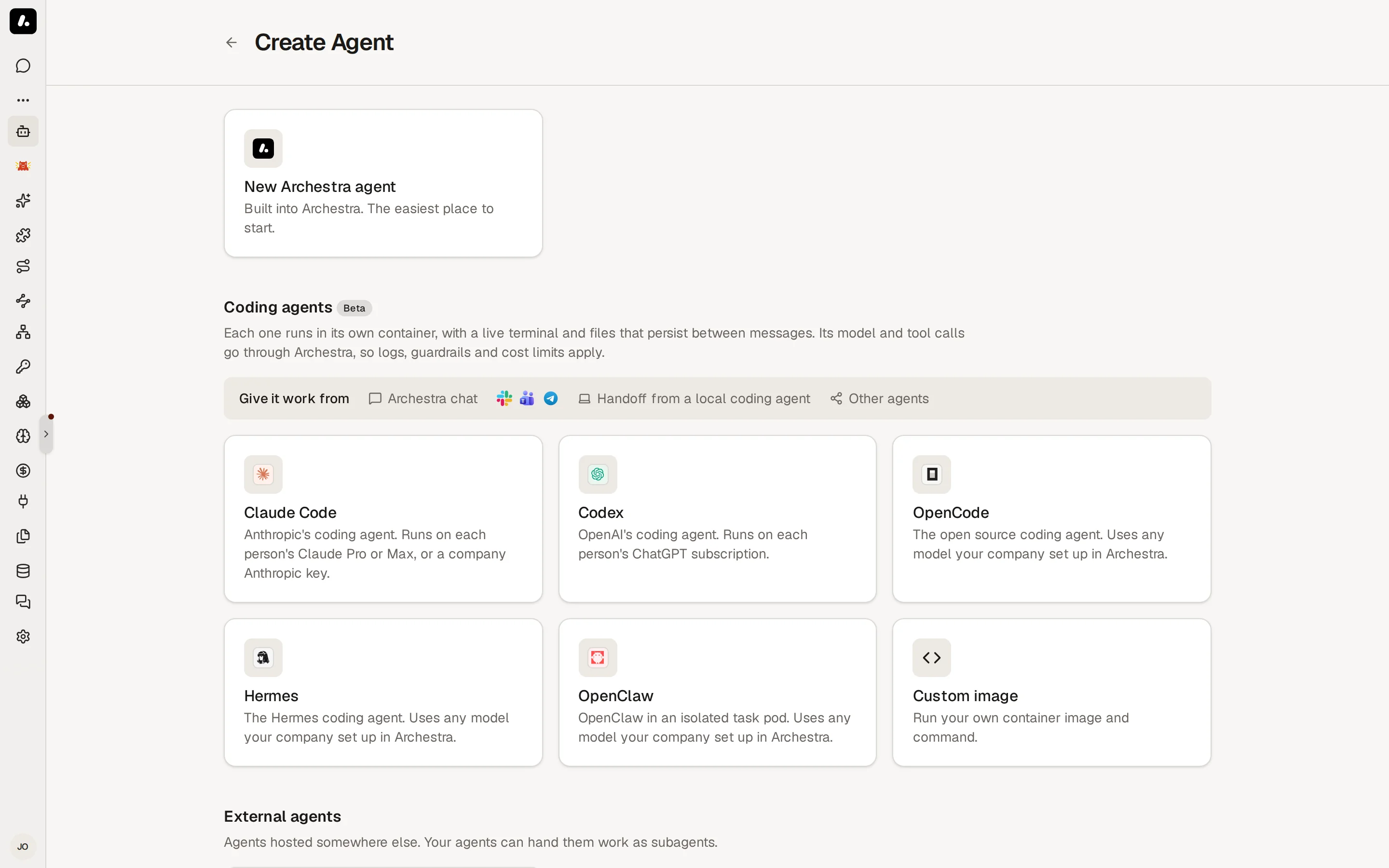
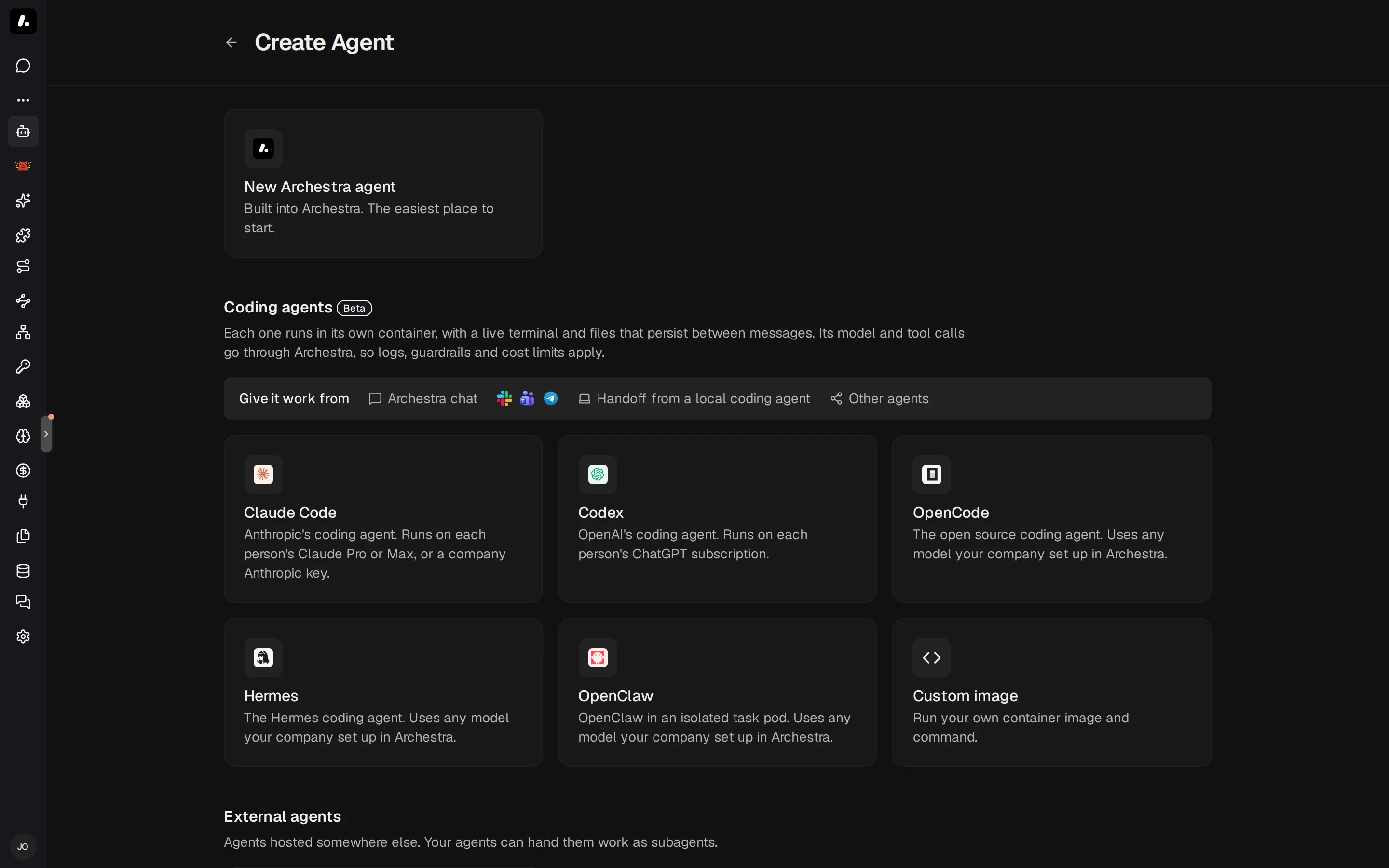
Create an Agent With a Dedicated Runtime
- Go to Agents and click Add Agent.
- Under Managed agents, pick Claude Code, Codex, OpenCode, Hermes, or OpenClaw. The agent opens prefilled.
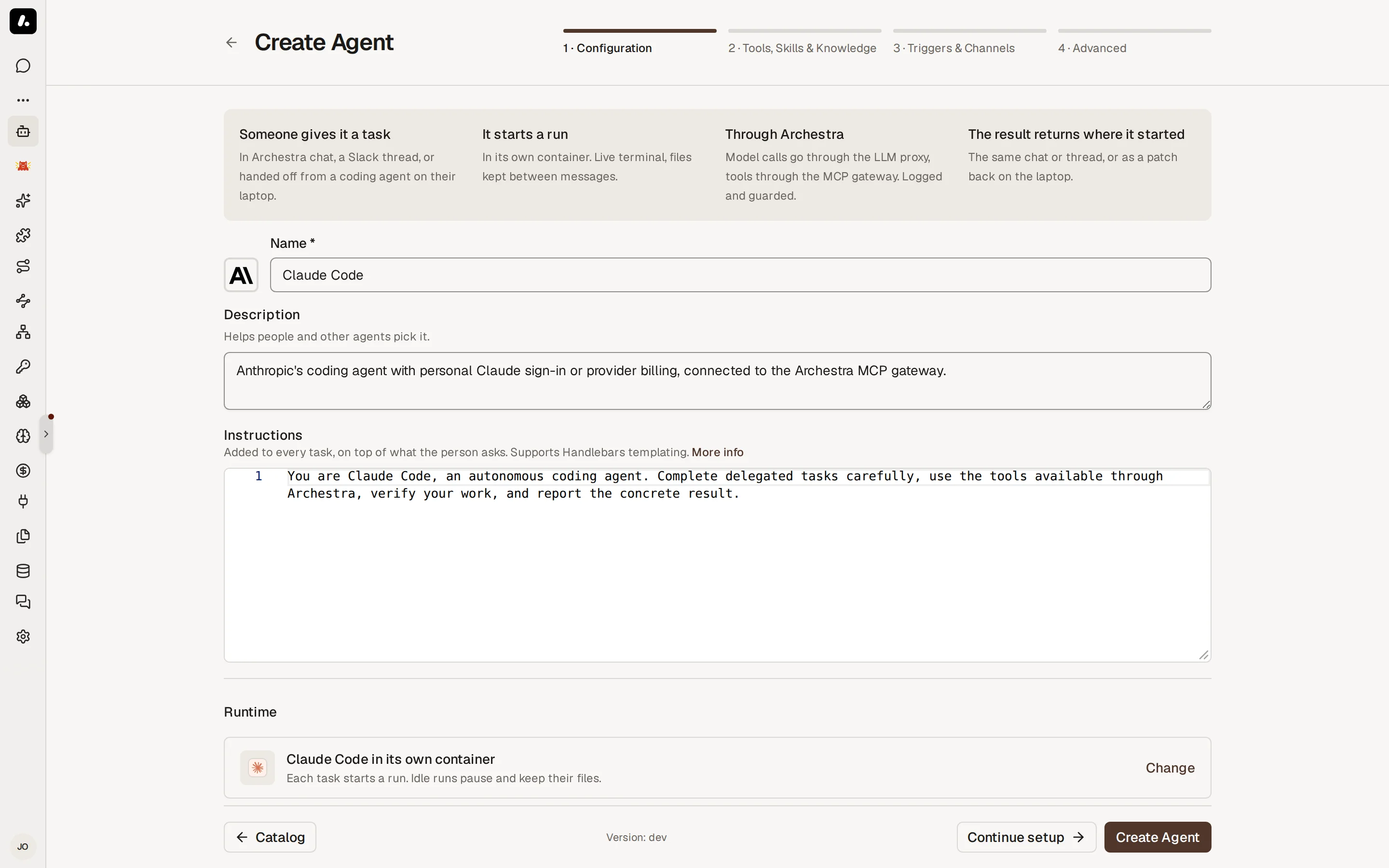
- Review Runtime on the Configuration step. An attention icon marks a setting you must fix. Hover over it to see what to change.
- Click Create and run, or Continue setup to add tools, skills, and knowledge first.
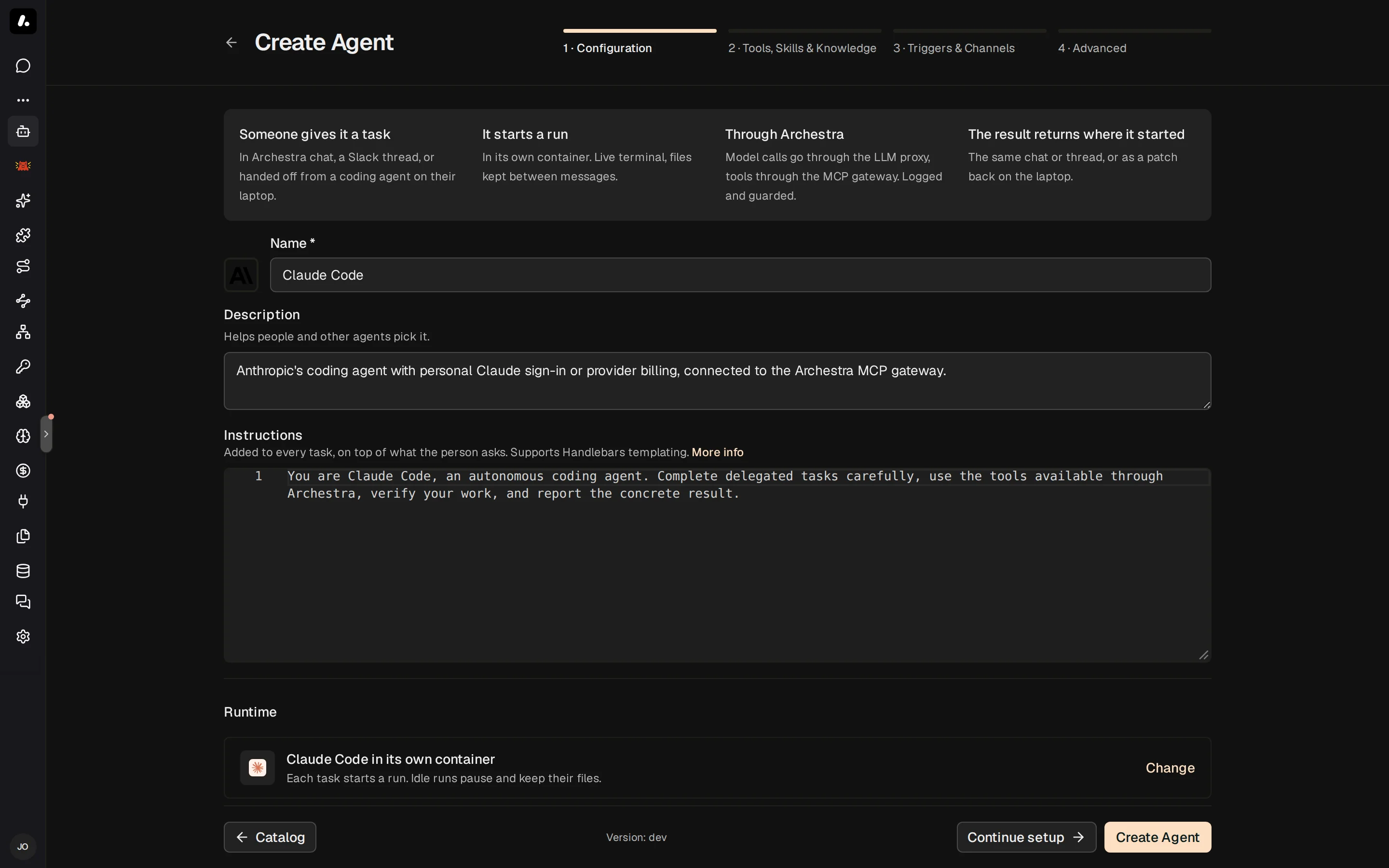
Already have an agent? Open it, turn on Dedicated runtime on its Runtime tab, and click Save changes.
From a connected client, ask your agent to create one. create_agent takes the same choice as runtime: { "template": "claude-code" }, or a custom image. list_llm_models finds a model to pin.
Choose and Order Managed Agents
With organizationSettings:update, go to Settings → Agents → Managed agents to choose the agents offered during creation.
- Click + to add a choice, or remove one with its Remove button.
- Drag the agent chips into your preferred order. You can also focus an agent's reorder handle and use the arrow keys.
- Click Save. The Create Agent cards and Configuration runtime choices follow the saved order.
Removing a choice preserves existing agents and their runtime configuration.
Update the Image
Built-in agent images use the deployment's current catalog image unless pinned by digest. When the image reference changes, your next follow-up restarts the Agent on that image and keeps your files.
If you change a custom image or the Privileged mode setting, which grants access to the host system, start a new run. Existing files are kept until their retention deadline.
Models and Credentials
Each run gets a temporary virtual key. Provider keys stay in Archestra.
- Claude Code: your Claude Pro or Max subscription, or an API key for Anthropic, Amazon Bedrock, or Anthropic on Vertex AI.
- Codex: your ChatGPT subscription, connected under Model Providers. An OpenAI API key does not replace it.
- Other agents: any model provider configured in Archestra.
What to know:
- Each person connects their own subscription before their first run. Subscription usage shows in the logs, but it does not count toward cost limits.
- Claude subscription runs use Opus unless you select another Model. Claude account default follows Claude Code's choice for your account.
- Tools run with the permissions of the person who started the run.
Clone a Private GitHub Repository
The built-in agent images use GITHUB_TOKEN to authenticate Git commands, including git clone.
- Save a GitHub token in Credentials, with access to the repository. Cloning needs read access to repository contents; pushing needs write access.
- Open the agent's Runtime tab. Under Environment, click Add variable.
- Set Key to
GITHUB_TOKENand Type to Secret. Under Secret source, select your saved credential. - Save the agent, start a new run, and ask it to clone the repository using its HTTPS URL. A successful clone creates the repository's directory in the Agent's container.
What to know:
- For a token used only by this agent, choose Resource-specific secret instead. Secret values are provided after saving; turn on Required variable to have Chat prompt for a missing value before a run.
- Accept credentials from a connected client controls credential transfers during handoff. It is not required for secrets configured under Environment.
- To compile code with an additional toolchain, such as Go, extend the agent image.
Run a Task
Select the agent in Chat or in a Project and send a task. This starts a run: a container that works on your task. Follow-ups continue the same run. The live terminal opens and shows startup progress. Attach files before you send, and the agent reads them in its container.
- Leave and come back: the run keeps working. Reopen it from the sidebar and send a follow-up.
- Past runs: the agent's Runs tab lists live and finished runs. Select the Open full view expand icon for the larger terminal and run controls. For a retained run you started, select Resume to reopen it without sending a message.
- Stop a run: the person who started it can select Stop in Chat or on the agent's Runs tab. Confirm with Stop run. Saved files and history remain available.
- Copy text: select Select text to copy text with the browser. Select Type to use the running app's controls again.
- Follow-ups reach the agent between its turns. To type them into its terminal instead, set Steering to Terminal input on the Runtime tab.
- Open a web app: for a run you started, select Open full view, then More run actions → View connection details for the agent's port forwarding command.
What to know:
- Only the person who started a run can type in it. Share the run to give others read-only access. Project members and agent administrators can read it without a share.
How Long a Run Lasts
- An idle run pauses. Its files stay. Shell processes and development servers stop, so restart them when you resume.
- A run expires after its maximum duration. Its history stays, but its files go. Push your work to a repository or download it first.
- Stopping a run keeps its files. Deleting its container and storage removes them.
Limits
Set these under Limits on the agent's Runtime tab. A field you leave empty uses the deployment default.
| Setting | What It Does |
|---|---|
| Idle timeout | Stops the run when it finishes a task and no follow-up arrives in this time. |
| Maximum duration | Ends the run after this time, even mid-task, and deletes its files. Follow-ups do not extend it. |
| Metered LLM budget | Blocks metered model calls once the run spends this amount. Subscription usage does not count. |
| CPU and memory | Sets the container's size. |
Network Access
Unless an administrator sets a policy, a run can reach the public internet. To limit it, set a network egress policy on the agent's environment.
What to know:
- A strict policy can break a task. Allow the repositories, package registries, and services the task uses.
- A continued run picks up the current policy.
Guardrails in a Run
Guardrails check each tool call and tool result inside the run.
- Delegated runs get their parent's restrictions before work starts. Follow-up instructions keep them. An answer crosses the guardrail check before another agent gets it.
- Review: a remedy that needs a person shows in the run's live terminal, as the agent's own question card or form. The run's owner approves or denies it there. Client permission settings cannot approve it. An agent with no question card or form keeps the call blocked.
- File downloads: a protected transfer checks the pinned file content before it returns a download command. It refuses a file that needs changes or that passes the protected export limit. The session owner can still download directly.
- Old sessions: turning on Guardrails does not protect work that started before. Start a new session. Guardrails do not replace filesystem or network sandboxing.
Start Runs From Elsewhere
- Your local agent: hand work off from Claude Code or another connected agent, and bring it back.
- A coordinator agent: add the agent as a subagent. The coordinator keeps answering while the run works. This also covers messaging channels: the result returns to the original thread.
- Messaging channels: a message to the agent in Slack, Microsoft Teams, or Telegram starts a run. The bot replies with a link to the run, then posts the result in the thread. A follow-up from the same person continues their run.
- Email: an email to the agent starts a run. The result returns in the thread when replies are on.
- A2A: A2A clients start runs and continue them with the same
contextId. See A2A.
Troubleshooting
- A run does not start: see Setup troubleshooting.
- A run ends with a pod failure: open Failed details for the Kubernetes pod name, failure reason, and container exit code when available. Share these details with your cluster operator; for example,
OOMKilledidentifies a memory termination andEvictedincludes Kubernetes' eviction message. - A model call fails with HTTP 500 and
x-should-retry: false: the organization's Guardrails policy is invalid. An administrator must fix it. Retrying does not help. - A model call fails with HTTP 400 and names
X-Archestra-Runtime-Binding: the agent's image does not send the run headers. Rebuild it on a current maintained image, then start a new run. - Find a run's traffic: LLM Proxy Logs and MCP Gateway Logs show the run ID. For health metrics, see Managed Agents Health.