
Teams
The Edit Team screen: membership, who can edit a team, and how that relates to RBAC roles
A team is a group of users that shares access to agents, gateways and connections. Go to Settings → Teams and pick a team to open the Edit Team screen.
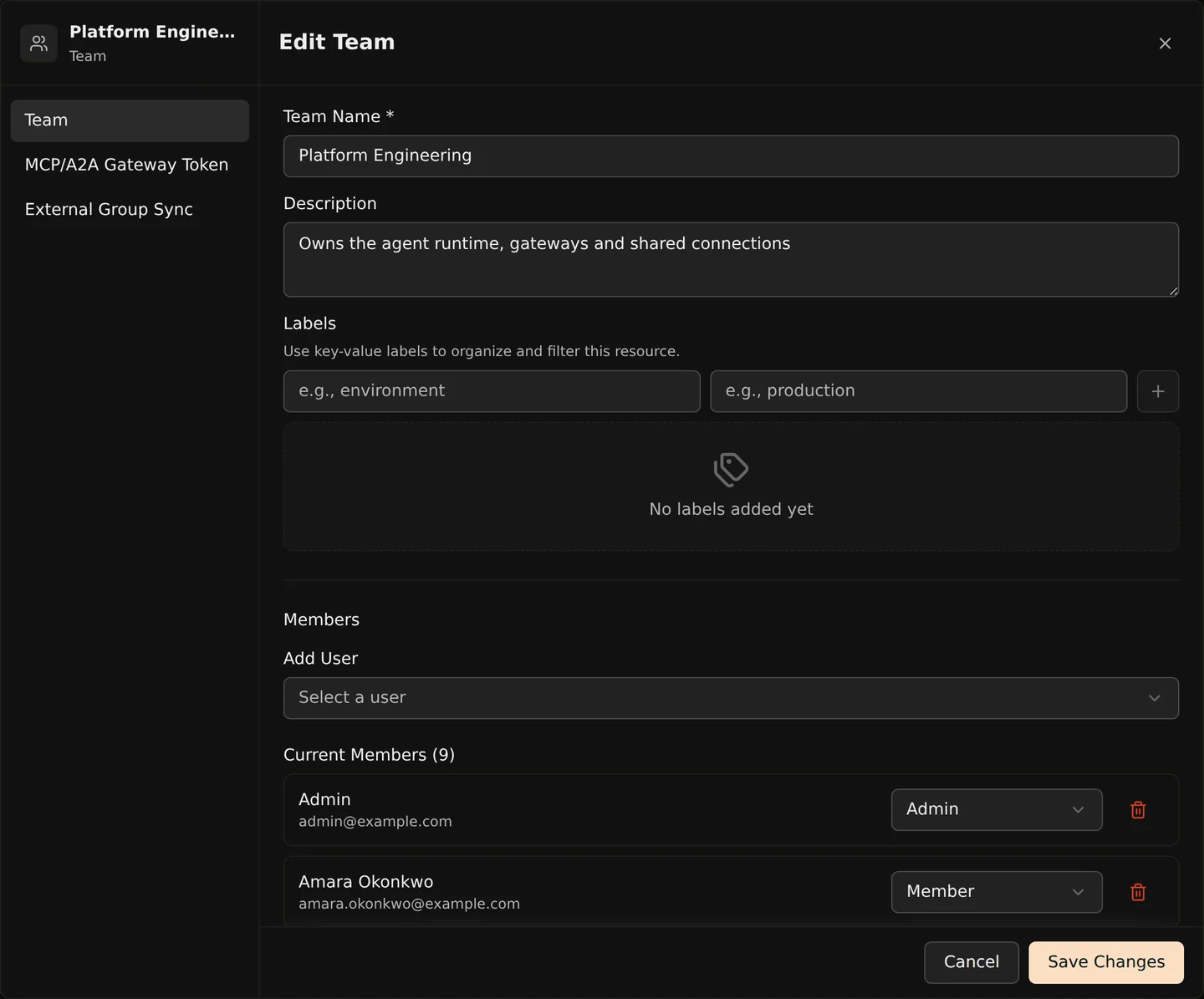
Sections of the Edit Team Screen
Team holds the name, the description, labels, and the people in the team.
MCP/A2A Gateway Token holds the token the team's agents present to the MCP Gateway. You reveal, copy and rotate it here.
External Group Sync links the team to groups from your identity provider. If you want membership to follow your IdP, go here — Team Sync covers how the matching works. Group sync is an enterprise feature; see the Pricing Model.
Who Can Edit the Team
Pick a person under Add User, then use the dropdown beside their name to set what they can do with the team.
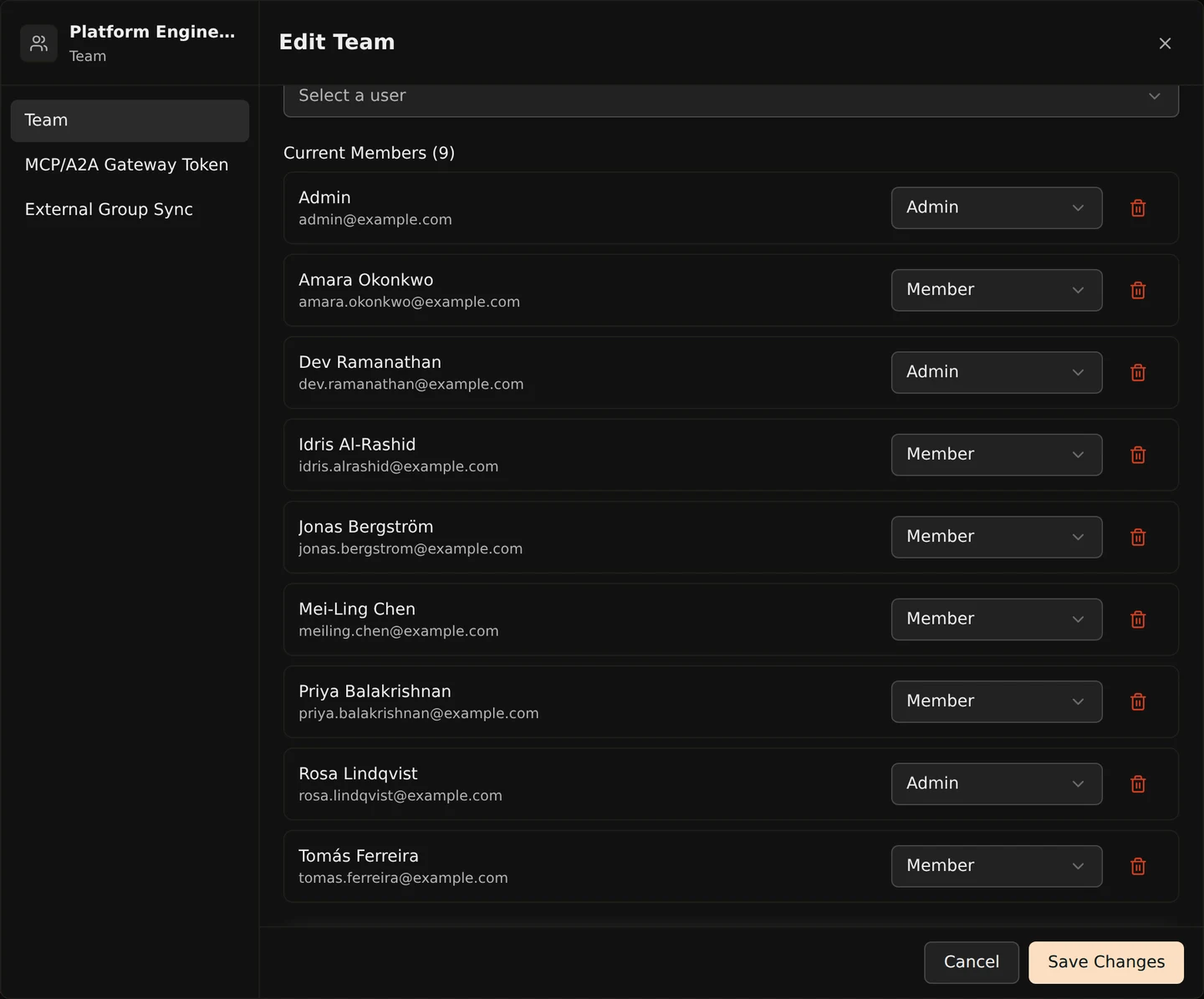
The dropdown has two settings:
- Able to edit the team — this person renames the team, adds and removes people, reads and rotates the gateway token, and manages the connections the team owns. All of it applies to this team and no other.
- Not able to edit the team — this person reaches everything the team has access to and changes nothing about the team itself. Anyone you add starts here.
Changes to the list take effect when you save.
Every team keeps at least one person who can edit it. Removing or demoting the last one fails.
Picking Editors Without OIDC Sync
Group sync only ever adds people who cannot edit the team, and it never promotes anyone. So when your membership comes from an identity provider, come back to this screen to choose the people who can edit the team.
What you choose here survives every later login — sync leaves people who are already in the team untouched. Sync does still remove a person it added once they drop out of the linked group, promoted or not.
Relationship to RBAC
Every user also holds an organization-wide role from Access Control. That role and this screen are separate settings, and neither overwrites the other.
The organization-wide role decides what someone can do across the platform. The dropdown here decides what they can do with one team. Changing one never changes the other.
The two combine like this:
- Someone whose role carries the organization-wide
team:updatepermission edits every team, whatever this screen says. - The dropdown grants that same ability for a single team, without handing it out organization-wide. Granting it makes the person an admin of the
teamresource, scoped to that one team.
Role Mapping assigns an organization-wide role from your IdP claims. It runs on every SSO login, and a role it assigns is written to the user and persists. Role mapping never sets who can edit a team — that stays a decision you make here.
Example
The Platform Engineering team owns the gateway every internal agent connects through. Its people arrive from the platform-eng group in the company IdP, so the member list fills itself and nobody in it can edit the team.
Rosa Lindqvist runs that team. Her organization-wide role carries no team permissions, so she cannot manage teams anywhere on the platform. You open the Edit Team screen and set her to be able to edit the team. She can now rotate the gateway token after a laptop goes missing, and add a contractor for a quarter — on Platform Engineering only. Her organization-wide role is unchanged, and the next SSO login leaves both settings as they are.